There are three ways you can use to test a rule set: unit test, object test, and regression test.
- Unit test: when doing unit test, it shows which value to provide. After hitting the “Run test”, we can see the rule’s results.
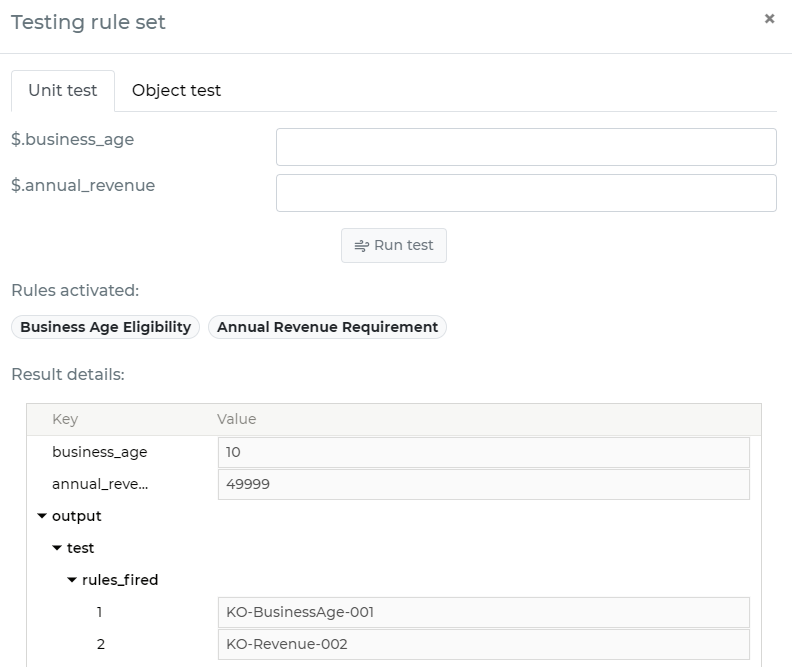
-
Object test: when doing object test, you need to select a data object and then run a test.
-
Regression test: use this to make sure a rule set keeps producing the expected results as you keep changing it over time. Open the rule set's Testing window and go to the Regression tab.
Why use regression testing
Unit and object tests only tell you what the rule set does right now. They don't warn you if a later change accidentally alters an outcome someone was relying on. Regression tests solve that: you save a test case once (an input plus the result you expect), and from then on you can re-run all of your saved cases with one click to confirm nothing has drifted. This is especially useful before publishing a new release, or after several people have made changes to the same rule set.
Creating a regression test
- Open the rule set and go to Testing → Regression.
- Click New test.
- Provide the input for the test, either by:
- selecting an existing saved test object, or
- pasting inline JSON.
- Define what you expect the result to be. You have two options:
- Capture current output as expected baseline — runs the rule set right now with your input and saves whatever it returns as the expected result. Use this when you already trust the current behavior and just want to freeze it so you'll be alerted if it ever changes.
- Add assertion — state a specific expectation yourself, e.g. "the decision equals APPROVED" or "the score is greater than 700". Use this when you know exactly what the correct answer should be (for example, a rule you're building on purpose). Available checks include equals, not equals, greater/less than (or equal to), contains, is null / is not null, and whether a given rule fired or did not fire.
- Click Save test.
Repeat this for every scenario you care about (e.g. one test per customer segment, edge case, or previously reported bug).
Running regression tests
- Run a single test: click the run icon on that test's row to check it in isolation.
- Run all: click Run all at the top of the tab to execute every saved test in one pass.
Each test comes back with one of these statuses:
| Status | Meaning |
|---|---|
| Pass | The rule set produced exactly what the test expected. |
| Changed | The result no longer matches the captured baseline or assertion — something in the rule set changed the outcome for this input. Review the diff shown in the test's details to see exactly what changed. |
| Fail | An assertion did not hold (e.g. you expected APPROVED but got REJECTED). |
| Error | The test could not run at all (e.g. malformed input). |
| Skipped | The test was not included in the last run. |
A test that comes back Changed or Fail is not necessarily a bug — it may simply mean the rule set was updated on purpose and the test's expectation needs to be refreshed. If the new behavior is correct, open the test, edit it, and click Capture current output as expected baseline again to update what "correct" means going forward.
Recommended workflow
- Before releasing changes to a rule set, run Run all in the Regression tab and confirm nothing unexpected shows as Changed or Failed.
- When you fix a reported issue, add a regression test that reproduces it (with an assertion for the corrected result) so the same mistake can't silently reappear later.
- Keep test names descriptive (e.g. "high income, poor credit → manual review") so a Changed/Failed result is easy to interpret without re-reading the input.