The Cases section of the case design studio shows live cases running on your released case design. It is read-only, so you can find a case, inspect everything it has collected and decided, and download its decision package, but the work itself, such as completing tasks and making decisions, happens in the applications your case officers use. Cases appear here after the design is released to an execution node that runs cases; see Runtime setup. Sandbox cases created in the Test studio do not appear here. This section shows real cases only.
- The case list
- The case header
- What's next
- Records
- Case file
- Tasks
- Relationships
- Activity
- Flow
- Events
- The decision package
- The document viewer
The case list
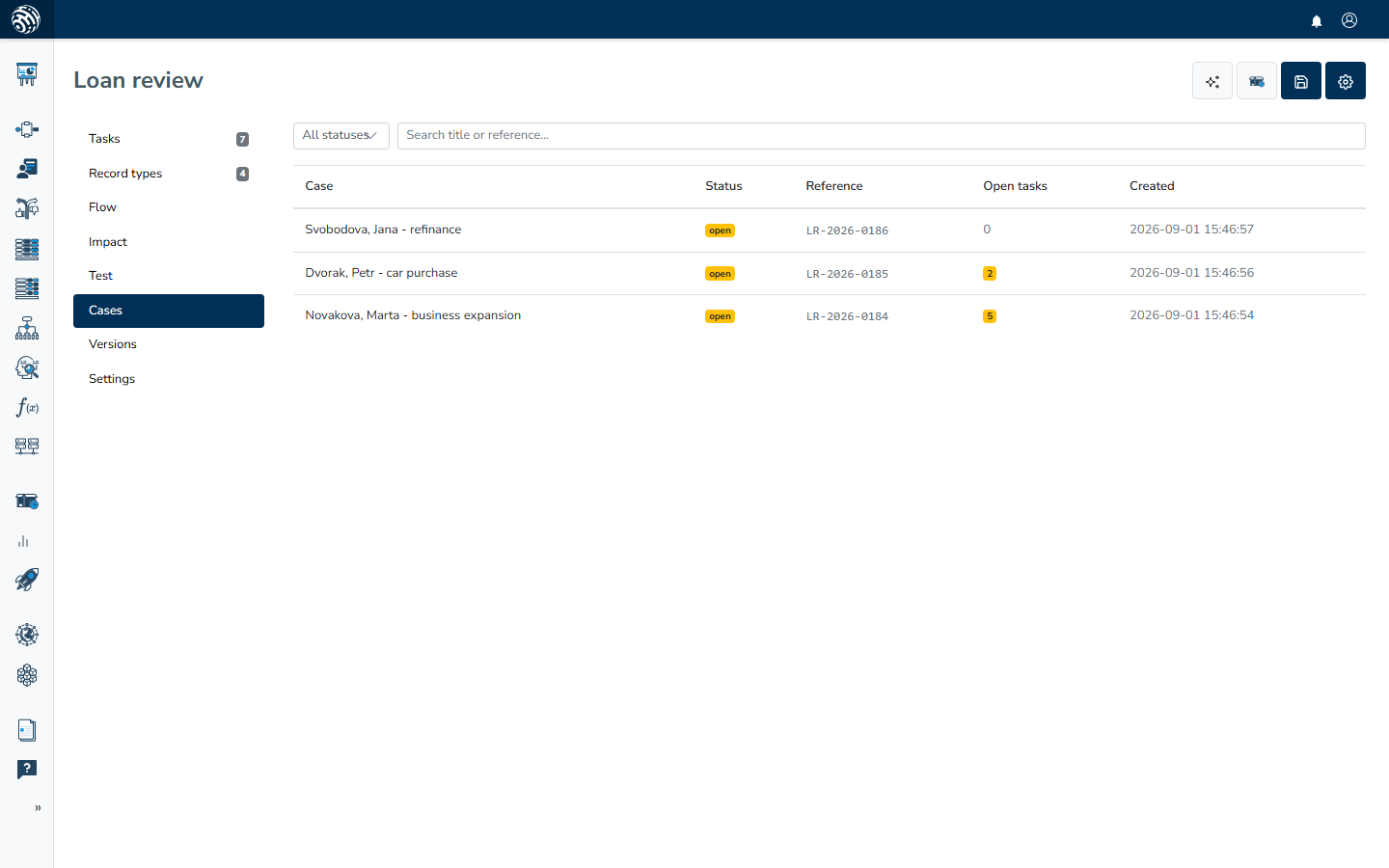
The section opens with a table of cases and a filter bar above it. The dropdown filters by status: All statuses, open, decided, or closed. The search box ("Search title or reference…") searches the case title and its external reference.
The table has five columns: Case (the title, or a shortened case id when the case has no title), Status, Reference (the external reference the case was opened with), Open tasks (a count badge when any task is waiting), and Created. If there are no cases yet, the section reads "No cases yet."; when a filter matches nothing, it reads "No cases match." Click a row to open the case.
The case header
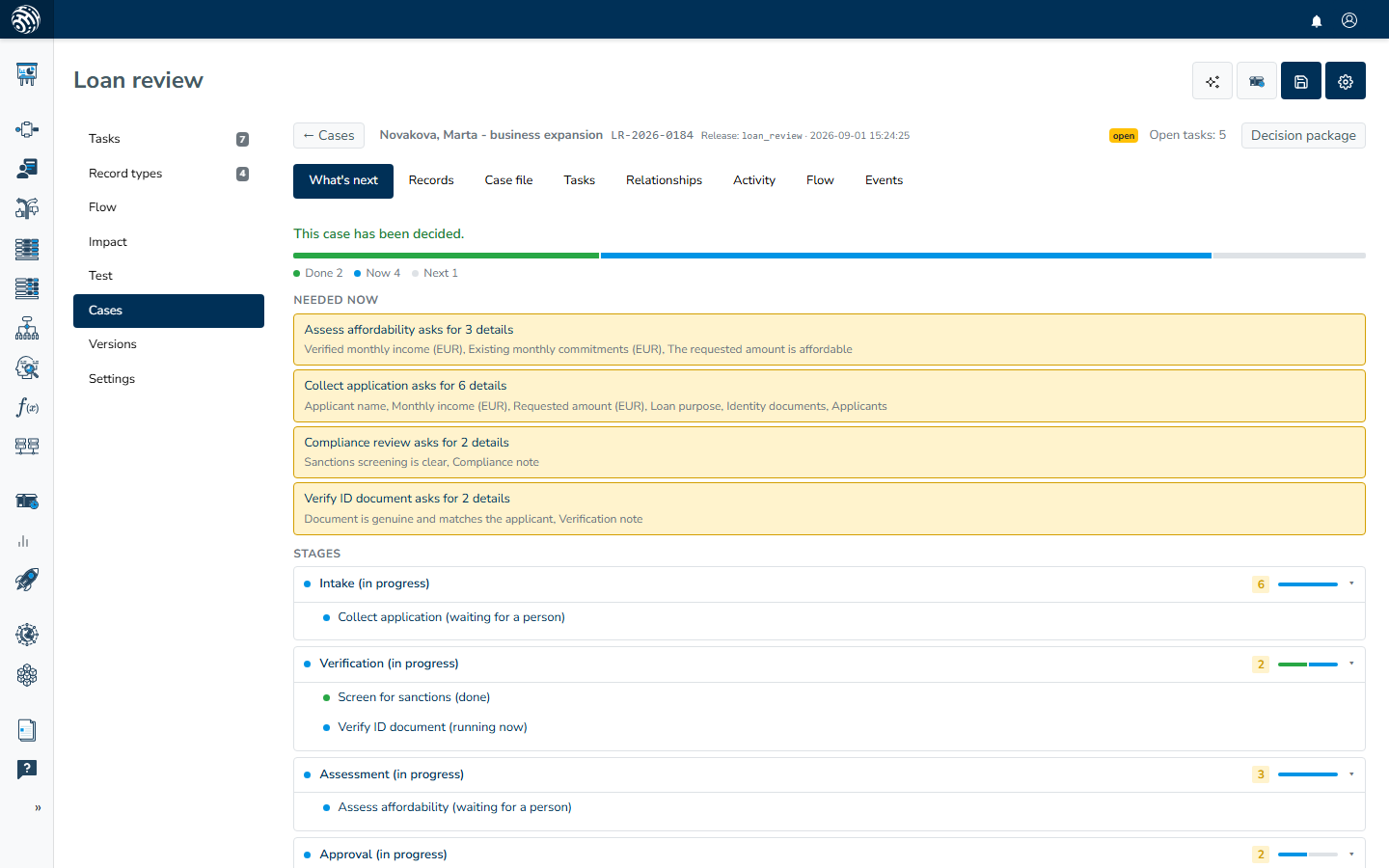
A case opens in a detail view with a header above the tabs. The Cases button on the left takes you back to the list. The header shows the case title, its external reference, and a Release badge with the release the case runs on and its installation date. On the right, you will find the status badge, the Open tasks count, and the Decision package button.
The release badge matters when you have re-released the design since the case started. Each case keeps running on the release under which it was created.
What's next
The first tab is the runtime's forward projection. It shows what still has to happen for the case to reach a decision and what material it still needs. The projection is grouped by the stages you defined as task groups in the design. Each stage has a progress bar split into done, now, next, and blocked bands. Expand a stage to see its tasks, the roles they route to, and the values or documents still wanted before the tasks can run. The final line states the decision the case is heading toward.
If the runtime cannot project a path, the tab reads "No projection available."
Records
This tab contains a table of every record on the case: Record (the record's label, or a shortened id), Type (its record type), and Attributes (the attribute names it carries). Click a row to expand the record and read each attribute's value. A record that holds a document has an Open button, which opens the document viewer.
Case file
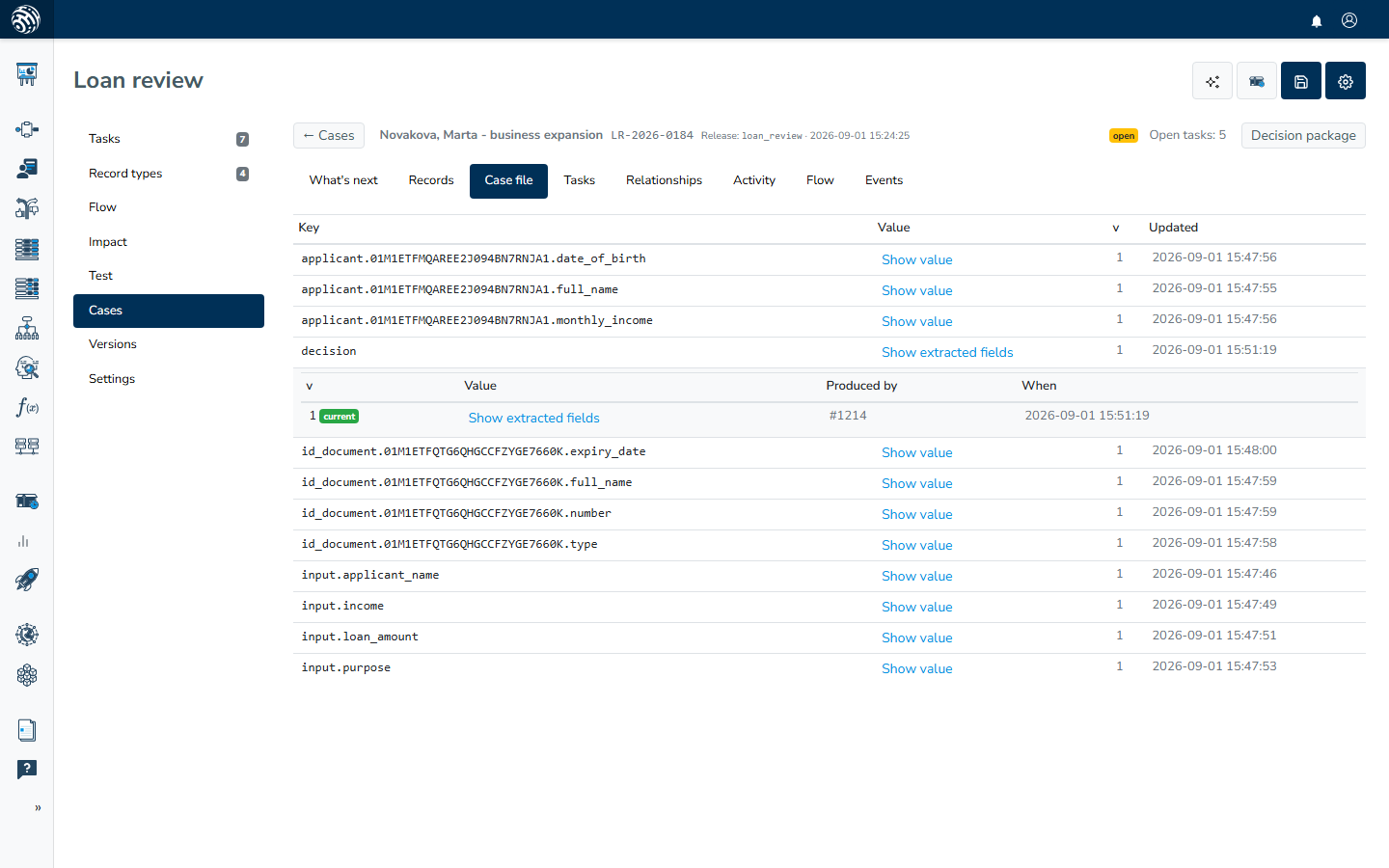
The tab lists every key currently in the case file, with Key, Value, the version number, and Updated. Large values are collapsed. Click a value to expand it.
Click a row to open that key's value history. You will see every version ever written, its value, Produced by (the task that wrote it), and When, along with a "current" badge on the live version. This answers "what was this value before, and who changed it". A key with no recorded versions shows "No versions recorded for this key." An empty case file reads "The case file is empty."
Tasks
Every task raised on the case, whether human or automated, appears as a card with its title and status. The card lists the task's section, the role it routes to ("Role: …"), the assignee once someone picks it up, a due time ("Due …") when the design set one, and the task's creation time. The briefing text shown to the case officer appears as formatted text. A task that was sent back carries a "Reopened:" note with the reason.
Two links sit under each card:
- Briefing preview renders the task's briefing template against the current case file, so you can see what the officer would read right now. If the open task was created earlier and values have changed since, a note warns: "The open task still shows an older render of this briefing." A task without a template shows "This task has no briefing template."
- Evidence appears on tasks tied to a record and expands that record's attributes in place. Attributes holding documents open in the document viewer.
Relationships
This tab shows charts built from the case's records for tasks whose design declares a chart, as described in Human tasks. Each chart appears with its title on the same zoomable canvas as the flow diagrams. If the case's tasks declare no chart, the tab reads "No relationship chart for this case."
Activity
The run log has one row for each run of any task on the case. The Procedure column names the task and its task type, Status shows how the run ended, and a failed run shows its error message under the badge. Wrote lists the case file keys the run produced, and When records the time. Read this table when you need to know exactly what has executed and in what order.
Flow
This is the same run history shown as a diagram rather than a log. Each task that ran appears as a node, shaped by its task type and coloured according to how the run ended, such as completed, failed, or waiting. Solid arrows connect the task to the case file keys it wrote. A dashed arrow points from the value that triggered a run to the task it triggered. You can pan the canvas by dragging and zoom with the wheel; the canvas also has +, −, and Fit buttons.
The studio's Flow section draws the design. This one draws what a single case actually did.
Events
The raw event stream for the case contains Event (the event type), Payload, and When. Everything the runtime recorded about the case appears here, making this the finest-grained view when the other tabs do not explain something.
The decision package
The Decision package button in the header downloads the case's decision package as a JSON file named after the case id. The package is a machine-readable summary of the case, suitable for archiving or handing to a downstream system. See Decisions and completion for what a finished case produces.
The document viewer
Documents attached to a case, such as an uploaded contract, an identity document, or a scanned statement, open in a viewer from the Open buttons in the Records tab and from task evidence. PDFs and images display inline. Text, JSON, CSV, and XML content is decoded and shown in a readable form, so an OCR or extraction result appears as its content rather than raw data. Any other file type cannot be shown here, so the viewer says it has no preview for that content type and offers a Download link instead.