Tasks are the work a case carries out. That might mean a person filling in a form, a document being read, decision logic running, or outside data being fetched. In a case design, each task appears as a card in the Tasks section of the studio. The card says when the task runs, what it runs, and what it writes back to the case file. This page covers the cards, groups, the six task types, and the settings shared by every task. For more on human tasks, see Human tasks. The automated types are covered in Automated tasks.
Task cards
Open a case design and pick Tasks in the left navigation. Each task appears as a collapsible card. Its header shows the task's title, a § badge with its section when the card is outside a group header, a clock icon that opens the task's history once the task has been saved, and an icon for its task type. Click anywhere on the header to open or collapse the card. The grip on the left edge lets you drag the task to a new position in the list.
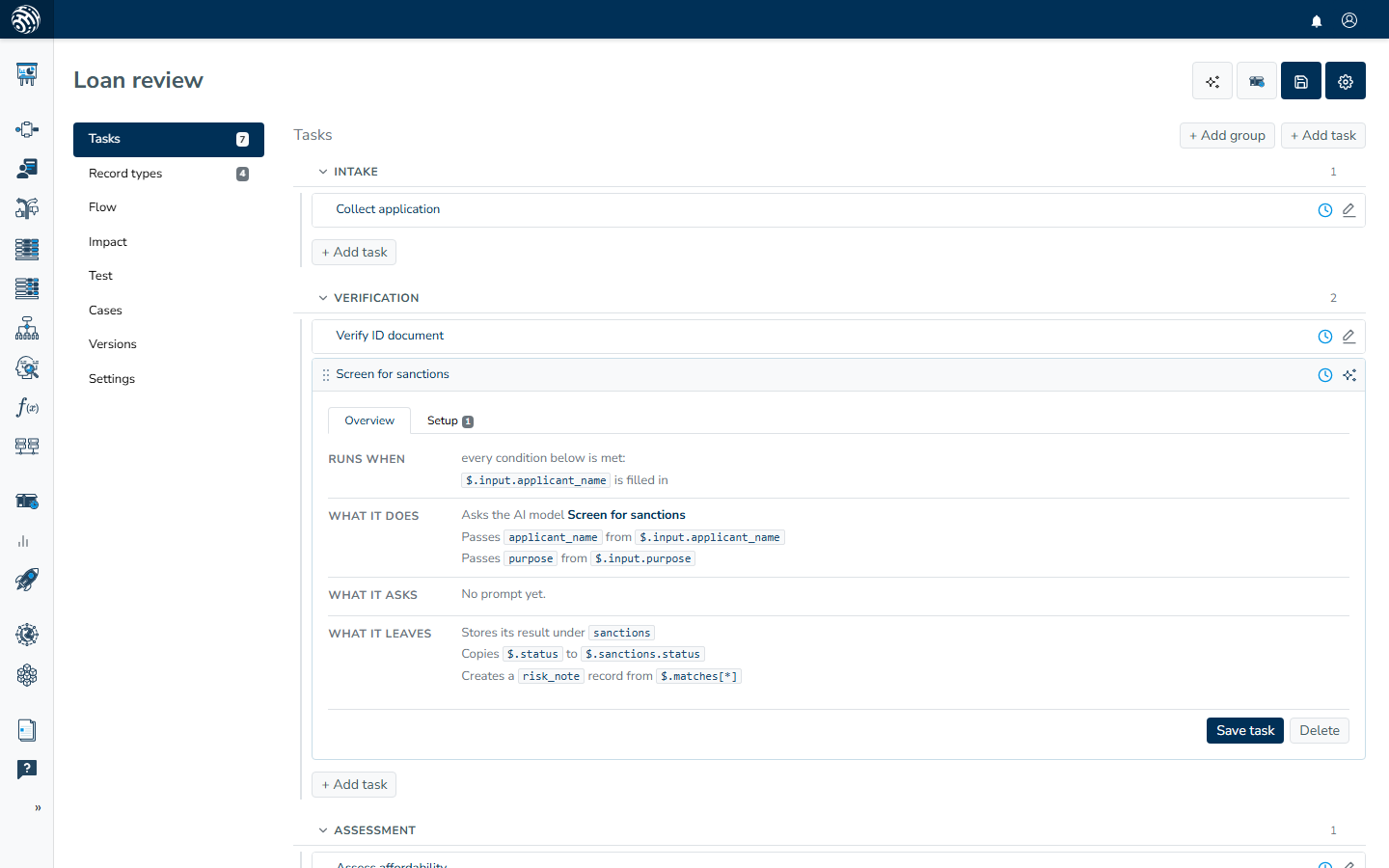
Click + Add task to add a task. The new card is named "New task 1", numbered for the session, and opens on its Setup tab so you can start filling it in. An open card ends with a Save task button and a Delete button. Delete asks for confirmation, then removes the card from the list. The removal is stored the next time you save the whole design.
Groups
Groups make a long task list easier to read. A group is simply a set of tasks with the same Section value, shown under one header.
Click + Add group, enter a Group name, and the group appears as an empty header ("Empty group. Add a task."). Each group has its own + Add task button, which creates the task directly inside that group. You can also move an existing task into a group by dragging its card onto the group. Drop it on another task's row to insert it there, or on the group's body to append it at the end.
The group header has a grip for changing the order of whole groups. It also has a chevron, or you can click the name, to collapse and expand the group, plus a count of its tasks and a pencil that opens Rename group. Renaming a group updates the Section of every task in it. Tasks with no section appear in an Unsectioned list above the groups, and that list always stays first.
When a design has more than two groups, the pane opens with every group collapsed. You can then open the group you need. Group membership and ordering are stored when you save the whole design.
Task types
The Task type dropdown on the Setup tab determines what the task does. Changing the type clears its type-specific setup, so choose the type first. There are six types.
Human task
A Human task gives work to a person, such as reviewing something or answering questions, with document uploads also supported. You choose the role it goes to, the number of hours available, the briefing it shows, and the form fields it includes. Every answer lands on the case file, where conditions on other tasks can react to it. A human task can also collect files or whole tables of rows. Each becomes a record on the case. The full editor, field types, and templating are covered in Human tasks.
Document OCR
A Document OCR task reads a document with an extraction service picked under Runs. Point its Inputs at the file on the case file, typically a record uploaded by a person, and the extracted content returns as the task's result. See Automated tasks.
AI
An AI task sends a prompt to a language model. Under Runs, you edit the model, its system prompt, the prompt template with {{placeholder}} values, the output schema, temperature, and token limit inline. The placeholders come from the case file through Inputs. See Automated tasks.
External data
An External data task calls one of your configured data sources. The source's declared parameters appear as fixed Inputs rows, and each row takes its value from a case file path or a literal value. The response lands on the case file for downstream tasks. See Automated tasks and Data sources.
Decision logic
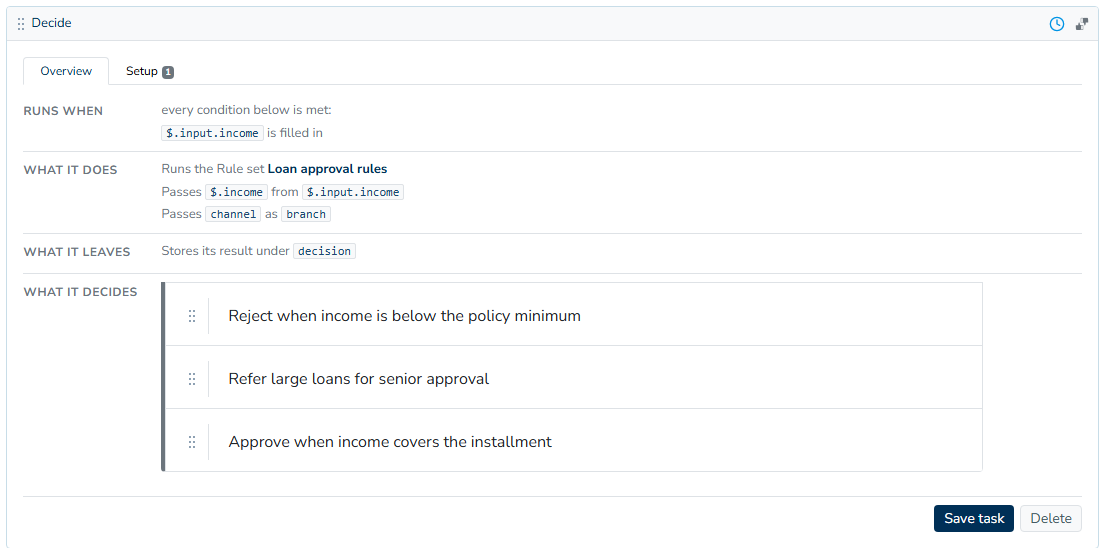
A Decision logic task runs a rule set, decision table, decision tree, scorecard, function, or decision flow selected under Runs. The paths read by the logic appear as Inputs rows, so you map each one to the case file value that should feed it. The Overview tab shows the actual logic inline. See Automated tasks.
Memo
A Memo task writes a document. It renders a Markdown template, with {{token}} values taken from the case file, into finished text stored on the case. Typically, that text is the summary a decision maker reads at the end. See Automated tasks.
The Overview tab
A saved task opens on its Overview tab. Nothing on this tab is written by hand. It is derived from the task's setup and presented as plain sentences, so you can check what the task does before changing it. If the task has a description, it appears first. The blocks that follow are:
- Needs lists what the task waits on, one sentence per condition ("
$.loan_amountis filled in"). See When a task runs. - Does describes the work, including the fields requested from a person, the entity being run, the values passed in, the assigned role, and the due window.
- What it asks appears on AI tasks and shows the prompt itself, with each
{{placeholder}}highlighted. A placeholder that receives no input is flagged, and a note lists it ("Not passed in: … These stay in the prompt as written"). Long prompts are clamped. Click Show the whole prompt to expand them. - Produces lists the result key, every attribute the task writes, and any records it creates.
- Repeats appears only when Max runs is above 1.
- What it decides appears on decision logic tasks and embeds a read-only view of the actual rule set, table, or tree. The Open in editor link takes you to the full editor.
Each block ends with an Edit link that takes you to the Setup tab.
The Setup tab
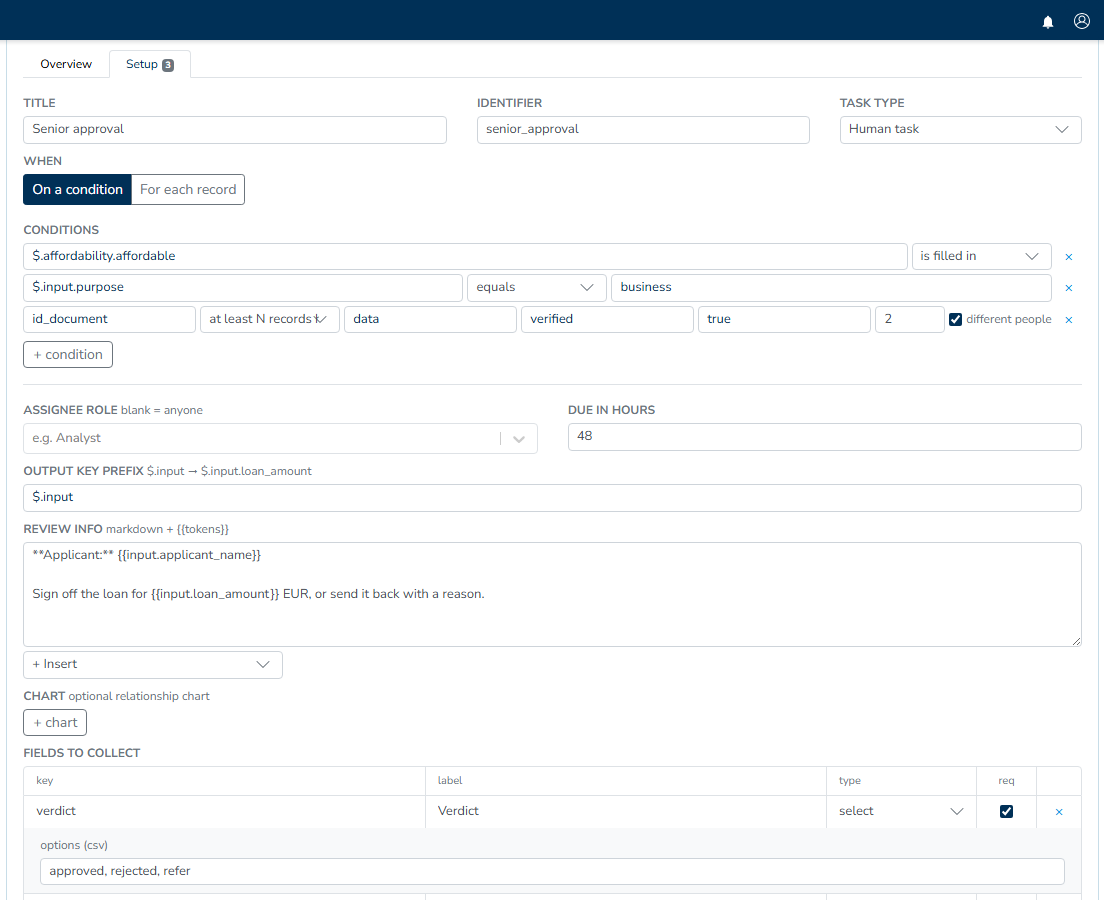
The Setup tab contains everything you can edit, from top to bottom:
- Title, Identifier, Task type. The identifier is the task's machine name. It allows letters and digits, plus underscore and hyphen.
- When: the trigger choice, On a condition or For each record, and the condition rows. These are covered in When a task runs. The Setup tab's label carries a badge with the current condition count.
- Runs: for Decision logic, AI, Document OCR, and External data, this is the entity the task executes. An AI task expands it into the inline model editor.
- The type-specific editor: form fields for a human task, Inputs and Result handling for the entity types, or the template for a memo.
- Writes these attributes: the rows that put the task's results onto the case file or create records. See Writing to the case file.
- Task settings, a collapsed panel described below.
Saving
There are two save actions, and they cover different parts of the design.
Save task, at the bottom of an open card, stores that task immediately and shows "Task saved." Use it as you build one task. The rest of the design remains untouched.
The Save button in the page header, or Ctrl+S, stores the whole design: every task, including unsaved drafts, every record type, group membership, task order, and any deletions made with Delete. A deleted task is removed from the stored design only after this save. When the save succeeds, the studio reloads the design as stored, so new drafts receive their real identifiers.
Task settings
The Task settings panel at the bottom of the Setup tab contains three fields:
- Section is the group the task belongs to. You can type a name here, or set the same value by moving the task with drag and drop.
- Max runs is the number of times the task may run per case. The default is 1. Raise it when the task should repeat, such as a check that runs again when new documents arrive.
- Activity ("detail depth") controls how much each run of this task records: Envelope keeps the run's input and result, Steps adds what happened inside the logic it ran, and Full keeps the most detail. More detail makes a run easier to inspect later, but stores more data.
Task history
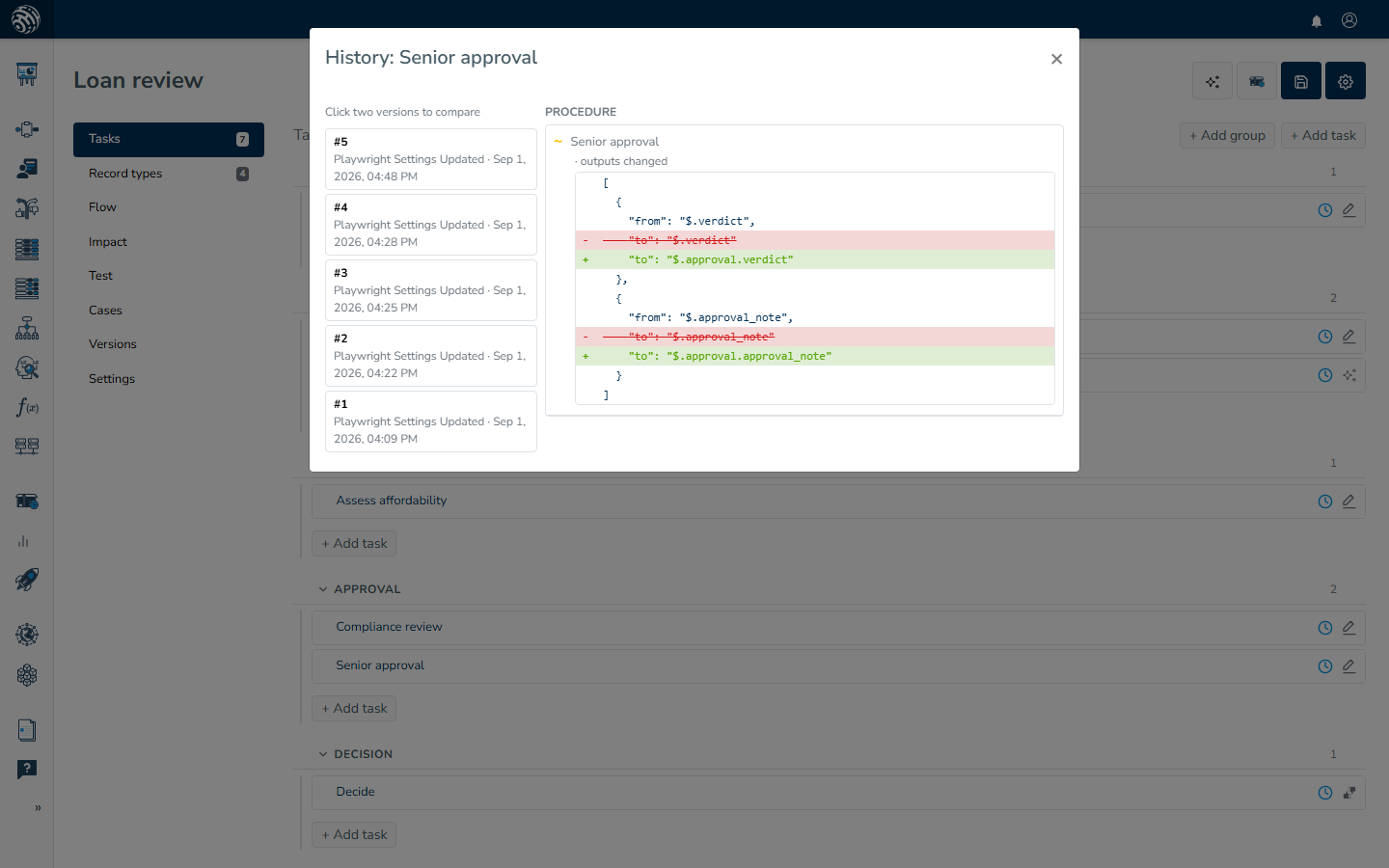
The clock icon in a task's header opens History, the task's own version stream. A version is written each time the task changes in a saved design. Until there are two versions, the modal says "No history yet. It starts accruing with the next saved change."
Once versions are present, the left rail lists them newest first, along with who saved each one and when. Click two ("Click two versions to compare"), and the right side shows the changes between them in plain business language. It uses the same changelog as the Versions page, which covers the whole design. The newest two versions are compared by default.