The Flow and Impact sections of the case design studio show how your tasks depend on each other. You do not draw either view. The studio computes both from the design, so the picture stays aligned with what you have built. Flow maps those dependencies as a diagram. Impact answers a different question: when one input changes on a running case, which tasks run again and which human reviews come back.
Both sections use the task definitions described in Tasks, When a task runs, and Writing to the case file.
- What the flow graph shows
- Node shapes
- Edge styles
- Show unconnected
- Zoom, pan, and Fit
- The Impact section
- Unreachable decisions
What the flow graph shows
Open Flow in the studio's left navigation. Every task in the design appears as a node. An arrow runs from task A to task B when B depends on something A produces. The connections come directly from the design:
- The record type a task is bound to. A task that runs for each record of a type depends on whatever creates those records, as well as on the specific attributes it reads from each record.
{{...}}references in a task's settings, review text, and outputs.- Input rows that a task fills from a case file path.
- The paths read by a connected decision logic entity or AI model.
- Conditions. If a task waits on a value, it depends on whatever writes that value.
On the producing side, the graph counts writes to case file keys, attributes written onto records, records created by a human task's form fields, result keys, and findings a task raises.
The diagram updates as you edit the design. If the design has no tasks yet, the section shows "No tasks to display".
When several things flow between the same two tasks, they collapse into one arrow and their names are joined by commas. If both a record type and one of its attributes would appear on the arrow, the graph keeps only the more specific name, so you see email.address rather than email, email.address.
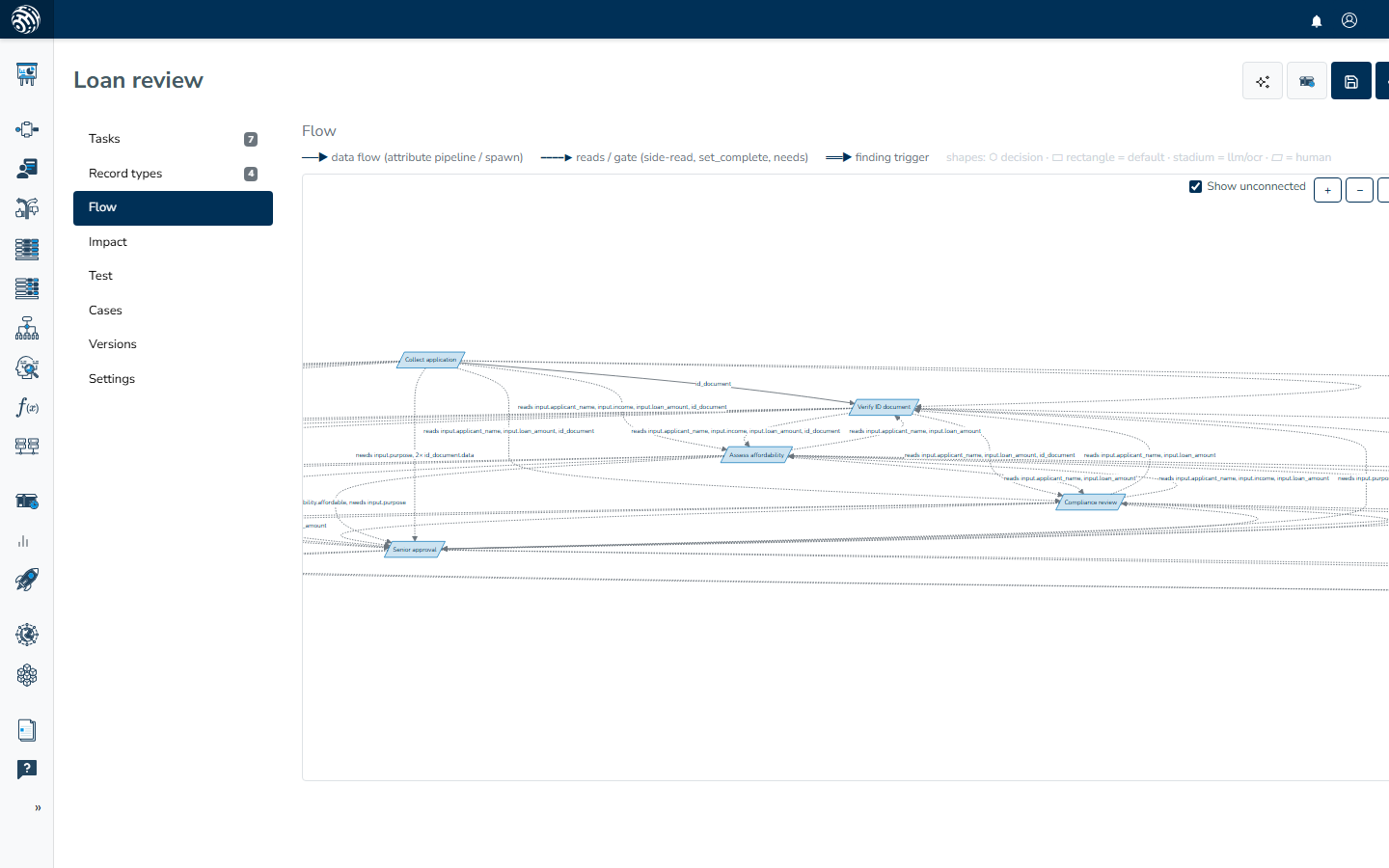
Node shapes
A node's shape and colour follow its task type. The colours match those used on task cards elsewhere in the studio:
| Shape | Task type |
|---|---|
| Hexagon | Decision logic |
| Parallelogram | Human task |
| Stadium (rounded ends) | AI, Document OCR |
| Double-edged rectangle | External data |
| Rectangle | Memo and any other task |
A legend above the canvas summarises these shapes on screen.
Edge styles
Three arrow styles show three different kinds of connection.
Solid arrows show data flow. The reading task consumes what the producing task creates, such as the record it is bound to, an attribute it reads from that record, or a mapped input. The label names what flows, for example application.income.
Dashed arrows show side reads and conditions. A label prefixed with "reads" marks a value the task uses in its templates or inputs. Labels without the prefix come from conditions, and their wording identifies the kind: "needs $.amount" for a value the task waits on, "application complete" for an all-records-have condition, "3× document.review" for an at-least-N condition, "after company.registry" for a newer-than condition, and "fraud_alert resolved" for a findings condition.
Thick arrows show finding triggers. The arrow runs from the task whose outputs raise findings of a type to the task that opens when that finding is raised, labeled "finding" plus the type.
Show unconnected
The Show unconnected checkbox sits in the toolbar above the canvas. It is on by default, so every task appears even when nothing connects to it. A task you have just created may not read or produce anything yet, but it still appears with the box on. Turn the box off to hide tasks with no connections and make a large graph easier to read. If no task in the design has any connection, all tasks appear regardless of the checkbox.
Zoom, pan, and Fit
Drag the canvas to pan, and use the mouse wheel to zoom toward the cursor. The + and − buttons zoom about the centre of the view. Fit scales the whole diagram to the viewport. It shrinks a large diagram to fit, but never magnifies a small one.
The Impact section
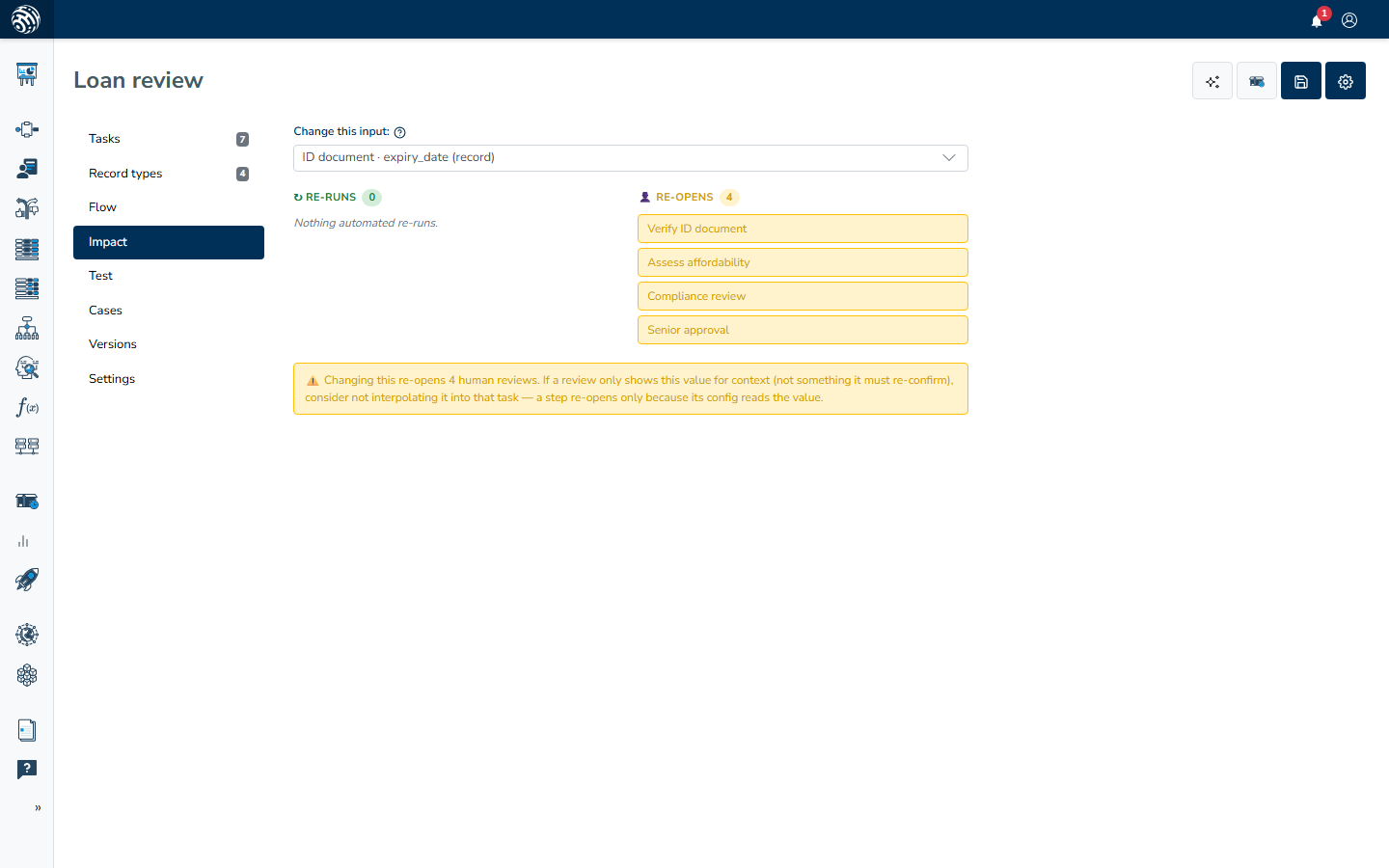
Open Impact in the left navigation. This section analyzes the same dependencies as the flow graph, but from the other direction. Under Change this input:, pick an input to see what a change would touch on a running case. Reviewing this before a release shows how much rework a single corrected value can cause. See Releasing for the release itself.
The dropdown lists two kinds of input. Every attribute of every record type appears with a "(record)" suffix. Plain case file keys that a task reads but no task writes appear too, because those values arrive from outside the case, typically at intake.
The results appear in two columns:
- ↻ Re-runs lists automated tasks that run again on their own when the input changes. If none do, the column reads "Nothing automated re-runs."
- 👤 Re-opens lists human tasks that come back as a fresh task for someone to complete again. If none do, the column reads "No human review re-opens."
The analysis follows the change onward. A task that re-runs writes its own outputs, and tasks that read those outputs are included too. A task that only checks the value in a condition is not affected. Conditions decide when a task runs, but they do not make it repeat.
When a single input re-opens four or more human reviews, a warning appears: "⚠️ Changing this re-opens {count} human reviews. If a review only shows this value for context (not something it must re-confirm), consider not interpolating it into that task. A task re-opens only because its setup reads the value." The suggested fix is real: remove the {{...}} reference from the review text of tasks that merely display the value.
An empty design shows "No inputs to analyze yet. Add record attributes or tasks that read inputs." If the analysis cannot be computed, the section shows "Could not compute impact."
Unreachable decisions
The Impact section also checks the design's decisions. If a decision is declared in Settings but no task in the design writes it, a red alert appears above the analysis: "Unreachable decision. No task produces:" followed by the decision key and "The case can never complete on it."
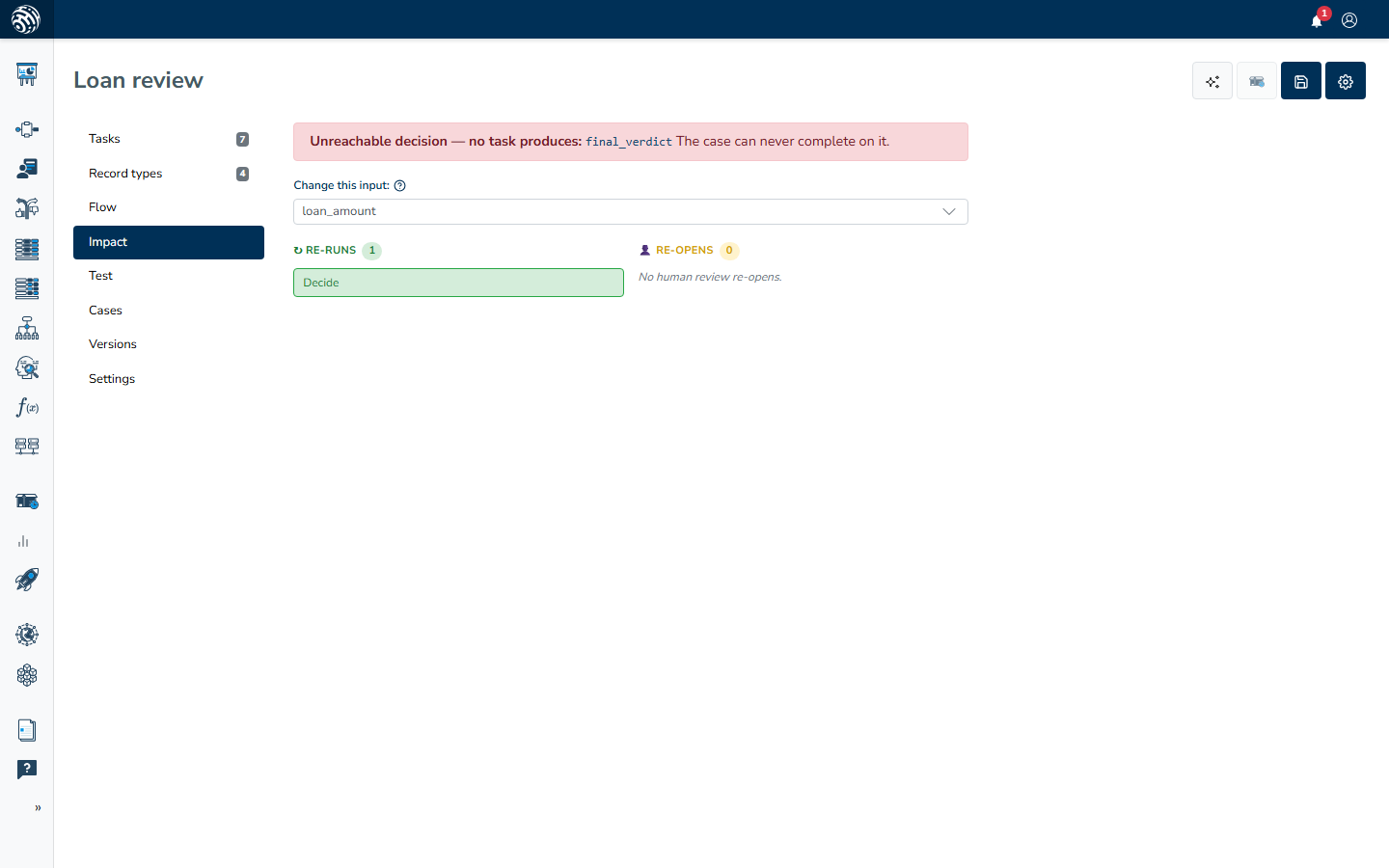
To fix the problem, either add an output that writes the decision to one of your tasks or remove the decision from the list in Settings. See Decisions and completion. The same problem blocks a release, so this alert gives you an early warning.