A record type describes one kind of record your cases collect, such as an ID document, an applicant, a company register entry, or an uploaded contract. As a case runs, each piece of collected material becomes a record of one of these types on the case file. Tasks refer to records by their type. The record type declares the attributes a record carries, the values those attributes can take, and the attributes that together identify one real-world thing. Collecting the same thing twice then updates one record instead of creating two.
Record types live in the Record types section of the case design studio. Edits are part of the design: they are stored when you press Save in the studio header and reach running cases when you release.
- The record types grid
- Attributes
- Identity and matching
- Editing the JSON directly
- Where record types are used
- Deleting a record type
The record types grid
Open the Record types section and press + Add record type. Until the first type exists, the section reads No record types yet. Each record type appears as one row in a grid with these columns:
- Identifier. The technical name, such as
id_document. Tasks and conditions refer to the type by this name. Only letters, digits, underscore and hyphen are accepted; any other character you type is dropped. - Kind. JSON or File / blob. A JSON record carries structured data. A File / blob record represents an uploaded document, such as the kind a human task's file field collects or a Document OCR task reads.
- Label. The human-facing name shown wherever people see records of this type, in the studio and on live cases.
- Attributes. A read-only summary of the declared attributes. When identity fields are set, the summary also shows them as
key: surname, dob. The pencil button (Edit) opens the Attributes editor described below.
The hover help on the Attributes column header explains the purpose of the declaration: "Declared attribute vocabulary (JSON). Conditions validate against it at publish."
Attributes
The Attributes editor is where you declare what a record of this type contains. It lists the attributes and provides the identity and matching controls for an identity attribute.
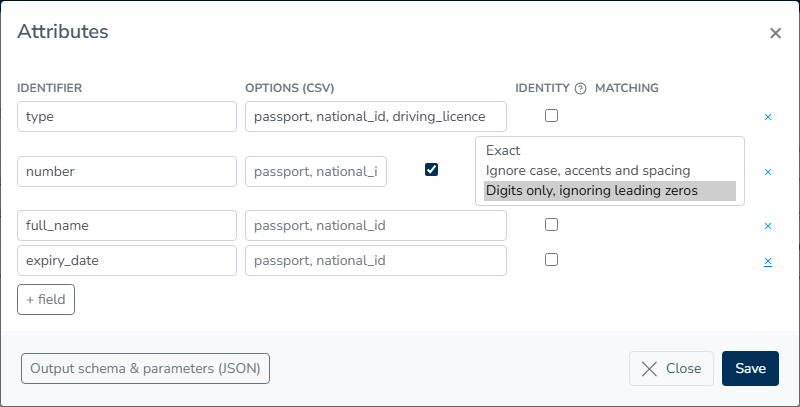
Each row has four parts:
- Identifier. The attribute name, such as
typeorexpiry_date. Dots are allowed, so a name can point one level down into a nested value, such assubject.ico. - options (csv). An optional comma-separated list of the values this attribute can take, such as
passport, national_id. Declared values feed the autocomplete wherever the studio asks for a value of this attribute, most usefully in task conditions. Conditions are checked against the declared vocabulary when you release. - Identity. A checkbox that marks the attribute as part of the record's key. See Identity and matching.
- Matching. Shown only for identity attributes. It sets how values of this attribute are compared when looking for an existing record.
Press + field to add a row, or the × at the end of a row to remove it. Save in the modal footer keeps the changes in the record type; the design itself is stored by the header Save.
Identity and matching
The Identity checkboxes define the record type's natural key. The help text next to the column header states the rule: "Tick every field that together identify one record of this type. For a person that is usually surname AND date of birth. Re-collecting the same entity updates that record instead of creating a second one. If any ticked field is missing from what a source sends, no match is made and a separate record is created."
The result is deduplication. When a task spawns records of this type, or a human task's file or record field collects one, the runtime compares the ticked fields with records already on the case file. A match updates the existing record. If there is no match, it creates a new record. A record type with no ticked fields cannot match anything, so the same entity arriving twice creates two records. The writes editor of every task that spawns this type shows a keyed by line repeating exactly this.
Matching controls how the values of one identity field are compared. It decides when two spellings represent one value, not when two different values represent one thing:
- Exact. The default. Values must be identical.
- Ignore case, accents and spacing.
Novák,novakandNOVAKcount as one value. Use it for names. - Digits only, ignoring leading zeros. Only the digits are compared, and leading zeros are ignored. Use it for registration and account numbers that sources format differently.
Editing the JSON directly
The button in the modal footer labeled Advanced (JSON) switches the editor to a raw JSON view of the attribute list. The stored shape is an array:
[
  { "name": "type", "values": ["passport", "national_id"] },
  { "name": "expiry_date" }
]
Use this view for shapes the form cannot represent. If the stored attributes already have such a shape, the editor opens in the JSON view directly. The identity checkmarks are not part of this JSON. They are carried across by attribute name when you switch back, so renaming an attribute in the JSON view drops its identity mark. If the text is not valid JSON, switching back or saving shows One or more JSON fields are invalid and nothing is stored until you fix it.
Where record types are used
A record type is referenced from four places in a design:
- A task that runs For each record of the type, once per record on the case file.
- A spawn record row in a task's Writes these attributes list, which creates records of the type from a task's result.
- A human task field of type files or records, where each collected item becomes a record ("each becomes a record").
- A condition of the kind all records have or at least N records have, which checks the records of the type.
Record type pickers across the studio also let you create a new type inline. It appears as a draft in the grid and is stored with the next Save.
Deleting a record type
The × at the end of a grid row asks Do you want to delete with the record's label, under the title Delete record type. If any task still references the type through one of the uses above, the delete is refused with the message "This record type is used by task(s): ... Remove it from them before deleting.", naming the tasks. Remove the references first, then delete.