The Test section of the case design studio runs your draft against a real runtime before you release anything. When you open it, the studio compiles the current draft and loads it onto your execution node as a sandbox release. Each scenario you create is a sandbox case on that release, with a real case file, real task runs, and real decisions, but it stays separate from live cases and is never counted among them. Edit the design, return to Test, and the studio loads the latest saved draft again.
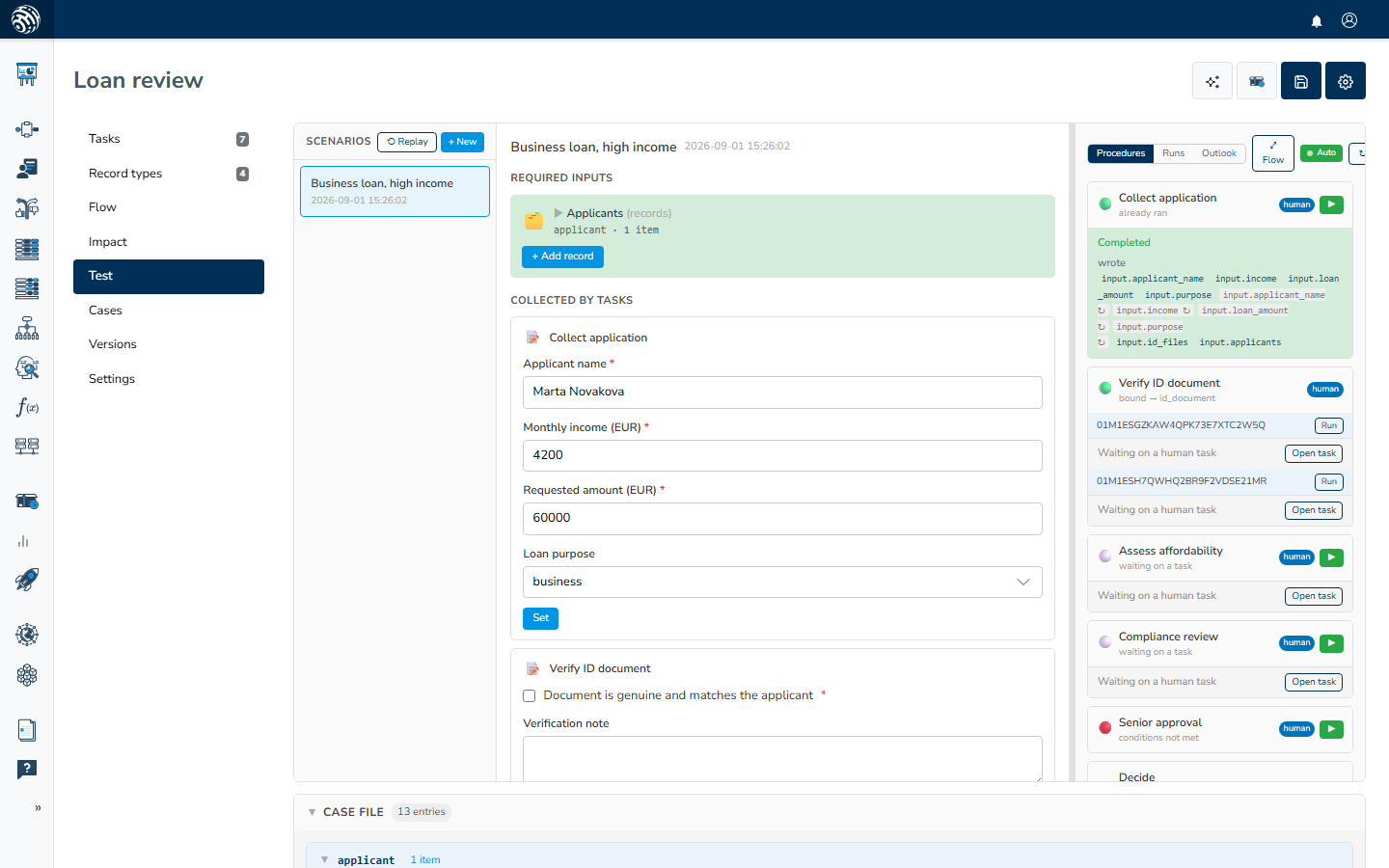
The screen has three columns: scenarios on the left, inputs in the middle, and the task runner on the right. A full-width case file explorer sits below them. Drag the splitter between the middle and right columns to resize the runner.
- Scenarios
- The Inputs column
- The Tasks tab
- The Runs tab
- The Outlook tab
- The flow diagram
- Auto-refresh
- The case file explorer
- When the studio cannot reach a runtime
Scenarios
The left column lists your scenarios with their creation time. Click + New to create one. The dialog suggests a name like "Scenario 3" and shows the placeholder "e.g. High income applicant". Name scenarios after the situation they test, then keep them around. A scenario survives page reloads, and the selected one stays in the URL, so a link to the studio brings a colleague to the same scenario.
An empty list says "No scenarios yet." and "Hit + New." If the list fails to load, the studio says "The scenario list could not be loaded." rather than pretending you have none.
To remove the selected scenario, use Delete scenario at the bottom of the middle column, then confirm.
The Inputs column
The middle column is where you feed the scenario. The studio reads your design and works out what a case of this type consumes, then lays the slots out in four groups:
- Required inputs. These are the slots the design cannot run without: the document a Document OCR task reads, the document text an AI task expects when no OCR task produces it, and any file or record a human task marks as required.
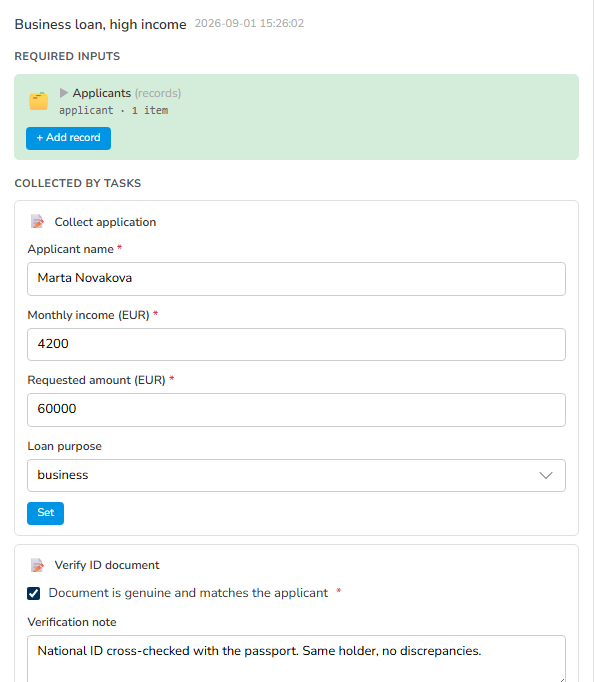
- Collected by tasks. You get one inline form per human task that collects plain values. Filling out the form here plays the part of the person that task would ask.
- Optional inputs. Every record type in the design gets a slot here unless something already made it required: a files slot for a File record type, a records slot for a JSON one, plus optional fields from human tasks.
- Produced (N). This contains everything task runs have written to the case file that is not one of the seed slots above. Click an entry to expand it, inspect the value, or Copy it.
A slot with content turns green and shows what is there; a missing one stays amber. For a record slot, the header shows the record type identifier and a count, then expands to list the records.
A plain value slot has a Set button, later Edit, that opens a small prompt. Numbers are stored as numbers, and boolean fields accept true / false.
Uploading files
File slots take Upload, or Replace once a file is there. Accepted types are .pdf, .png, .jpg, .jpeg, .tiff, .webp, .xlsx, .xls, .csv. A files slot for a record type accepts several files at once. Each becomes its own record, and a small progress bar tracks the batch. A failed upload reports "The upload did not go through."
Adding records
A records slot has an + Add record button. If the record type declares attributes, you get a form with one field per attribute; attributes with an options list render as dropdowns. Edit JSON switches the same record to a JSON editor, and Use form switches back. A record type with no declared attributes opens straight in JSON mode. Press Add to create the record ("Record added"), then Done to close the form. Malformed JSON is rejected with "Invalid JSON:" and the parser's message; an empty required field with "{{field}} is required".
Collected by tasks
Each inline form under Collected by tasks shows the task's title, its description, and its plain fields. The button changes with the task's state. Normally it says Set and writes the values straight to the case file, allowing tasks whose conditions read them to fire. Once that task has run and is waiting for a person, the card shows a "waiting" badge, the button says Submit, and pressing it completes the open task as a real assignee would. Fields already on the case file come pre-filled.
File and record fields do not appear in these inline forms; use their slots in the groups above.
The Tasks tab
The right column is the runner. Its first tab, labeled Tasks, shows one card per task in the design. Each card has a colored dot, a reason line, a task type badge, and a run button.
The dot answers "can this fire now":
- 🟢 the task is eligible, or has already run to completion.
- 🔴 the task is blocked by its conditions.
- ⚪ the runtime has not said either way.
- For a task that runs For each record, the dot is 🟢 when at least one matching record exists and ⚫ when none does, and the reason line reads "for each " followed by the record type.
The reason line under the title is the runtime's own answer, translated:
- "eligible"
- "conditions not met" (a blocked task with no more specific reason)
- "already ran"
- "conditions not met"
- "waiting on a task"
- "waiting for fresh data"
- "no matching records yet"
- "the record does not have everything this task reads"
- "this task reads what it writes"
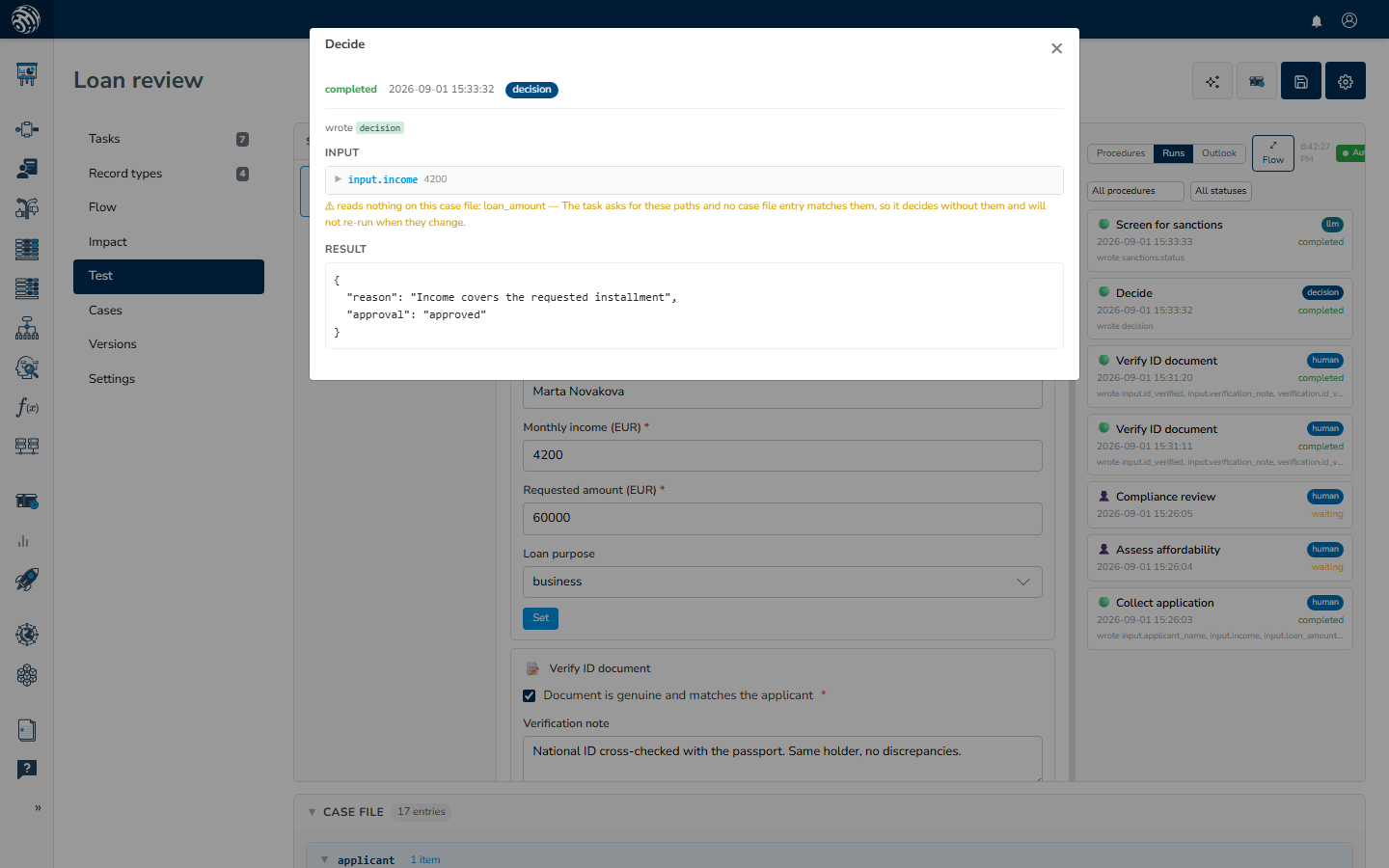
An eligible or finished task whose declared reads match nothing on the case file gets an extra warning: "reads nothing on this case file:" followed by the paths, with the hint "The task asks for these paths and no case file entry matches them, so it decides without them and will not re-run when they change." This usually means a typo in a $.path, or an input nobody seeded. A blocked task never shows this warning because its inputs are legitimately not there yet.
The ▶ button runs the task once, whether or not its conditions hold. That is deliberate: in a scenario, you often want to fire one task in isolation. A task bound For each record has no single ▶. Instead, each matching record is listed under the card with its own Run button because the task runs once per record. If no records exist yet, the card says "No ... records yet" with the record type name.
After a run, the outcome appears inline under the card:
- Completed: "Completed" plus "wrote" and the case file keys the run touched. A key marked with ↻ was re-affirmed: the task ran again, produced the identical value, and the case file deliberately recorded no new version. Hover the key to see this explained.
- Failed: the error message on a red strip.
- "Waiting on a human task": the run raised a task for a person. For a human task, the strip has an Open task button, described below.
- "Skipped / cancelled": the run was skipped.
For a Memo task that has produced its memo, a View button on the card opens the rendered text.
Opening a waiting human task
Open task opens the task as an assignee would see it: the Review info rendered as formatted text, followed by the form fields and Submit. The studio renders the Review info from the case file as it stands now. If the open task was raised earlier with older text, a note says "Rendered from the case file as it stands now. The open task still shows the text it was raised with." If the Review info's tokens match nothing on the case file, you get "Review info is set, but none of its tokens matched anything on the case file." instead. This lets the studio catch a broken template before a release does. A task with neither Review info nor fields says "This task has nothing to show: no Review info and no form fields on its card." File fields in the form point you back to the middle column: "Upload field "...": use the Inputs panel."
Re-evaluate cascade
Re-evaluate cascade at the bottom of the tab hands the whole scenario to the runtime's scheduler. Every task whose conditions hold fires, its writes make further tasks eligible, and the cascade continues until nothing more can run. This is the closest the studio gets to "what would a live case do now".
As the cascade runs, a live stream appears under the button. It shows what the engine records, line by line: ✓ a task completed, ✕ one failed with its error, ⏸ one is waiting on a person, → a task was submitted, ★ the case reached a decision, ↺ the case was reopened. A slow line, an AI task, or an external call reads as progress rather than a frozen button. If the cascade had nothing to do, the stream says "No steps recorded". A cascade that could not start reports "The re-run could not be started."
The Runs tab
The Runs tab is the scenario's history, newest first. Two dropdowns filter it: All tasks narrows the list to one task, and All statuses narrows it to completed / failed / waiting / skipped. Each row shows the status dot, the task title, its task type badge, the time, the status, and the keys it wrote. An untouched scenario says "No runs yet."; filters that match nothing say "No runs match the filter."
Run detail
Click a row to open the run. The modal shows three sections:
- Input. These are the exact case file entries the run read when it fired, each expandable to the full value. An entry that has since left the case file is listed as "value no longer on the case file". A run that read nothing says "This run read nothing from the case file." The same "reads nothing on this case file" warning appears here when declared reads matched nothing.
- Result. This is what the run produced, the value written to the case file, as JSON ("No result recorded." when there is none).
- Trace. This shows how the call itself went: endpoint, status, timing, lineage. It answers a different question from the result, so it gets its own section.
A failed run shows its error message at the top. This modal is where "why did it answer that" gets settled: the Input section is the recorded evidence, not a reconstruction.
The Outlook tab
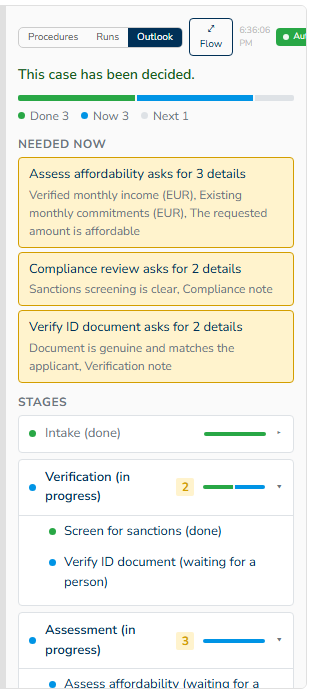
The Outlook tab is the runtime's forward projection of the scenario: what still has to happen and what it will need. The dots on the Tasks tab answer "can this fire now"; Outlook answers "and then what, and what is still owed".
At the top is the verdict, one of: "This case has been decided.", "Nothing left to do on this case.", "Waiting on you. Outstanding: N.", "Waiting on a task: ...", "Nothing needed from you. Tasks left: N.", or "This case cannot be decided with what is on file yet." Under it, a progress rail splits the tasks into Done, Now, Next, and Blocked.
Needed now lists the material the case is waiting for, in the runtime's words: "Document: ...", "Record: ...", "Value: ...", "Confirmation that all ... records are in", "One ... for each record listed by ...", or a task that "asks for N details". Supply it through the Inputs column.
Stages mirrors the sections you grouped your tasks into. Each stage carries its state, "(in progress)", "(done)", "(waiting on material)", "(only on some paths)", "(not needed)", and its own mini progress rail. Open a stage to see its tasks: "(done)", "(running now)", "(waiting for a person)" with the assignee roles, "(blocked)", "(only if ...)" for conditional paths, or "(not needed, ... settled it)" when another write already decided the question. Material a stage will want later is listed inside it; anything not tied to a stage lands under "May be needed later".
The last lines show the goal: "Decision: name" once recorded, "Decision: name (expected)" while projected, or the unnamed forms "A decision has been recorded" / "A decision is expected" when the design has a single unnamed decision.
An execution node too old to compute the projection shows "No projection available." instead.
The flow diagram
The Flow button above the runner opens the scenario as a graph. It draws what actually happened from the record: tasks are boxes carrying their type icon and outcome mark, and the case file keys they wrote appear as their own nodes. The chain reads task, then key, then task because a case never passes data directly from task to task. It goes through the case file. A key written once per record collapses into one node marked ×N. Values a person entered by hand are drawn as coming from that person; everything the case started with hangs off "Case opened". Box colors follow the same rule as everywhere else in the studio: cool colors are task type, and warm colors, green, amber, and red, are reserved for the outcome.
An unrun scenario shows "Nothing has run yet." The diagram supports zoom and pan, and updates as runs land.
Auto-refresh
The runner header holds the refresh controls: the time of the last refresh, an Auto toggle, and a manual ↻ button. With Auto on, shown by a green, pulsing dot, the studio polls the runtime for the whole view in one request: case file, eligibility, records, runs, and the Outlook projection together. The panes therefore stay in agreement. Polling is fast right after a run and backs off while nothing changes; a hidden browser tab slows to the minimum rate and snaps back to fast the moment you return. Anything that changes the scenario, a run, an upload, or a submitted form refreshes immediately.
When your case runtime database is geographically far from the execution node, the studio says so instead of simply feeling slow: "Your case database is about N ms away, so each refresh takes around N s. That is distance, not a fault."
The case file explorer
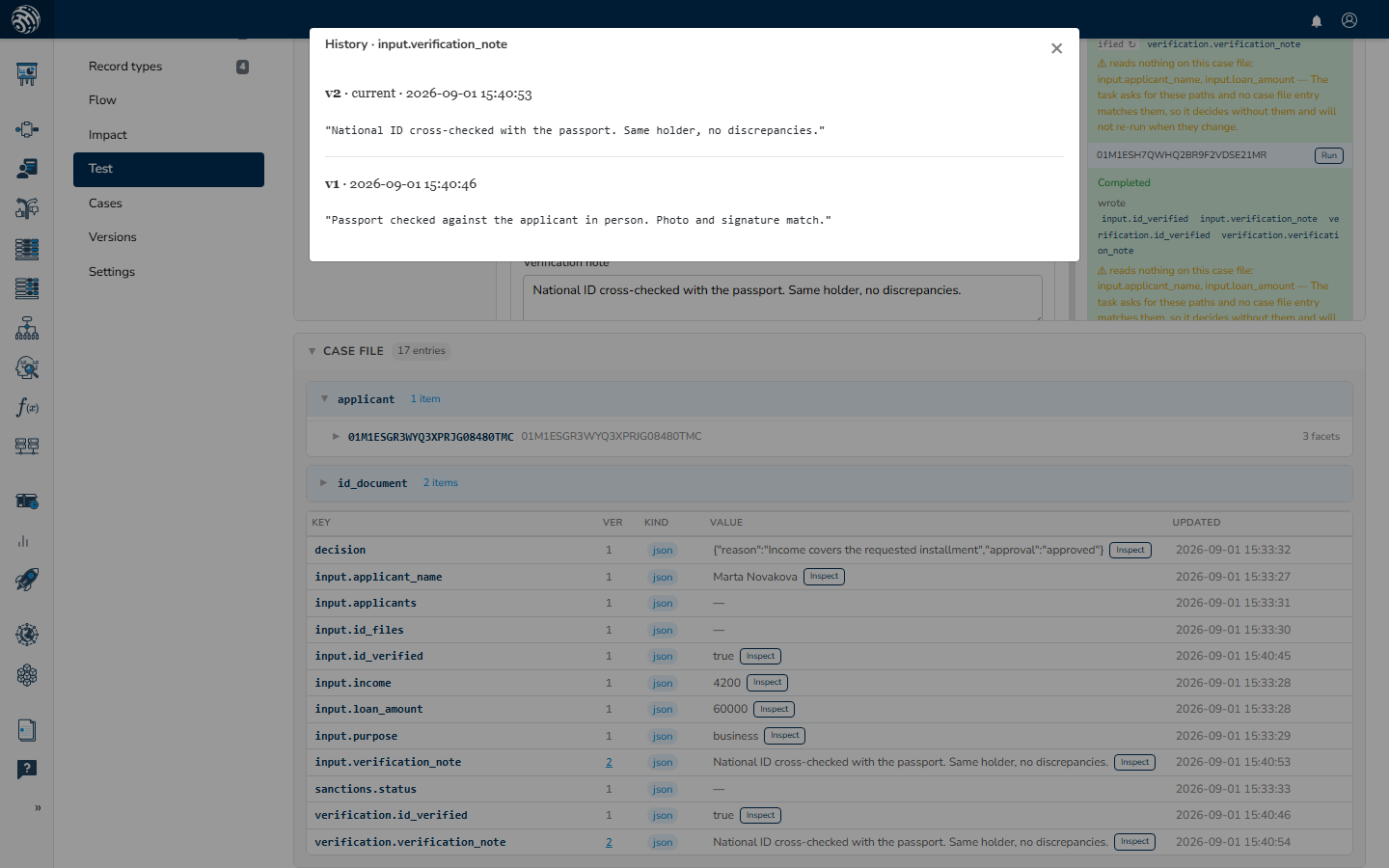
Below the three columns, a full-width panel labeled Case file shows every entry in the scenario's case file, with a count. Entries that belong to records are grouped by record type, then by record. Open a record to see its attributes, each with a kind badge, json or blob, a preview, an Inspect button for the full pretty-printed value, and its write time. Entries that belong to no record sit in a flat table with columns Key, Ver, Kind, Value, and Updated.
Any entry written more than once shows its version number as a link. Click it for the value history: every version with its number, its timestamp, and a "current" marker on the live one. This lets you check what an entry held before a task overwrote it, or confirm that a re-run genuinely changed nothing.
An empty case file says "Nothing in the case file yet. Run a task or seed an input."
When the studio cannot reach a runtime
Testing needs a runtime. Scenarios run on your execution node against your case runtime database, and neither is part of the portal. If the draft cannot be loaded, the Test section shows a warning in place of the studio:
Can't load the draft into a runtime. followed by the specific reason, and the hint "Testing runs the compiled draft on the tenant's runtime host. Configure one, then retry."
The reasons you may see, and what each means:
- "No execution node is configured for this tenant." No execution node has Runs cases enabled. Set one up first; see Runtime setup.
- "This tenant has no case runtime database connected, so nothing can run." The execution node exists but has no destination with purpose Case board. See Runtime setup.
- "The execution node is not responding. Try again shortly." The node is configured but unreachable right now.
- "The case runtime database is behind this release and cannot be read. Release the case design again to migrate it." The runtime's schema is older than the design expects; releasing again migrates it. See Releasing.
Retry reloads the draft once the problem is fixed. The same messages can appear later on individual actions, such as a run or an upload, if the runtime becomes unreachable mid-session.