The Versions section of the case design studio keeps the design's history. Each save records what the design looked like at that point, so you can choose two versions and read the differences as a plain changelog. Releases keep a separate history in the same place. Each task has its own history, available directly from its card.
- Where versions come from
- Draft edits and Releases
- Comparing two versions
- Reading the changelog
- Task history from the card
- Viewing one version
Where versions come from
A revision is recorded on every save: one for the whole design, plus one for each task whose content actually changed. Saving without a change adds nothing because identical snapshots are skipped. Moving a task to another position or group does not create a version in that task's own history. The task's location does not change what it does, although the move still appears in the whole-design history.
Releases are recorded separately each time you press Release. A release is a named snapshot of the design at that moment. See Releasing for what happens when you create one.
Draft edits and Releases
Two buttons at the top of the section switch between the histories:
- Draft edits lists every saved revision of the design, numbered #1, #2, and so on.
- Releases lists the published releases by name.
Under Draft edits, a dropdown narrows the list. Whole design, the default, shows the design-level history. Choose a task to see only that task's own stream. Tasks deleted from the design remain in this dropdown, marked (deleted). Their history is the only place left to see what they did.
Each row shows the revision number, or the release name, along with the time and the user who saved it. Newest entries appear first. The list shows the last 10 rows; Show also previous N revisions expands it, and Show only last 10 revisions collapses it again.
If there is nothing to compare yet, the table is replaced by a note: "Only one version so far, so there is nothing to compare yet.", "Not enough edits yet. Save the design to build history.", or, on the Releases side, "No published releases to compare yet. Publish a release to build history."
Comparing two versions
Each row has a pair of radio buttons in the Compare columns, with one button for each side of the comparison. The two most recent versions are selected in advance, with the older version on the left. You cannot pick the same row on both sides.
Press Compare to open the comparison page.
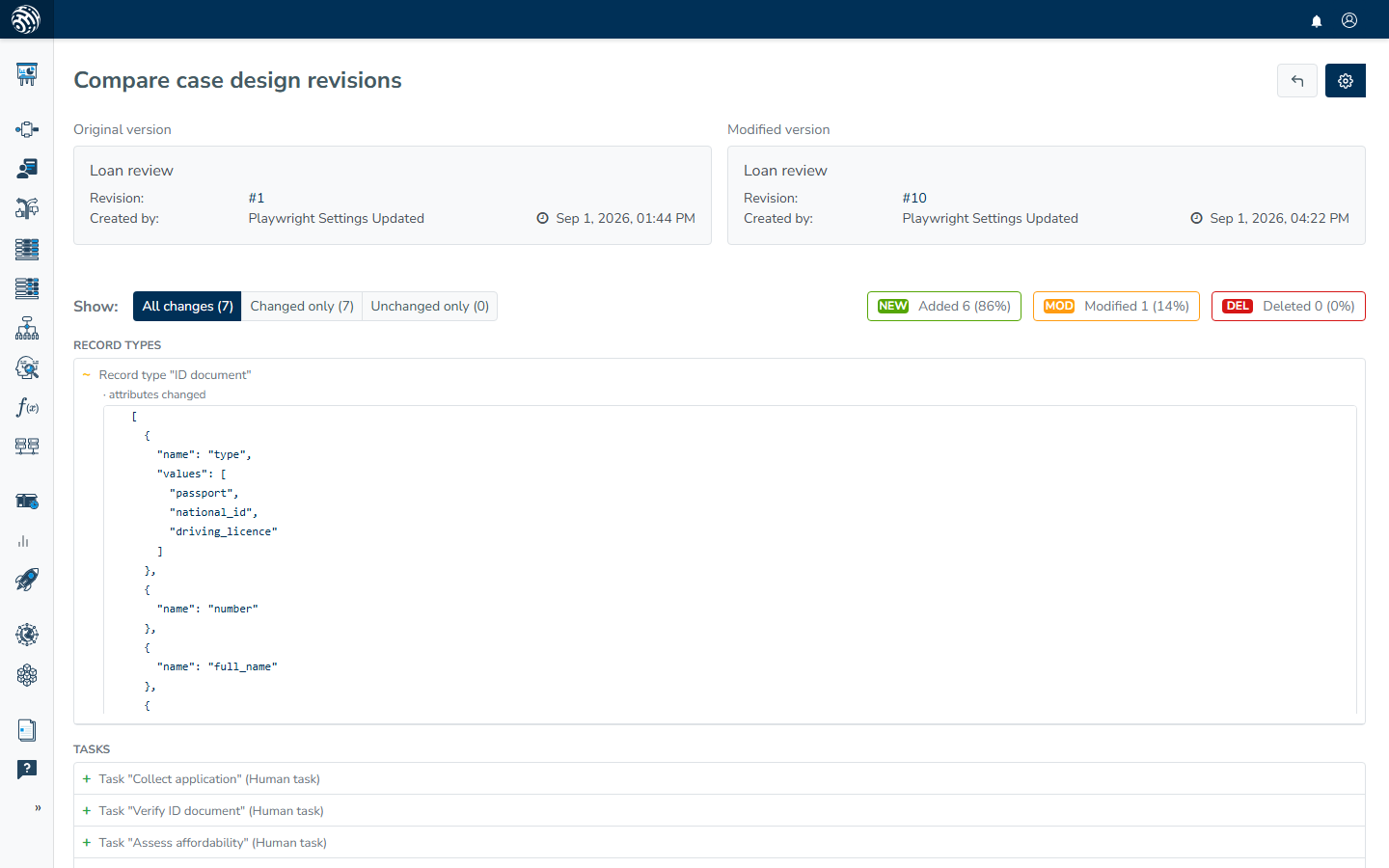
At the top, the page places the two versions side by side, followed by the changelog. The comparison always runs from older to newer, regardless of the order in which you picked the rows. Additions therefore always show what the newer version gained. The settings menu in the header includes a Revisions item that reopens the version picker. The back button returns you to the case design.
Reading the changelog
The changelog uses the design's own vocabulary rather than raw data. Entries are grouped:
- Overview covers the design itself: "Title "A" → "B"", "Description changed", "Complete when: any → all", "Decision added: approval", "Decision removed: rejection".
- Record types covers each record type by name, including a changed kind, label, or attributes.
- Tasks covers each task by name. An added task shows its task type, and a changed task lists what moved.
Each entry starts with a sign: + for added, − for removed, ~ for changed. Detail lines under a changed entry identify what moved. Simple values render as before → after. Larger structures, such as conditions, outputs, attributes, and task setup, render as a line-by-line diff so you can see exactly which lines changed inside them. A line such as "Setup changed: fields, prompt" identifies the parts of the task's setup involved before you read the diff.
The toolbar above the changelog filters the results. Show: switches between All changes, Changed only, and Unchanged only, each with its count. On the right, the NEW, MOD, and DEL pills show how many entries were added, modified, and deleted. Click a pill to narrow the list to that kind of change, then click it again to show everything.
If the two versions are identical, the page says "✓ No changes between these versions."
Task history from the card
Every saved task card has a small clock icon in its header, titled History. Open it to view the task's own version stream in a modal, without leaving the editor.
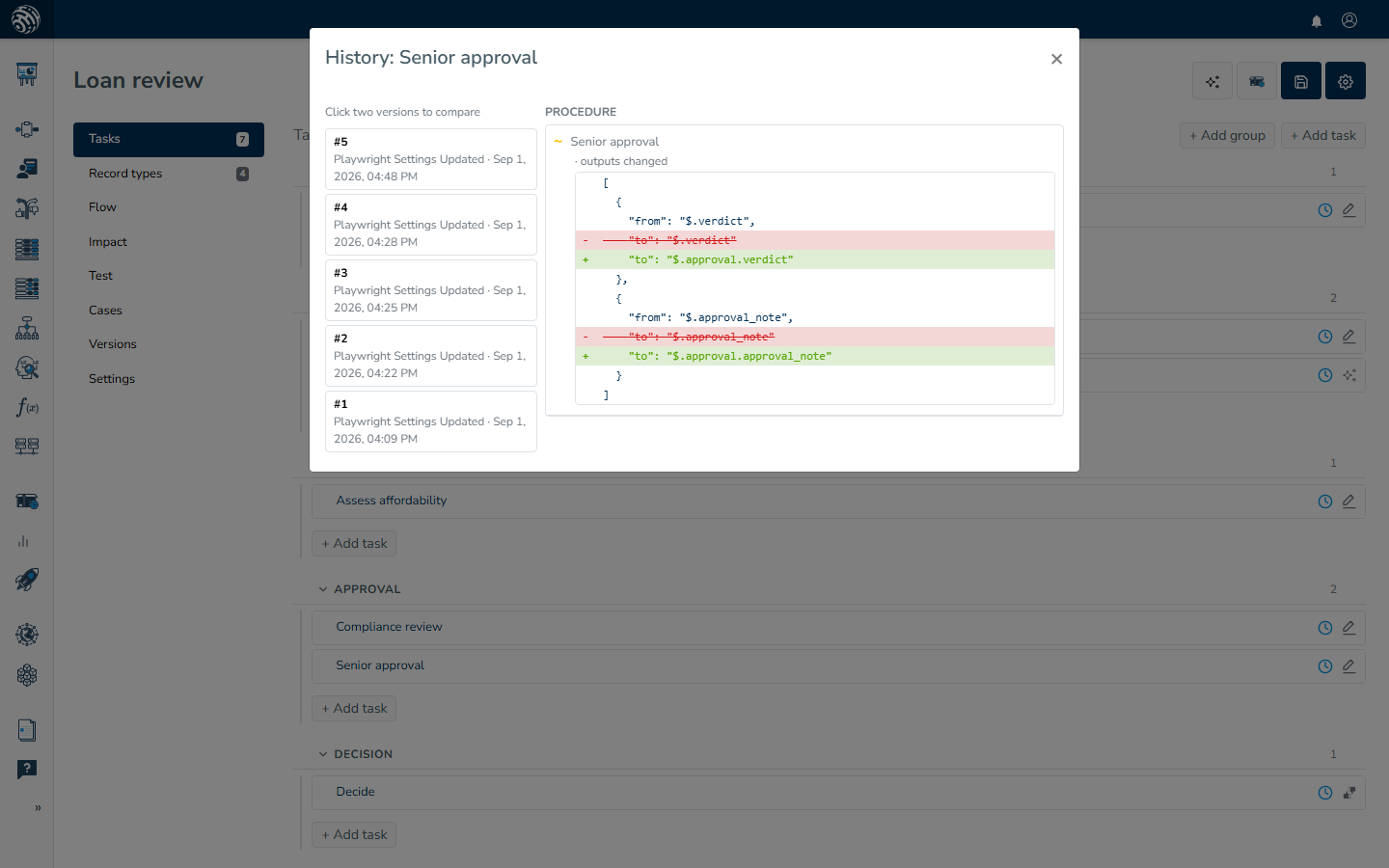
The left rail lists the task's versions, newest first. Each entry includes its number, author, and time. The newest two are selected in advance. Click any two versions to compare them. The newer version in your pair is always treated as the "after" side. The right side renders the same changelog as the comparison page, so a conditions change reads identically wherever you open it.
A task saved only once shows "Only one version so far, so there is nothing to compare yet." A brand new task shows "No history yet. It starts accruing with the next saved change."
Viewing one version
The View column of the versions table, marked by the eye icon, opens a single version as read-only on a page titled Case design revision. The page describes the design as it was at that point, using the same vocabulary as the changelog. At the top, it shows the title, description, and declared decisions. Below that are a Record types table with each name and its attributes, followed by a Tasks table with each name, task type, and what the task produces. When you are viewing a single task's stream, only that task is shown.
Nothing on this page can be edited. The back button returns to the current case design.