Policy Documents
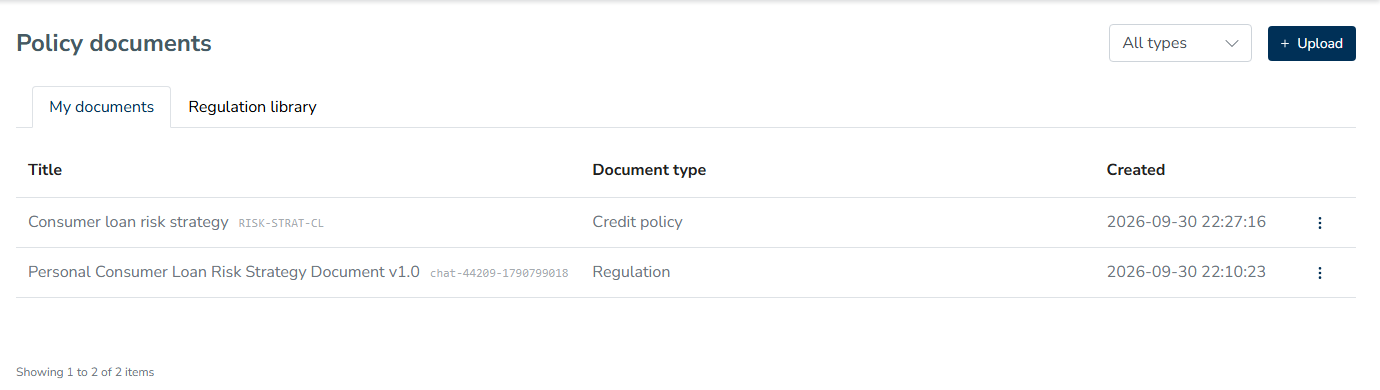
A policy document is a regulation, internal policy, contract or procedure that you upload so Decisimo can read its requirements. Each requirement keeps a citation to the page and passage it came from. You can then run a compliance check to see which requirements a release of your decision flow covers.
Open Policy documents from the Admin Center. The card reads "Upload policies for compliance analysis".
You can also upload a policy during onboarding or drop one into the AI Assistant chat. The assistant proposes a decision flow for you to review and approve. See Getting started.
- Uploading a document
- What happens after upload
- Reading a document next to its requirements
- Adding requirements from a selection
- Editing and mapping requirements
- The regulation library
- Running a compliance check
- Deleting a document
Uploading a document
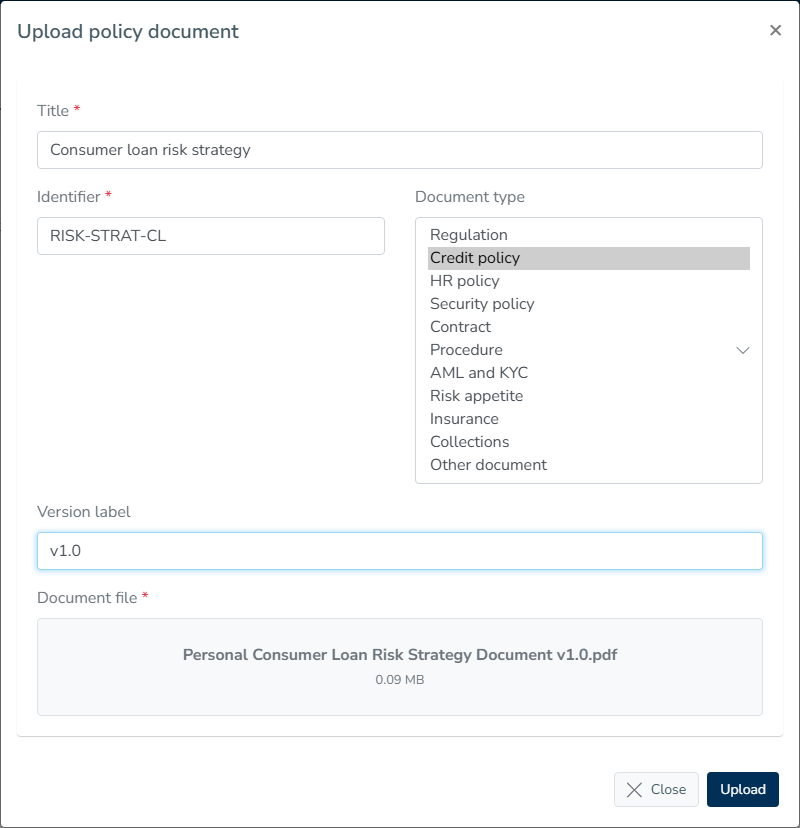
On the My documents tab, click Upload. The Upload policy document form asks for:
| Field | Required | What to enter |
|---|---|---|
| Title | Yes | A name you will recognise in the list |
| Identifier | Yes | A code for the document, such as a regulation number or an internal policy ID |
| Document type | No | What kind of document this is. Defaults to Regulation |
| Version label | No | A version such as "v2.1" or "2026 amendment" |
| Document file | Yes | A PDF or a spreadsheet (.xlsx, .xls, .csv or .ods), up to 50 MB |
The Document type list offers Regulation, Credit policy, HR policy, Security policy, Contract, Procedure, AML and KYC, Risk appetite, Insurance, Collections and Other document. Pick the closest one. The type tells the extraction what to look for: a credit policy is read for eligibility rules, thresholds, limits and calculations, while a regulation is read for obligations, prohibitions, permissions and definitions.
Click Upload to start.
What happens after upload
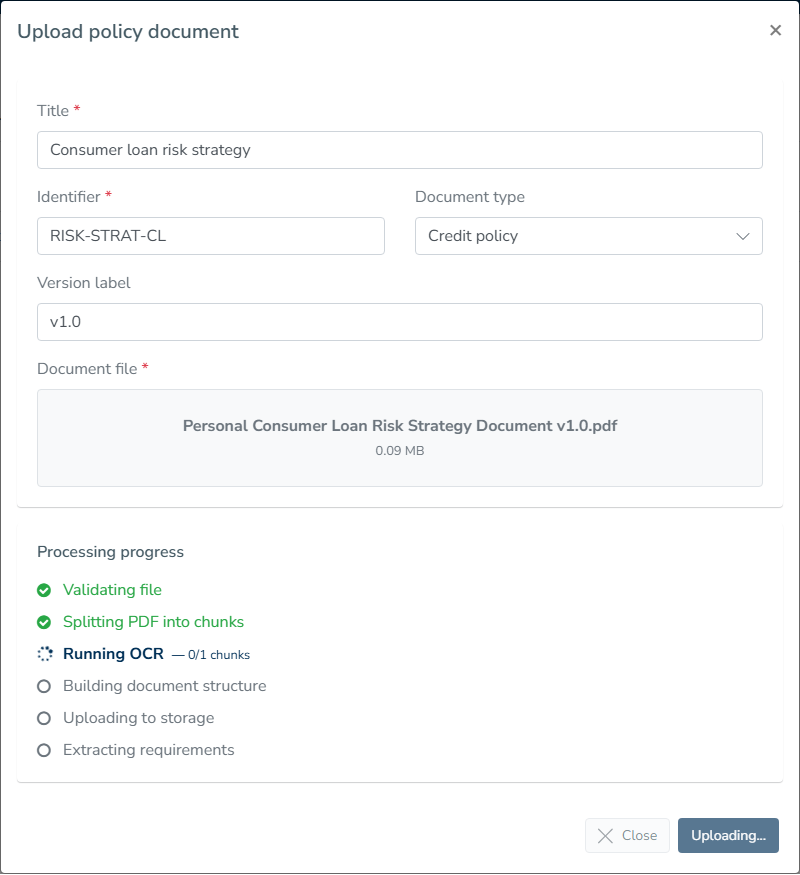
The form stays open and shows Processing progress, one step at a time.
For a PDF, the steps are Validating file, Splitting PDF into chunks, Running OCR, Building document structure, Uploading to storage and Extracting requirements. OCR reads the text with its position on each page, and the structure step finds the articles, sections and paragraphs.
For a spreadsheet, the steps are Validating file, Parsing spreadsheet, Building document structure, Uploading to storage and Extracting requirements.
When extraction finishes, the form closes and the document appears in the list. A large document can take a few minutes.
If the file is rejected, the form explains why: File too large. Maximum size is 50MB, or Only PDF and Excel files are allowed.
Reading a document next to its requirements
Click a document in the list to open it. Requirements appear on the left, and the document itself appears on the right.
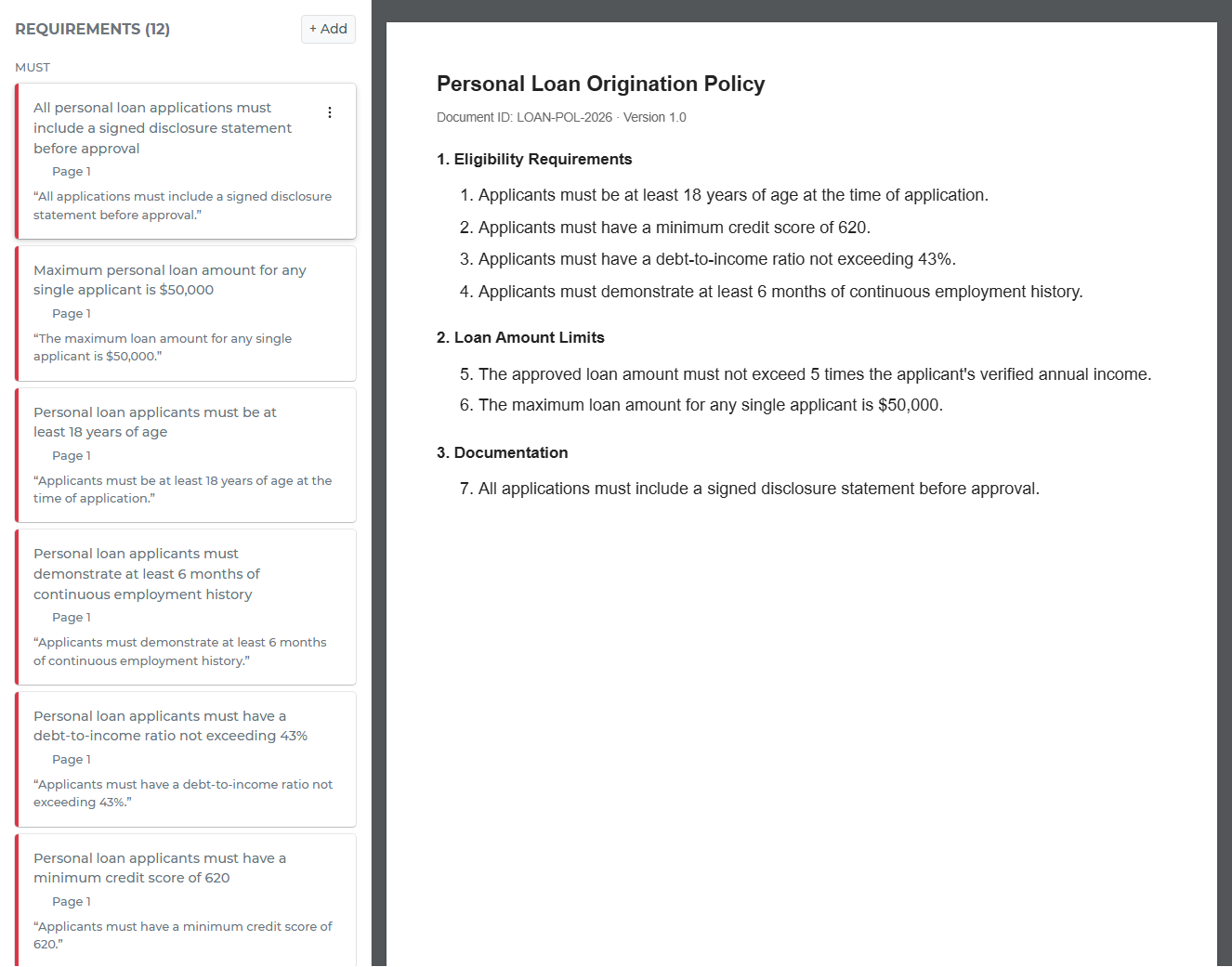
Requirements are grouped by type, for example Must, Must Not, May, Eligibility, Threshold or Calculation. Each card shows the requirement, the page it cites and the quoted passage.
Click a card or its page reference, and the viewer scrolls to that page and highlights the passage. A requirement that cites several pages lists them, and each page opens on its own.
Two notes can appear on a card or above the document:
- Citation not found in the cited passage means the quote from the extraction could not be found in the passage it points to. Check it against the page before relying on it.
- This document was read without page layout, so passages cannot be highlighted on the page. The requirements and their page numbers are still there. Only the highlight is missing.
A spreadsheet has no page to show. Its requirements cite the sheet and row instead.
Adding requirements from a selection
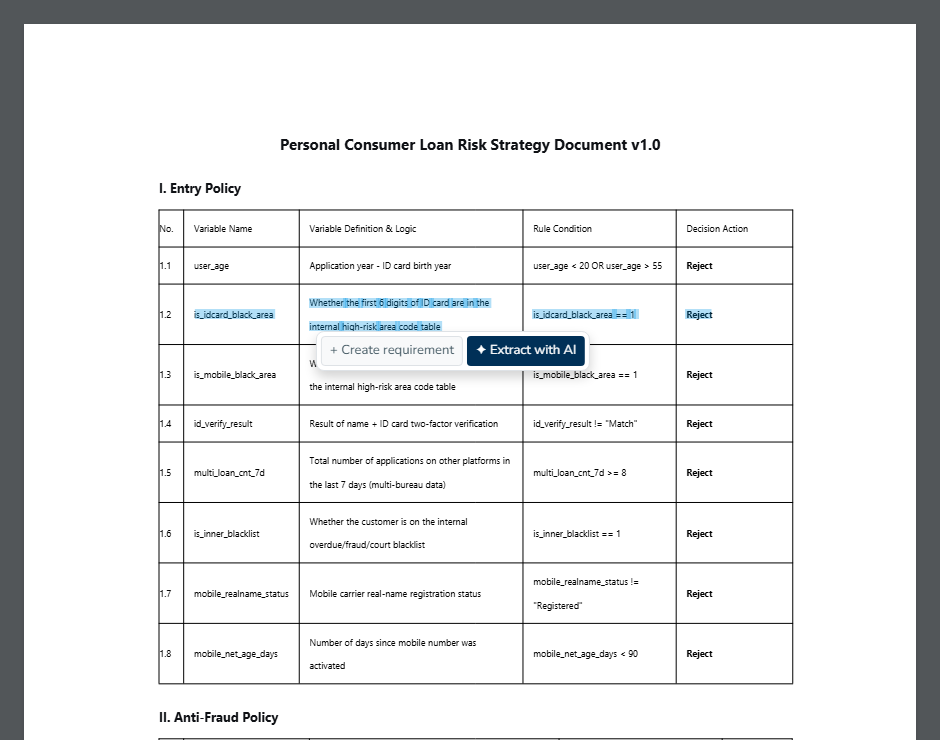
Select text in the PDF, and a small toolbar appears next to it with two buttons.
- + Create requirement opens a blank requirement form on the left with your selected text as the description and the page noted as "From page". Give it a title and a type, then click Add.
- ✦ Extract with AI sends the selection to the model, which fills in the title, type and description for you. Review and approve them, then click Add.
Either way, the new requirement cites the passage you selected, so it links back to the page like the extracted requirements do.
You can also click Add at the top of the requirement list to write one from scratch.
Editing and mapping requirements
Each card has a menu with Edit, Revisions, Map sources on PDF and Delete.
- Edit changes the title, type or description.
- Revisions shows earlier versions of the requirement.
- Map sources on PDF switches the viewer into mapping mode. Click passages on the page to add or remove them as citations, then click Save mapping.
A citation that knows its page but not its position shows Map on page on the card. Click it to open mapping mode for that requirement and place the citation.
When a requirement is linked to requirements in other documents, the links appear under Related requirements as Related, Equivalent or Extends.
The regulation library
The Regulation library tab lists shared regulations that are already processed, so you can add them to your own library directly. Click Add to my library to copy one, with its requirements, into My documents.
A shared regulation is read only. You can read its requirements and follow their citations, but you cannot edit them or add new ones. To remove it from your list, click Remove from library.
Running a compliance check
A compliance check compares a release of your decision flow with the requirements of one policy document. Open the release, go to the Compliance check tab, click Run compliance check and choose the document.
The result lists each requirement with a verdict and the parts of the release that match it. Each check has one of the statuses Compliant, Non-compliant, Partial or Not verified, and earlier runs remain under Previous compliance checks.
The check tells you which requirements the release covers and which it does not. It does not certify that the release is compliant. A requirement with no verdict counts as not covered. See Compliance Check for how to read the results.
Deleting a document
In My documents, open the row menu and choose Delete. The document and its stored file are removed from your list. Shared regulations cannot be deleted; use Remove from library instead.