The scorecard feature lets you easily define scoring segmentation by setting up bins for each predictor and assigning weights. Instead of building workarounds to calculate scores and bins, you can directly implement them. Scores are generated based on predefined ranges and combined to produce a final score, enabling effective segmentation in decision logic. For logistic regression, the computation is natively handled using Weight of Evidence (WoE) for more accurate and consistent results.
Quick Guide
To add a new scorecard in Decisimo:
-
Click “Scorecard” button after you log in to Decisimo Dashboard.
-
Then create a new scorecard by clicking the “+ Scorecard” button.
-
In the Create Scorecard section, fill out all the sections:
-
Add the Tile and Identifier as required
-
Then fill out the Attribute path starting with $.pathname.
-
Select the appropriate method for calculating the scorecard (e.g., sum of predictors, logistic regression).
-
Specify predictors: Identify the data attributes or variables contributing to the score.
-
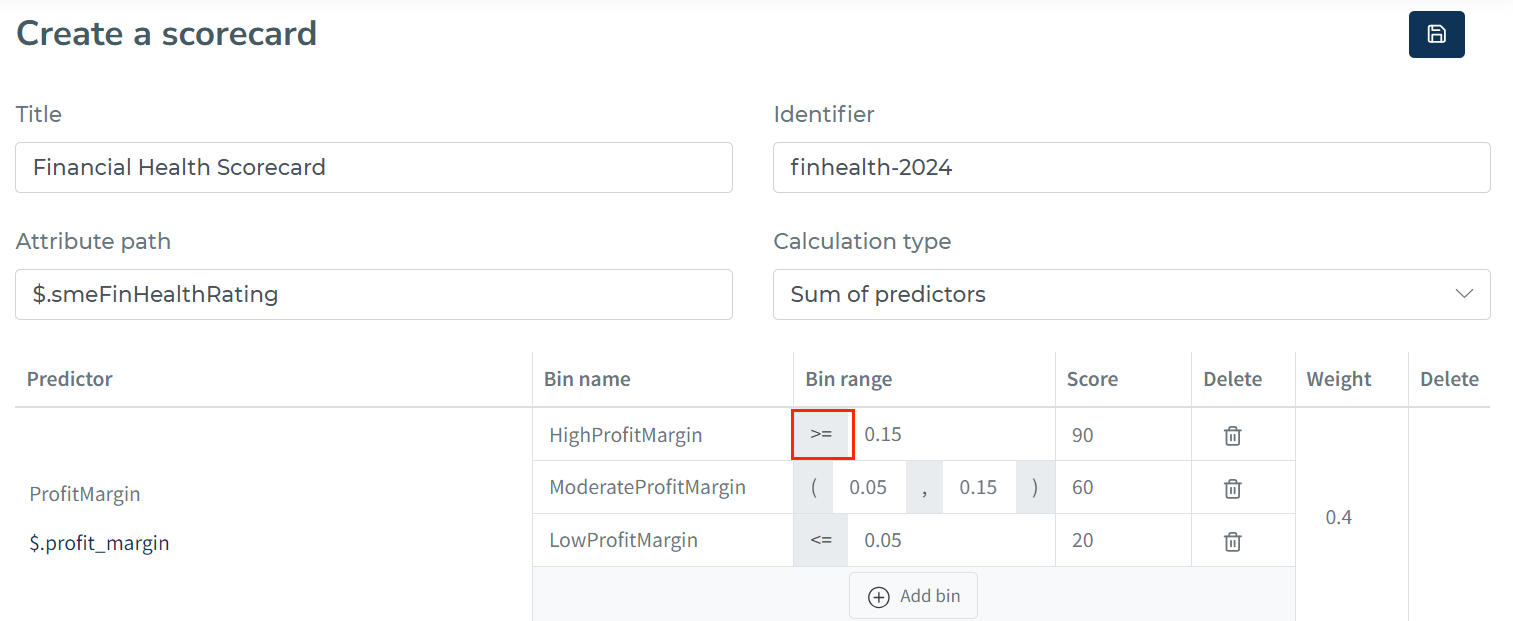
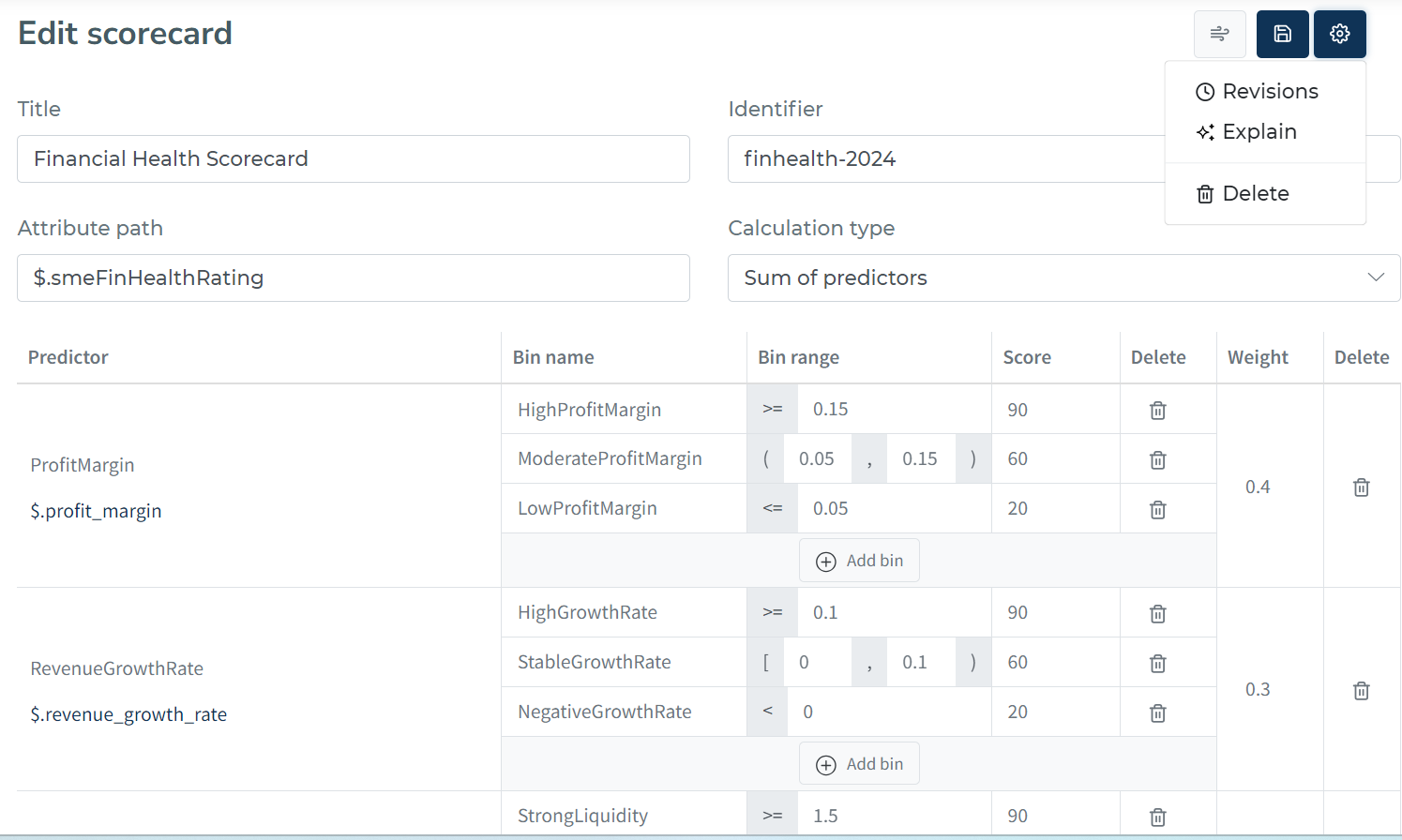
Define bins: Create bins (ranges of values) for each predictor, associating them with corresponding scores. Bins are evaluated top to bottom and the first match wins, so put the most specific ones first — drag a bin row by the handle to the left of its bin number to reorder it (see Reordering bins). In the editor, each predictor is a block with its name and attribute path on the left, one row per bin with its number, name, range and score, and the weight on the right. Press Enter to move to the next bin, including across predictors. Use the arrow keys to move between a bin’s name, range and score.
-
Define bin conditions: Each bin-range cell shows its operator as a symbol at the left. Click the symbol, right-click anywhere in the cell, or press Alt+Down while the cell is focused to open a menu listing each operator’s notation and name. Comparison and interval operators accept numbers only. Scorecards support:
- Interval operators: closed_interval, open_interval for ranges (e.g., credit score 650-750)
- Comparison operators: greater_than, less_than, equal_to for single values
- Text operators: contains, starts_with for categorical data;
=/i(equals_insensitive) for case-insensitive exact matching (e.g., matches"PREMIUM","premium", and"Premium"with one condition)
📋 Complete Operator Reference: For all available operators and examples, see Evaluation Logic Reference.
-
Adjust scores and weights: Assign scores to each bin and set weights for predictors if applicable, adjusting their relative importance. A weight can be a fixed number or read from the incoming data at runtime — see Weights.
-
Save the scorecard.
-
Thoroughly review the configuration and make any necessary adjustments.
Attribute Path
Give your scorecard a title and identifier. The next important step is the Attribute Path - a JSONPath expression that defines where the scorecard result should be stored in your data object.
For predictors: The attribute path specifies which data field to evaluate (e.g., $.credit_score, $.monthly_income)
For output: The attribute path specifies where to store the final scorecard result (e.g., $.risk_score, $.profit_margin)
🎯 JSONPath Examples:
$.credit_score           // Direct attribute
$.customer.income        // Nested attribute
$.financial.debt_ratio   // Multi-level nesting
📋 Complete JSONPath Guide: For comprehensive attribute path syntax and examples, see JSONPath & Attribute Resolution Guide.
After adding all the details and made the required scorecard calculator, you can save the scorecard either with keyword shortcut “Clt + S” or by clicking the “Save” image below:
Weights
Every predictor carries a weight. When a bin matches, its score is multiplied by the predictor's weight, and the weighted results of all predictors are combined into the final score:
predictor contribution = bin score × weight
A predictor with weight 1 contributes its bin score unchanged; a weight of 0 takes it out of the calculation entirely.
Dynamic Weights
A weight does not have to be a fixed number. Like a result cell in a decision table, each predictor's weight field has two modes, so the same scorecard can weigh a predictor differently on every request — by product, channel or customer segment, or from a weight calculated upstream in the decision flow.
- Value mode (default): you type a number directly into the weight field. Every execution uses that number.
- Attribute mode: the weight is a JSONPath, and the engine reads the weight from the incoming data object at runtime.
To switch modes, click the toggle at the left of the weight cell. In attribute mode, type the path directly into the cell, for example $.segment_weights.income. The field offers autocomplete over the attribute paths in your data model, the same as elsewhere in the portal.
A scorecard can mix both modes: some predictors on fixed weights, others reading theirs from the request.
Use cases
| Scenario | Mode | Weight | Result |
|---|---|---|---|
| Fixed importance | Value | 0.4 | The predictor always counts for 40 % |
| Per-segment weighting | Attribute | $.segment_weights.income | Each segment sends its own weight for the income predictor |
| Model-driven weighting | Attribute | $.output.model_step.income_weight | A model step earlier in the flow decides the weight |
| Switching a predictor off | Attribute | $.flags.use_bureau_score | Sending 0 removes the predictor for that request only |
Points worth knowing
- The weight path is resolved once per predictor, not per bin — every bin of that predictor uses the same weight.
- If the path is missing or resolves to NULL, the weight falls back to 1. The predictor contributes its bin score unweighted rather than dropping out — send an explicit
0if you want it excluded. - If the path resolves to a value that is not a number, the weight is treated as 0 and the predictor contributes nothing. Make sure weights arrive as numbers, not as text.
- Dynamic weights work with every calculation method: sum, average and logistic regression.
- With the average method the total is divided by the number of predictors, not by the sum of the weights.
- Once a predictor is in attribute mode, an attribute path is required — saving the scorecard without one is rejected.
To confirm what a scorecard actually used, run it with verbose output at level 2. Each predictor then reports weight_vector_used, the weight_attribute_path it read, and the bin_weight it resolved to — see Verbose Output below.
How bins are evaluated
Bins are evaluated top to bottom and the first matching bin wins — order your bins from most specific to least specific.
Reordering bins
Bin order is part of a scorecard's logic, not just its layout, so you set it directly: grab the handle to the left of a bin’s number and drag the row up or down. Bins move only within their own predictor.
Use the trash icon to delete a bin or predictor, and confirm the deletion when prompted. The predictor’s trash icon is in its name cell, and the bin’s icon is at the end of its row.
Because the first match wins, moving a bin can change the score a record receives even when no range or value was touched. The new order applies when you save the scorecard, and it is carried into every release compiled from it — the order you see in the editor is the order the engine evaluates.
Some inputs compare in ways worth knowing about:
- Missing values (NULL) compare as “less than everything” and as “not equal to anything”. A missing input therefore matches the first
<,≤, or≠bin it meets — before anyis NULLbin placed further down. To handle missing data explicitly, put theis NULLbin first. - Text compared against numeric bins is compared as text, where letters sort above digits. A non-numeric input such as “N/A” will match a
>bin over any number. Keep all bins of one predictor the same type, and make sure numeric inputs arrive as numbers. - Missing and empty values in interval bins are treated as 0, so they fall into any interval that contains zero. A bin like
[0, 20000]therefore also catches records with no value at all — which is why a[0, …]bottom band silently scores missing data unless a guard sits above it.
Guarding against non-numeric input
Rather than relying on the rules above, you can handle bad or missing input explicitly with the is not a number bin. It matches whenever the input cannot be read as a number — non-numeric text like “N/A”, empty values, and missing (NULL) values all count. Place it first, before any ordering (<, >) or interval bins, to catch garbage before it reaches a comparison:
is not a number→ 0 (or route to manual review)[300, 580)→ 10[580, 670)→ 25- … and so on
Because is not a number also catches NULL, a single such bin covers both non-numeric text and missing data — you don’t need a separate is NULL bin in front of it. There is also an is a number bin for the opposite check.
The portal helps you get this right rather than leaving it to memory:
- A guard placed too low is flagged on the row. If an
is NULLoris not a numberbin sits below a bin that would swallow missing or non-numeric input first, a ⚠ appears next to that guard. Hover it to see which bin catches those values instead and at which position, and click the icon to jump straight to it. The fix is always the same — drag the guard to the top of the predictor. - Saving warns about unreachable bins and mixed bin types.
- Test runs mark any bin that matched only through one of the comparison rules above with a ⚠ in the calculation breakdown.
Testing Scorecards
Scorecard testing helps validate your scoring logic and bin definitions:
Batch Testing
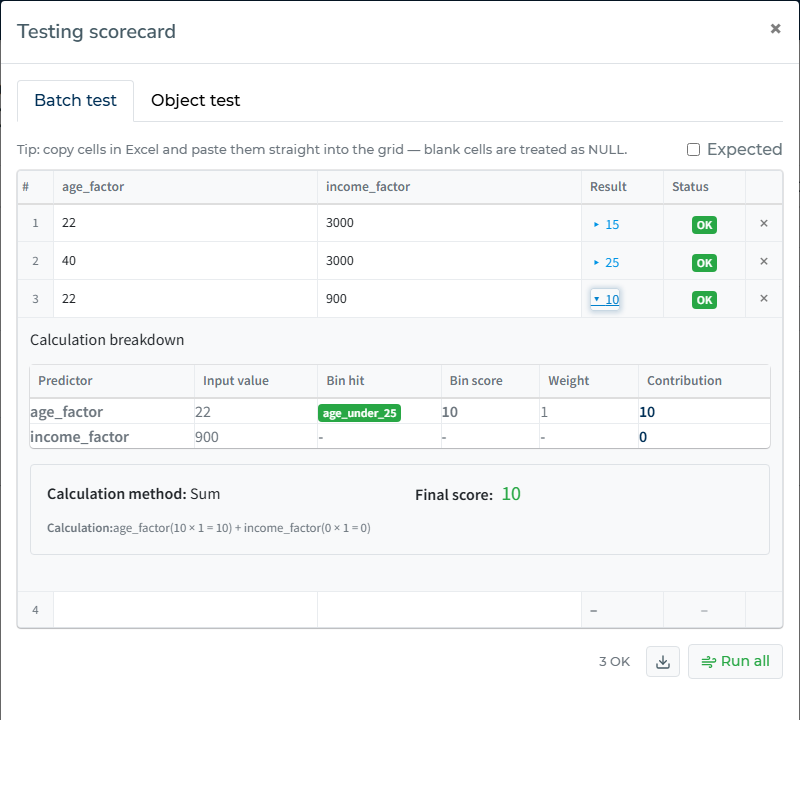
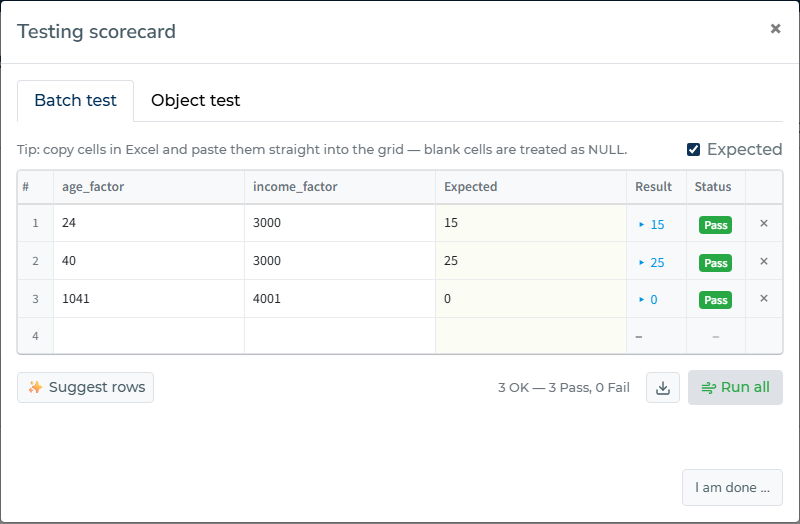
The testing window opens in a spreadsheet-like grid — one column per predictor, one row per test record. Use a single row for a quick check, or paste dozens of records straight from Excel with CTRL+V. Optionally add an Expected column to get PASS/FAIL per row, hit “Run all”, and export the results back to CSV. Blank cells are sent as NULL. It works exactly like batch testing for functions.
Click a row’s result to unfold the calculation breakdown: which bin was hit for each predictor, the input value the engine read, bin scores, weights, and each predictor’s contribution to the final score. When a predictor contributes 0, the breakdown shows the value it read and that no bin matched — usually a bin operator or range issue.
Value suggestions: each cell suggests the values that matter for that predictor as you type — a value that lands in each bin, the bin boundaries themselves, and one value no bin matches. Pick from the list instead of guessing which numbers actually exercise the scorecard.
Suggest rows: since the bins fully describe the scorecard, the portal can generate the test cases for you. Hit “✨ Suggest rows” and the grid fills with one record per bin — each predictor’s bins get a value that hits them — plus one record that hits nothing, with the Expected column prefilled from the bin scores and weights. Run all, and every row should pass; a red row means the scorecard does not behave the way its bins suggest. (Expected values are prefilled for sum and average scorecards; logistic scorecards get the input rows only.)
Object Testing
Test with complete data objects to validate real-world scenarios and see full scorecard execution traces.
Verbose Output
Enable verbose output (level 1 or 2) to see detailed execution information:
- Which bins were hit for each predictor
- Individual bin scores and weights
- For predictors using a dynamic weight: the attribute path read and the weight it resolved to
- Final score calculation breakdown
- Execution timing and metadata
🧪 Learn More: For comprehensive testing strategies and debugging techniques, see Testing Decision Logic and Evaluation Logic Reference.
Explain
There is an “Explain” feature for scorecards. It uses GPT-4 model for explaining a scorecard in human terms.
You can see the explanation details of a scorecard by clicking “Explain” from the drop-down menu of “Settings” button icon when viewing a scorecard.
Revisions
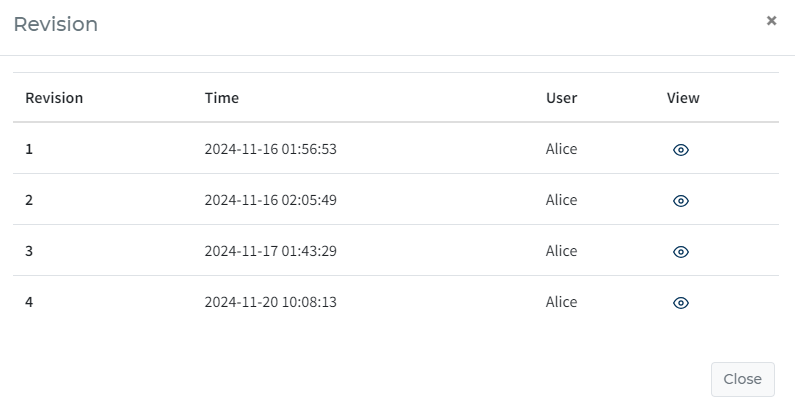
Revision history can tell you what a scorecard looked in the historical version. You can view what was the definition, and who made the changes.
You can see the revision history of a scorecard by clicking “Revisions” from the drop-down menu of “Settings“ button icon when viewing a scorecard. A new modal window will appear after you clicked “Revisions”, with a list of all historical changes and who made them. By clicking the “eye” icon, you can see the definition of the scorecard at that time.
Comparing two revisions shows bin order changes as well as value changes. Every bin row carries its evaluation position in the # column; a bin that moved shows its old and new position (for example 2 → 1) and is highlighted in its own colour, so a reordering is visible even when nothing else about that bin changed. Reordered bins count towards the MOD total in the comparison toolbar, since with first-match-wins a reorder changes how the scorecard scores. Bins are listed in the newer revision's evaluation order, and a bin whose position only shifted because another bin was added or deleted above it is not reported as moved.