Compliance Check
A compliance check evaluates whether the decision logic in a release satisfies the requirements extracted from a policy document. The system uses AI to analyze each requirement against the actual rules, decision tables, scorecards, and other logic components in your release, then produces a detailed compliance report.
Why Run a Compliance Check?
Before deploying a release to production, you want confidence that your decision logic correctly implements the applicable regulations and policies. A compliance check helps you:
- Catch gaps — Identify requirements that are not addressed by any decision logic
- Verify implementation — Confirm that specific rules, tables, or scorecards cover each requirement
- Document compliance — Generate an auditable record linking requirements to implemented logic
- Track changes — Re-run checks after modifying decision logic to verify continued compliance
Running a Compliance Check
Step-by-step
- Navigate to Decision Flows and open the flow you want to check
- Create or select a Release (see Releases)
- Open the Compliance tab on the release page
- Click "Run Compliance Check"

- In the modal, select the policy document you want to check against
- Click Run to start the analysis
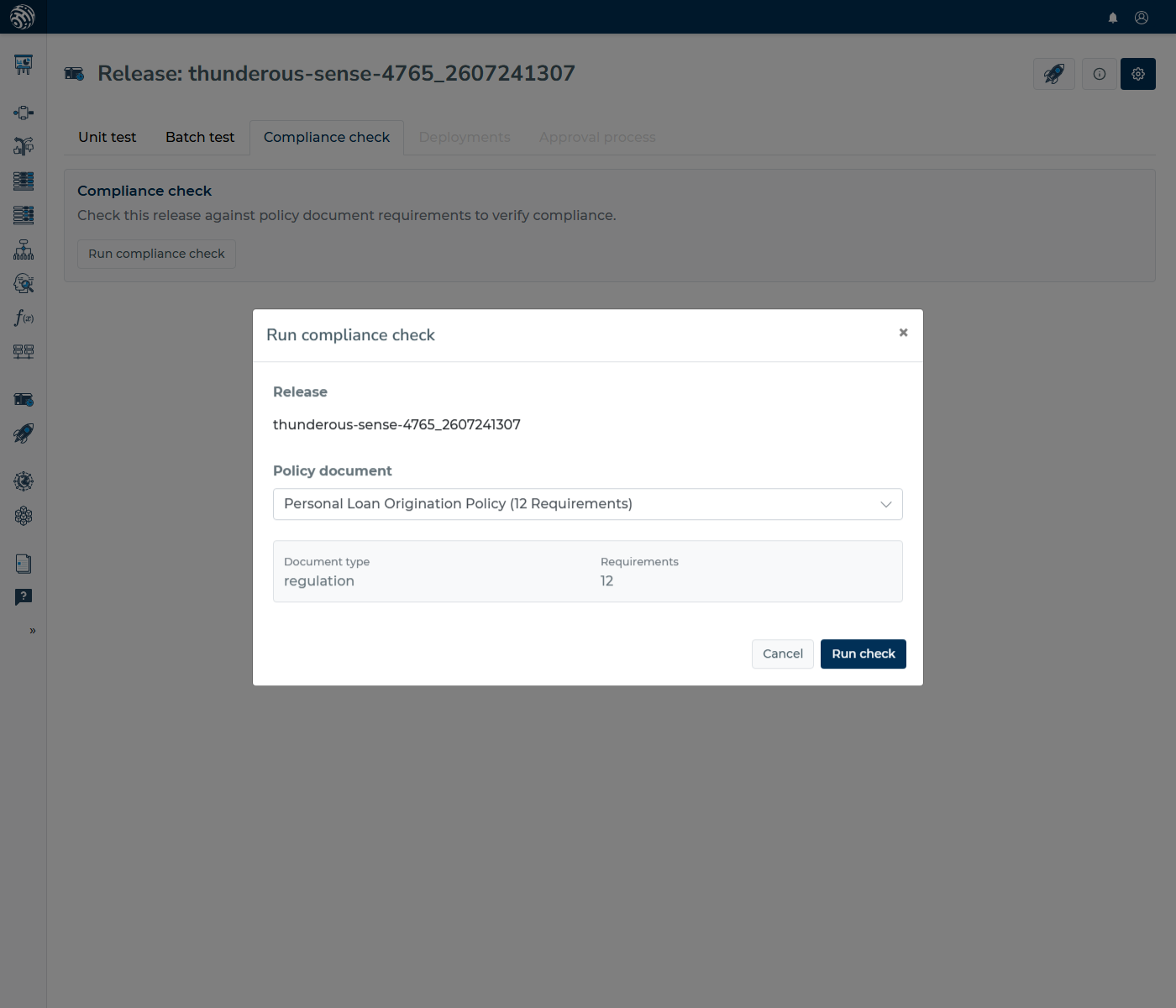
The check may take a minute or more depending on the number of requirements and the complexity of the decision logic.
What Happens Behind the Scenes
When you run a compliance check, the system:
- Converts the release into a readable format — All decision logic components (rule sets, decision tables, scorecards, decision trees, functions, models) are converted into a structured text representation, with each entity clearly identified
- Groups requirements into batches — The extracted requirements from the policy document are organized for efficient processing
- AI evaluation — An AI model analyzes each requirement against the decision logic, determining whether the logic demonstrably satisfies the requirement
- Results are stored — Each requirement receives a status, explanation, and links to the specific entities that address it
Key principle: The absence of a violation does not equal compliance. The system looks for explicit logic that proves a requirement is met — simply not contradicting a requirement is not sufficient for a "compliant" status.
Understanding the Results
Overall Status
Each compliance check produces an overall status:
| Status | Meaning |
|---|---|
| ✅ Compliant | All requirements are addressed by the decision logic |
| ❌ Non-compliant | One or more requirements are not met |
| ⚠️ Partial | Some requirements are met, others are partially addressed or not verified |
| ❓ Not verified | The system could not determine compliance for one or more requirements |
Per-Requirement Results
Each requirement in the report shows:
- Status — One of:
compliant,non_compliant,partial,not_verified,not_applicable - Requirement text — The original requirement from the policy document
- Explanation — AI-generated reasoning explaining why the requirement received its status
- Matching entities — Links to the specific decision logic components (rule sets, decision tables, scorecards, decision trees, functions, models) that address the requirement. Clicking an entity link navigates you directly to that component.
Filtering Results
Use the summary bar at the top of the results to filter by status. Click on any status count (e.g., "3 non-compliant") to show only requirements with that status. This helps you focus on the items that need attention. Click a requirement's row to expand it and see the full explanation.
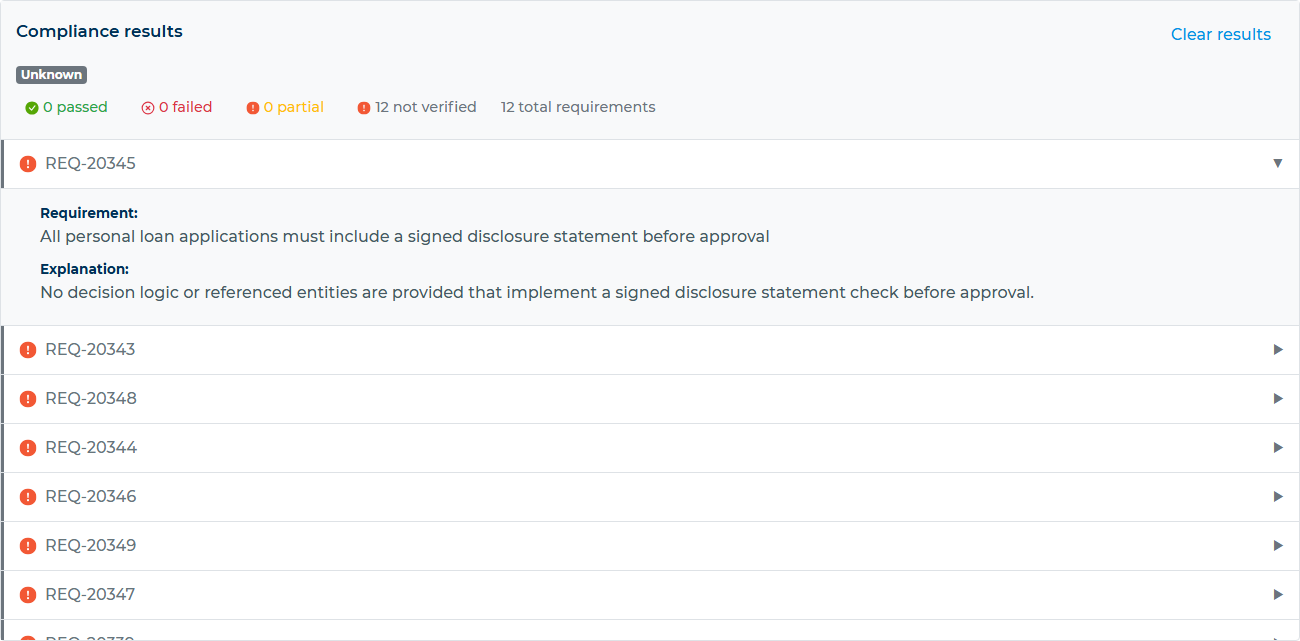
Status Meanings in Detail
| Status | Icon | What It Means |
|---|---|---|
| Compliant | ✅ | The decision logic explicitly implements this requirement |
| Non-compliant | ❌ | The decision logic contradicts or does not implement this requirement |
| Partial | ⚠️ | The requirement is partially addressed — some aspects are covered, others are not |
| Not verified | ❓ | The system could not conclusively determine whether the logic meets this requirement |
| Not applicable | — | The requirement does not apply to this type of decision logic |
Compliance Check History
Every compliance check is saved and can be revisited. On the Compliance tab of a release, you can see:
- A list of previous checks, showing the document title, overall status, and timestamp
- Click any previous check to load its full results
- Delete checks that are no longer needed using the delete button

This allows you to track how compliance evolves as you refine your decision logic across releases.
Typical Workflow
- Upload a regulation or policy as a policy document
- Review the extracted requirements to ensure they are accurate
- Build your decision logic in a decision flow
- Release the decision flow
- Run a compliance check against the policy document
- Review the results — address any non-compliant or not-verified requirements
- Iterate — modify your decision logic, create a new release, and re-run the check
- Deploy once the check shows full compliance
Use Cases
Pre-deployment Regulatory Validation
Before deploying a credit scoring flow, upload the relevant lending regulations and run a compliance check to ensure all regulatory requirements (eligibility criteria, rejection grounds, disclosure obligations) are implemented in the logic.
Ongoing Policy Change Impact Analysis
When a regulation is amended, upload the new version as a policy document, extract the updated requirements, and run compliance checks against your existing releases to identify what needs to change.
Audit Documentation
Compliance check results serve as evidence that your automated decisions were reviewed against applicable policies. The stored history of checks creates an audit trail linking specific releases to specific regulatory requirements.