A backtest takes a release and runs it against decisions that your production endpoints have already made, reporting every decision that would change and, where the history includes outcomes, how the applications behind those decisions performed. It turns an assessment of safety into a measurable comparison.
- Where it lives
- Choosing the rows
- The baseline
- Adding realized outcomes
- Preview before you run
- Running, waiting, canceling
- Earlier runs
- Limits worth knowing
Where it lives
Open a release, go to the Batch test tab, and set Data source to Decision archive (production data). The other option, Uploaded dataset, runs an ordinary batch test over a file you provide.
The archive option requires a decision archive destination; until one is connected, it is greyed out under "Connect a decision archive to analyze production data". See Production data and outcomes.
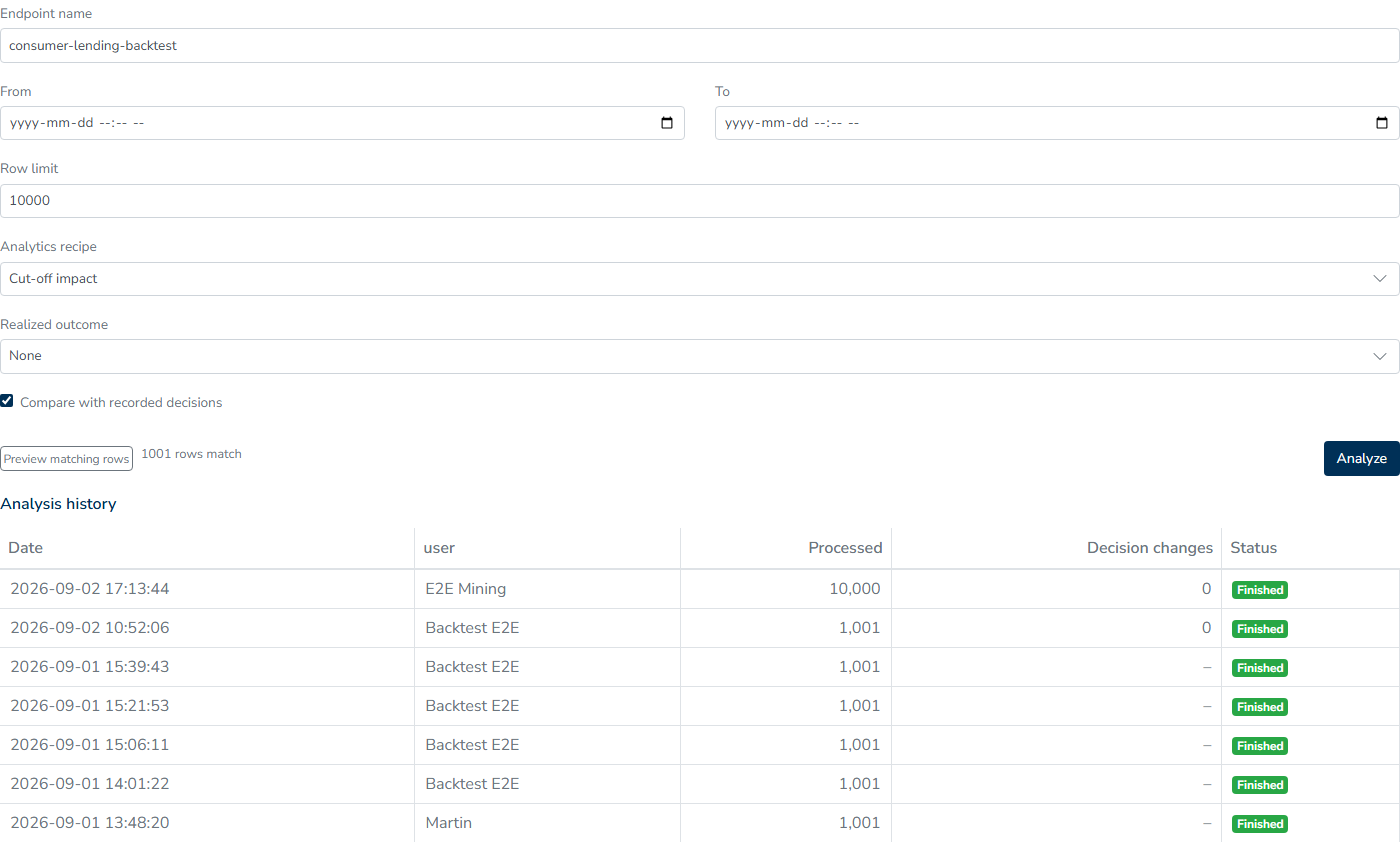
Choosing the rows
| Field | What it does |
|---|---|
| Endpoint name | Restricts the run to decisions taken through one endpoint. Leave it empty to take every endpoint |
| From and To | The window on when the decision was received. Leave both empty for everything the archive holds, up to the row limit |
| Row limit | How many rows to take at most, 10,000 by default and 50,000 at most. Rows are taken oldest first within the window |
| Analytics recipe | Optional. Adds your own measures to the result, computed for both sides. See Analytics Recipes |
| Realized outcome | Optional. The label to join, if you keep an outcome history |
The backtest reads successful production runs only, because a request that errored at the time has no decision available for comparison.
The baseline
Compare with recorded decisions is selected by default, determining the baseline against which the release is measured.
When it is selected, the comparison uses the decision that your production endpoint actually returned. The baseline is not replayed, which keeps the run quick and makes the result a record of what happened rather than a reconstruction; production had its data sources available, but the backtest does not call them, so a difference may reflect a bureau response that is no longer available.
When it is not selected, the release under test and the release that decided each row are both replayed over that row under identical conditions, with data sources switched off. This is slower, but each difference can be attributed to the decision logic.
The result page states which comparison you selected: "Compared with the decisions as they were recorded", or "Compared with the baseline replayed on the same rows".
Adding realized outcomes
Choose a Realized outcome to attach what happened next to each decision that changed. This gives the Decision changes table the context needed for interpretation: 92 approvals turning into declines is a volume, whereas 92 approvals turning into declines with a 6.5% bad rate, compared with 1.3% for the approvals that remained unchanged, is evidence about the proposed release.
The picker lists the outcome names held in your history table. Rows without a label remain in the run and in the decision counts, but they are excluded from the rates, and each cell reports how many of its rows had a label.
Preview before you run
Preview matching rows counts the rows matched by the filters without starting the analysis, displaying "1,240 rows match" and, when an outcome is selected, "870 with outcomes". This lets you check the window before committing 50,000 rows to the run and confirms that outcomes are being joined.
Running, waiting, canceling
Analyze queues the run for a background worker, and the page follows its progress from "Waiting for the analysis to start..." to a count of processed rows against the matched total. You can leave the page because the run continues and appears under Analyses.
You can cancel a run while it is queued or running. A failed run remains in the list and explains the failure using the messages in Production data and outcomes.
Rows that cannot complete are counted as errors and reported beside the totals; they are excluded from every number rather than being treated as unchanged.
Earlier runs
Under the form, Analysis history lists this release's earlier archive analyses with their date, the person who started them, rows processed, decisions changed and status, so you can reopen a result instead of running the analysis again. Analyses in the left menu contains the same runs for every release and entity together.
Limits worth knowing
- A single run can contain at most 50,000 rows. For a larger book, take one window at a time; because the results are rates, a stratified window is usually the more honest basis for comparison.
- Data sources are never called. If a decision flow depends on a live bureau response for a value that the request does not carry, the backtest may produce a different decision from production on both sides of the comparison. Lists are the exception: a backtest checks every list in the flow against the list as it stood when each request was received. See Lists.
- The archive contains the responses from your endpoints. Decisions made in test runs, batch tests or the case studio never enter it.