The engine allows you to import your own model directly and prepares the environment based on your specifications. You can then use the model within the decision flow to support decision-making process. If you’ve trained your machine learning model in Python, Julia or R, you can import it into Decisimo, and use it to generate scores within decision flow.
Licensing: importing your own model is a licensed capability. If the Own model option is not offered when you create a model, it is not included in your plan -- LLM models remain available to everyone. Contact support to have it enabled.
The quick guide
- Dump your model to pickle file.
- Models → Add model.
- Define Python version, libraries, upload model.
- Define input variables and which fields from the data object shall be used.
- Press Save or CTRL+S key shortcut and wait for the model to be prepared.
- Add it to your decision flow.
Preparing your model
Your trained model must first be dumped in order to be imported and used in a decision flow.
Let's assume that you have a variable model with your trained (fitted) model.
Import pickle and export the model as a file in your preferred Python environment at this time.
import pickle with open(r'model.pkl' ,'wb') as f: pickle.dump(model, f)
Once you have the pickle file, it is ready for import.
Importing your model
You must specify a few details when adding a model, including which Python version to use and which libraries to import.
Following are the input variables your model will use to make predictions. Define the data types of the variables and specify them in the order that your model anticipates. Failure will occur if the data types are incompatible.
There are three columns for each variable when defining it. the name, data type, and value mapping of the variable.
- The variable name is only used within the Decisimo portal.
- The data type is necessary to make sure python does not throw an exception.
- Value mapping defines the attribute from the data object to use for model evaluation.
The engine will take the mapped value from the data object, force it to the specific data type, and pass it to your model.
How values are read
A value is read into a model input the same way rules, decision tables and scorecards read it. One value cannot mean two things inside one decision.
| Input type | What is accepted | Notes |
|---|---|---|
| NUMBER, INTEGER | plain numbers, numbers as text, thousands separators in either convention (1,234.50 and 1 234,50), currency codes and symbols, accounting negatives (1 234,50) = -1234.50, percentages, scientific notation | true / false as text arrive as 1 and 0, the same as a real boolean. A value beyond the integer range is capped at the maximum rather than wrapping to a negative. |
| DATE | ISO dates and datetimes with or without a time zone, common local formats, a plain 4-digit year, Unix timestamps in seconds, and Java-style millisecond timestamps | Dates are read in UTC, so a run gives your model the same instant in testing as in production. A value that is not a date arrives as false. |
| STRING | any single value, trimmed | Lists and objects arrive as empty text. |
Two things are worth knowing because they are easy to get wrong:
- A list or an object is not a single value. If a mapping points at a whole node, or at a wildcard that matched several entries, a numeric input receives 1, and a text input receives empty text. Point the mapping at one value.
- A date is not a number. A date reaching a NUMBER input is not converted to anything sensible, because there is no sensible answer. Map dates to DATE inputs.
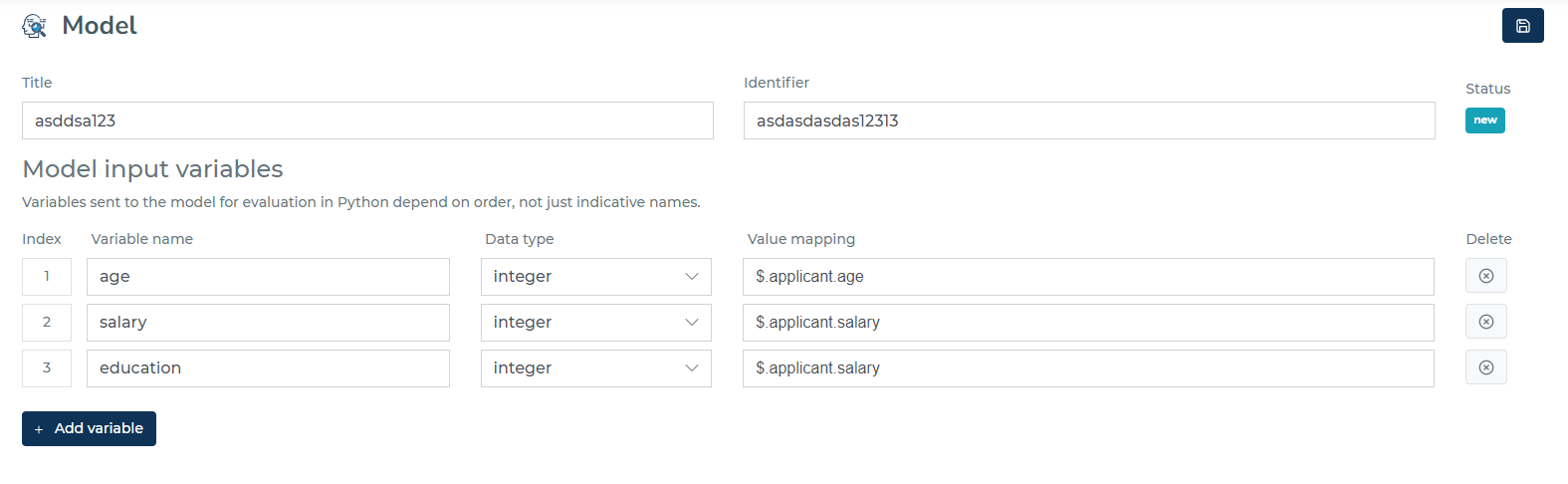
Once you hit “save model”, the system will start preparing the environment for it. It may take a minute for it to be finished and ready for use.
| Status | Information |
|---|---|
| PREPARING | The platform is preparing an environment for your model. It cannot be used in decision logic yet. |
| READY | The environment is ready and you can start using your model for decision logic. |
| FAILED | The preparation of the environment for your model has failed. |
prediction = model.predict_proba(data)
prediction = prediction.tolist()
return jsonify(prediction)
Testing the model
Once the model is ready to use, you can test it by the following 2 ways:
- Unit test: when testing, it shows which value to provide. After passing testing values and hitting the “Run test”, you can see whether the model works as expected.
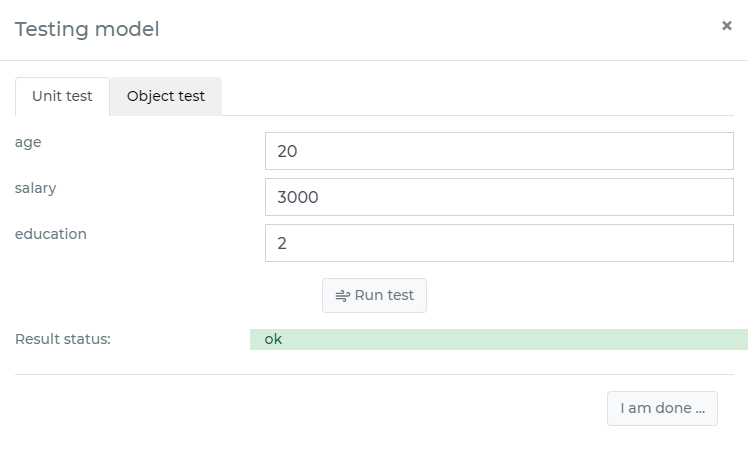
- Object test: when doing object test, you need to select a data object and then run a test.
LLM Models
In addition to traditional machine learning models, Decisimo supports Large Language Model (LLM) integration. LLM models allow you to leverage AI services like OpenAI, Azure OpenAI, Google Gemini, Anthropic Claude, and other OpenAI-compatible providers (DeepSeek, Mistral, etc.) directly within your decision flows.
Creating an LLM Model
- Navigate to Models → Add model
- Select LLM as the model type
- Configure your LLM service connection
- Define your prompt template and variables
- Save the model
LLM Service Configuration
Before using an LLM model, you need to configure an LLM service. Each service requires:
| Field | Description |
|---|---|
| Service Title | Human-readable name for the service |
| Service Name | Unique identifier used internally |
| Endpoint URL | The API endpoint for the LLM provider |
| API Type | The provider type (see supported providers below) |
| Default Model Name | The model to use (e.g., gpt-4o, claude-sonnet-4-20250514) |
| API Key | Your authentication key for the service |
Supported API Types
| API Type | Provider | Example Endpoint |
|---|---|---|
| OpenAI | OpenAI, DeepSeek, Mistral, and other OpenAI-compatible APIs | https://api.openai.com/v1/chat/completions |
| Azure | Azure OpenAI Service | https://{resource}.cognitiveservices.azure.com/openai/deployments/{deployment}/chat/completions?api-version=2024-12-01-preview |
| Gemini | Google Gemini | https://generativelanguage.googleapis.com/v1beta/models/{model}:generateContent |
| Anthropic | Anthropic Claude | https://api.anthropic.com/v1/messages |
Prompt Template
The prompt template defines what you send to the LLM. Use double curly braces {{variable_name}} to insert dynamic values from your data object:
Analyze the following customer application:
- Income: {{income}}
- Employment: {{employment_status}}
- Credit Score: {{credit_score}}

Provide a risk assessment.
LLM Variables
Define variables that map data from your input object to the prompt template:
| Variable Name | Mapping | Description |
|---|---|---|
| income | $.input.annual_income | Maps the income field |
| employment_status | $.input.employment | Maps employment status |
| credit_score | $.input.score | Maps credit score |
Output Configuration
- Output Attribute: JSON path where the LLM response is stored (e.g.,
$.output.llm_result) - Output Format: Optional JSON schema to validate/structure the response
How Output Format Works
When you define an Output Format schema, the engine automatically appends it to your prompt to guide the LLM's response structure. This ensures consistent, parseable JSON output across all supported providers (OpenAI, Gemini, Anthropic, Azure, etc.).
For example, if your prompt template is:
Analyze this customer and assess their risk level.
Customer age: {{age}}
Customer income: {{income}}
And your output format schema is:
{
  "risk_level": "string",
  "score": "number",
  "reasons": ["string"]
}
The engine will send the following combined prompt to the LLM:
Analyze this customer and assess their risk level.
Customer age: 35
Customer income: 75000

Respond with a valid JSON object matching this exact structure:
{
  "risk_level": "string",
  "score": "number",
  "reasons": ["string"]
}
This approach:
- Works consistently across all LLM providers
- Guides the model to return properly structured JSON
- Enables automatic response parsing and validation
- Allows you to use the structured output in downstream decision logic
Advanced Configuration
| Parameter | Description | Default |
|---|---|---|
| Temperature | Controls randomness (0 = deterministic, 1 = creative) | 0.7 |
| Max Tokens | Maximum length of the response | 500 |
| Top P | Nucleus sampling parameter | 1.0 |
| Frequency Penalty | Reduces repetition of tokens | 0.0 |
| Presence Penalty | Encourages new topics | 0.0 |
| Timeout | Request timeout in seconds | 60 |
Parallel Execution
For improved reliability and consensus-based responses, you can configure parallel LLM calls:
| Parameter | Description |
|---|---|
| Number of Parallel Calls | How many concurrent requests to make (1-10) |
| Consensus Strategy | How to select the final response |
| Min Consensus Count | Minimum matching responses required |
| Consensus Threshold | Similarity threshold for matching |
Consensus Strategies
- Majority: Select the response that appears most frequently
- Unanimous: All responses must match
- First: Use the first successful response
- Most Complete: Use the longest/most detailed response
- Best Quality: Score responses by completeness and structure
Using LLM in Decision Flows
Once your LLM model is saved, add it to your decision flow like any other model. The LLM response will be available at the configured output path for use in subsequent decision logic.
Performance Considerations
LLM calls are typically slower than rule-based logic. Consider:
- Using webhook endpoints for long-running LLM operations (no timeout)
- Setting appropriate timeout values based on your provider
- Using parallel execution for critical decisions requiring consensus
Credentials
Fields that take an API key, token or password offer the credentials stored under Admin Center → Credentials. Pick one and the configuration keeps a reference (secret:openai_main) rather than the value.
You can still type a value in directly. It is taken into the vault when you save, and the field is left holding the reference — the credential itself never ends up in the stored configuration, an export or a release.