You can specify a connection to any REST API or SOAP web service in data sources to request data. You can dynamically enrich data within your decision logic by using data sources.

The quick guide
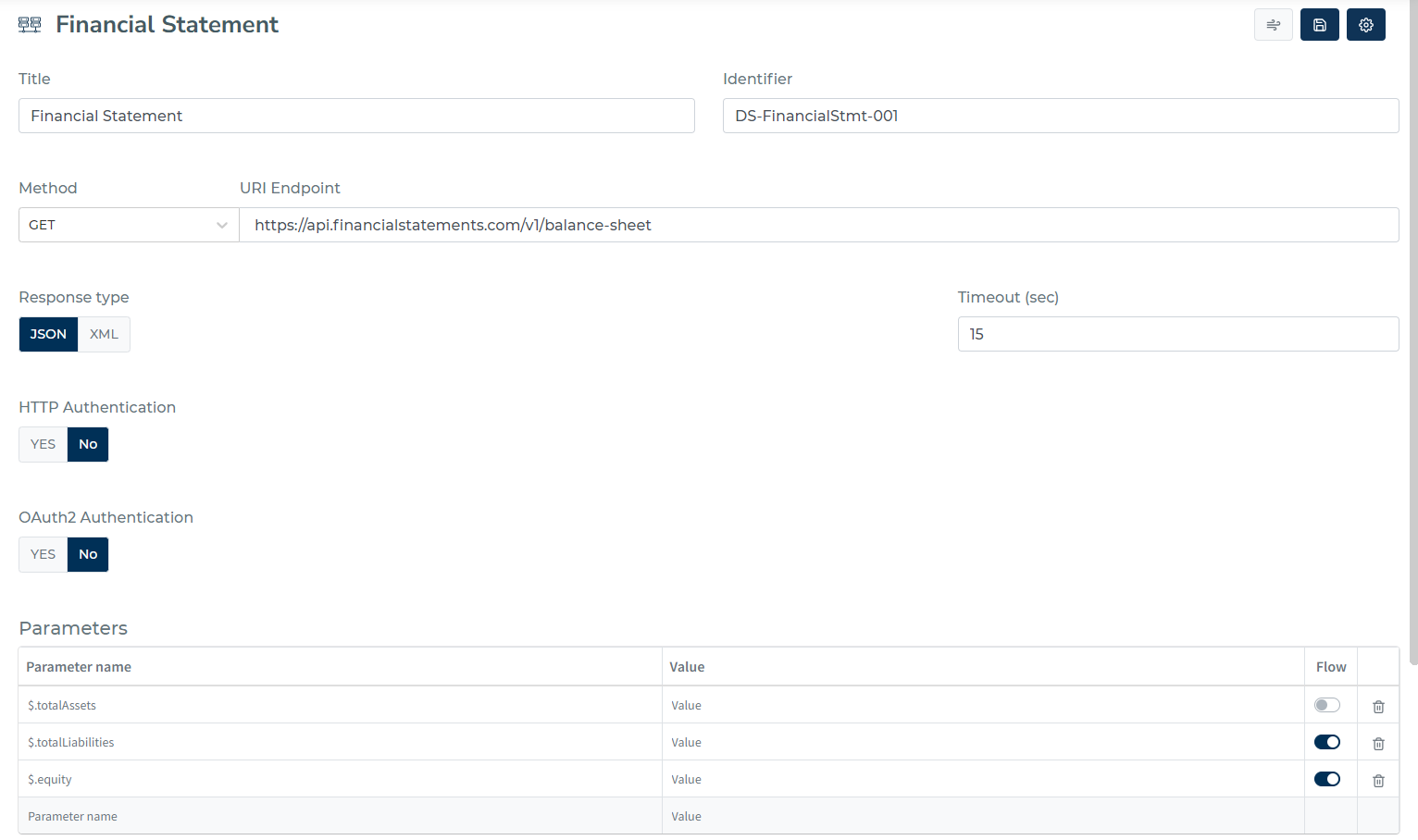
To add a new data source in Decisimo:
- Click "Data sources" and then click "+ Data source."
- Give the data source a Title and an ID.
- Press Save or CTRL+S key shortcut and wait for the Data source to be prepared.
- Enter the URL Endpoint (or WSDL URL for SOAP services).
- Choose a method (GET, POST, PUT, or SOAP).
- If you select POST, you'll need to choose between plain POST data, JSON data, or Raw Body POST.
- If you select Raw Body POST, you can create custom XML, JSON, or other structured templates.
- If you select SOAP, you'll need to enter the SOAP method name.
- Select a response type (JSON or XML). Note: SOAP automatically uses XML.
- Set a Timeout value.
- Choose whether to use HTTP Authentication (Yes or No). If you select Yes, you'll need to enter a Username and Password.
- Choose whether to use OAuth2 Authentication (Yes or No).
- Add parameters, and enter the parameter name and value.
- Check the Flow option if you want to propagate the attribute to the decision flow.
- Add headers if needed.
- Add the data source to your decision step.
Definition of the data source
Endpoint URL
Method
| Type | Description |
|---|---|
| GET | Usually standard for simpler APIs. |
| POST | Used for sending larger amounts of information. May require sending the parameters as a JSON object or raw body data. |
| PUT | Used for "informing" of the state of change. Rarely used, usually for updating other systems about a decision result. |
| SOAP | Used for calling SOAP web services. Requires WSDL URL and SOAP method name. Automatically uses XML format. |
Response type
Any response that is in JSON or XML format can be processed by Decisimo.
In the same way as if it were a JSON response, the engine will transform the XML structure into a JSON structure and add it to the data object.
Timeout
Maximum amount of time the engine can wait before responding.
The maximum response time is 15 seconds, so if the API does not reply within that time, the engine will carry on with execution.
Authentication
HTTP Authentication: Username and Password are needed.
OAuth2 Authentication: Token info is needed.
Request
Headers
Request headers that the engine will send with each request can be specified in headers.
Typically, headers are used for response technical definitions or for authorization keys.
Parameters
When FLOW is checked, it means this attribute will propagate to the decision flow step option. It makes it easier for knowing which variables to assign from your data object.
Note for Raw Body Templates: When using Raw Body POST, parameter names should match the placeholders in your template with the curly braces. For example, if your template contains {firstName}, create a parameter named {firstName}.

Special cases
SOAP Web Services
When using SOAP method, you need to:
- Enter the WSDL URL: Provide the URL ending with
?WSDL(e.g.,https://example.com/service.asmx?WSDL) - Specify SOAP Method Name: Enter the exact method name from the WSDL (e.g.,
GetCustomerInfo,ExecuteQuery) - Use XPath notation for nested parameters: For complex SOAP structures, use forward slash
/to create nested XML elements:credentials/UserNamebecomes<credentials><UserName>value</UserName></credentials>request/auth/tokenbecomes<request><auth><token>value</token></auth></request>
- Preview SOAP XML: Click "Preview SOAP XML" button to see how your parameters will be structured in the SOAP request
The SOAP response is automatically converted to JSON format and added to the data object, just like REST API responses.
SOAP version: the envelope version comes from the WSDL binding — a service that publishes a SOAP 1.2 binding is called as 1.2, anything else as 1.1. There is nothing to configure, and nothing to change if the service moves from one to the other. A service that publishes both bindings is called as 1.1.
What the engine downloads: Decisimo fetches and checks the WSDL itself, then sends the call to the address published in that document. Every URL involved is subject to the checks described under Security: allowed endpoints below.
Raw Body Templates
When you need to send custom XML, JSON, or other structured data in the request body, you can use Raw Body Templates. This is particularly useful for APIs that require specific XML schemas or custom JSON structures.
How to Use Raw Body Templates
- Select POST Method: Raw body templates work with POST requests
- Choose "Raw Body POST" Option: This enables the raw body template functionality
- Enter Your Template: Write your custom XML, JSON, or text template with parameter placeholders
- Use Parameter Placeholders: Insert
{parameterName}where you want dynamic values - Define Parameters: Add parameters with names matching your placeholders (with the curly braces)
Template Examples
Custom XML Template:
<?xml version="1.0" encoding="UTF-8"?>
<UserRequest>
  <PersonalInfo>
    <FirstName>{firstName}</FirstName>
    <LastName>{lastName}</LastName>
    <DateOfBirth>{dateOfBirth}</DateOfBirth>
  </PersonalInfo>
  <RequestType>DataVerification</RequestType>
</UserRequest>
Custom JSON Template:
{
  "request": {
    "user": {
      "id": "{userId}",
      "name": "{fullName}",
      "email": "{emailAddress}"
    },
    "query": {
      "type": "verification",
      "timestamp": "{currentTimestamp}"
    }
  }
}
Custom SOAP Template:
<soap:Envelope xmlns:soap="http://schemas.xmlsoap.org/soap/envelope/">
  <soap:Body>
    <GetUserData xmlns="http://example.com/services">
      <UserId>{userId}</UserId>
      <IncludeDetails>{includeDetails}</IncludeDetails>
      <AuthToken>{authToken}</AuthToken>
    </GetUserData>
  </soap:Body>
</soap:Envelope>
Use {parameterName} placeholders in your template and create parameters with matching names including the curly braces.
Parameters as complex JSON
You must use JSONPath to specify the precise data that you want to include in the POST request if you are sending data in POST as a complex JSON.
Parameters part of URL
You must use a specific syntax when working with dynamic parameters that are a part of the API endpoint URL to specify the values that should be passed to these parameters. To do this, enclose the parameter name and value in curly braces as shown in the example below:
https://api.example.com/{parameter_name}
This method of specifying the parameter values enables you to dynamically pass data to the API endpoint, allowing you to retrieve the precise data you require.
Define the value that should be passed, whether it be a specific value or one that is mapped from the data object, for parameters with the name "parameter_name" and in the parameters.
Setting up a data source with the AI Assistant
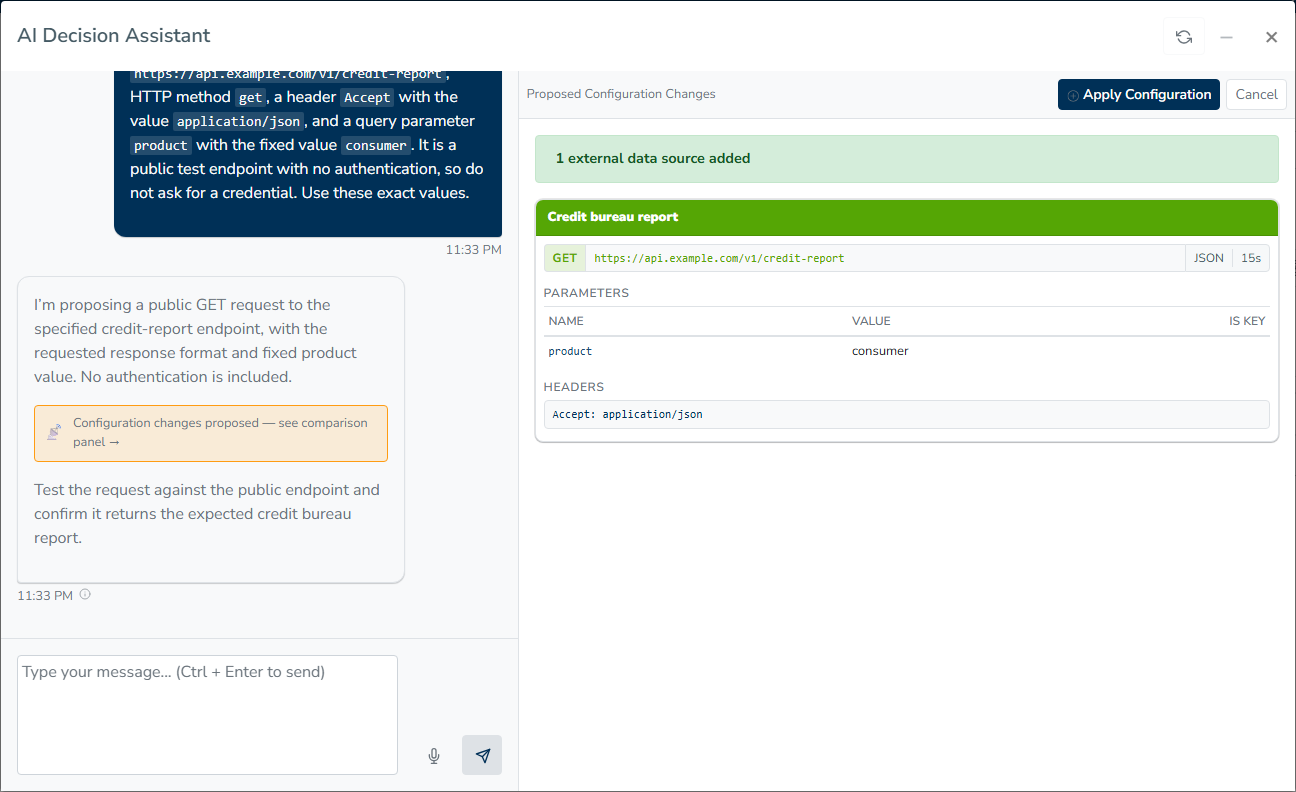
Instead of filling in every field yourself, describe the API you want to call and let the assistant propose a configuration for you to review. The AI Assistant button is the sparkle icon in the data source screen header. It appears when you create a new data source or edit an existing one, but not on list screens. Click it to open the AI Decision Assistant, with the conversation on the left and the configuration on the right.
What the assistant can set
A proposal can cover the same fields you would fill in by hand:
- the title and the identifier
- the endpoint URL, or the WSDL URL for SOAP
- the method (GET, POST, PUT or SOAP), the POST data type and the SOAP method name
- the response type (JSON or XML) and the timeout
- HTTP or OAuth2 authentication
- parameters, including the Flow option, and headers
- a raw body template
Before you review a proposal, Decisimo normalizes it. An unknown method becomes GET, and an unknown response type becomes JSON. A raw body template is dropped unless the method is POST with Raw Body POST. The identifier is cleaned to contain only the characters it allows. If a parameter has the same name as a {placeholder} in the URL, it is renamed with the curly braces so its value fills the URL instead of being added as a query string.
Reviewing and applying
The right pane starts as Current Configuration. When the assistant proposes a configuration for your approval, it becomes Proposed Configuration Changes and shows what would change from the data source’s current settings. Click Apply Configuration to copy the proposal into the form, or Cancel to dismiss it.
Applying the proposal fills the form but does not save it. You see AI configuration applied, the assistant stays open so you can keep refining the proposal, and the data source is stored only when you press Save or CTRL+S.
Credentials in the conversation
When the API needs a key, token or password, the assistant asks for it in a Credential needed box inside the chat. Choose Use existing to pick an entry from the vault, or Add new to give it a Name and a Value and click Store and use. The value goes straight to the vault. The conversation carries only the name, and the assistant puts the reference, such as secret:openai_main, into the field that needs it.
While that box is open, Apply Configuration stays disabled with the note Resolve the credential above before applying. If you do not have the credential yet, click Skip for now and save without it. You can then apply the rest of the proposal, the assistant stops asking for the credential, and you can set it on the data source later.
Enter credentials in the box, not in the message field. When the assistant is waiting for one, a message that looks like a credential is not sent, and a warning points you to the box. If a credential-shaped value reaches the chat, it is replaced with a placeholder before the assistant processes it, and a notice under your message offers Open Credentials. The same rule applies to the proposal: a key parameter, authentication header or password field holds a reference or stays empty, never the credential itself. See Credentials.
You can also add a data source task while building a decision flow with the AI Decision Assistant for decision flows.
Testing
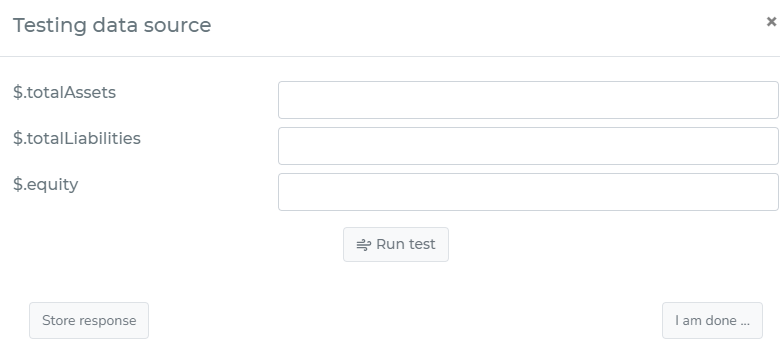
After you finished the configuration of all necessary parameters, you can test the data source from the connectivity perspective. When testing, it shows which parameter to provide. After hitting the “Run test”, you can see the results returned by data source.
Caching provider responses
Decisimo can answer a data source from a stored copy instead of calling the provider again. Caching is set per data source inside a decision step, so the same source can be cached in one step and called live in another.
Before you can cache
Your tenant needs a Data cache destination that is prepared and enabled. That destination is a PostgreSQL database you own, so the stored responses, and how long they are kept, stay in your hands. See Data Destinations. Until one is enabled, the + Cache button is not offered at all.
Data marketplace services and OCR services use their own transport and are never cached.
Turning it on
Open the decision flow, open the data source step, and expand the data source. Click + Cache. A Cache row appears with a default of 30 days. Set the number and the unit (minutes, hours, days, weeks) and save the step. Deleting the row turns caching off again.
Anything longer than a year is read as a year. A duration the engine cannot parse means no caching at all, which is why the control offers a number and a unit instead of free text.
What counts as the same call
By default a stored copy is found again by everything the call carries: the data source, the method, the full URL after parameters are substituted, every parameter sent, and the request body when there is one. Change any of them and the next run goes to the provider.
Two further settings adjust that. Add a parameter named cache_key or cache_key_add and save the step; it comes back as its own control.
| Setting | What it does |
|---|---|
| Cache key | A comma-separated list of parameter names. Only those parameters count toward the match, and the URL counts only as far as its path, so a query string no longer splits the stored copies. A listed parameter that is not sent counts as missing, and that too is part of the match. |
| Cache key + | A JSONPath from the data object, added to the match, for something the request does not carry. A product code, for example, so one product's answers are never served to another. |
Credentials never take part. A parameter holding an API key, token or password is left out of the match, so rotating a credential does not throw away what you have stored.
cache_max_age, cache_key and cache_key_add are reserved names. They configure caching and are removed from the request, so the provider never receives them.
Which responses are stored
A response is stored only when the provider answered and the answer holds something:
| Result | Stored |
|---|---|
| HTTP status below 400, with a body Decisimo could parse | Yes |
| HTTP status 400 and above | No |
| Timeout, connection failure, or no HTTP status at all | No |
| Endpoint blocked by the security checks | No |
| An empty body, or one the response type could not parse | No |
| SOAP call that returned a result | Yes, recorded as status 200 |
| SOAP fault | No |
Errors are never stored. A failed call is always tried against the provider again rather than being frozen for the age you set. Redirects are not followed, so a 3xx seldom carries anything to store; when one does carry a body that parses, it counts as an answer and is stored like any other.
The write happens after your decision response has been sent, so it never adds to the time a caller waits. A write that fails is dropped rather than retried.
What a hit looks like in the data object
A hit fills the same fields a live call fills, so the rest of the decision flow branches identically:
__cachedistrueon a hit, andfalseon a call that was eligible for caching__cache_age_secondssays how old the stored answer is__http_codeand__content_typeare the ones stored with it__total_timeand__attemptsare0
__cached is written to the decision archive, so you can tell afterwards which decisions ran on stored data.
Age is a reading rule
The age you set decides what may be served. A stored answer older than it is ignored and the provider is called. Nothing is deleted at that moment. Rows stay in your table until you remove them, and retention is yours to run inside your own database.
When the cache database is unavailable
A lookup gets a short window: five seconds to connect, and 1.5 seconds to answer. If it does not answer in time, the provider is called and the decision carries on. After three failures in a row, lookups pause for a minute instead of paying that wait on every request. A cache problem never fails a decision.
Caching and testing
Run test on the data source itself never reads or writes the cache. It always calls the provider.
Testing a decision flow in the portal does read the cache, so a stored answer that is still fresh is served instead of a call. A portal test never stores anything.
Security: allowed endpoints
To protect the platform and other tenants, Decisimo only calls data sources on the public internet. Before each request, the endpoint URL is checked and the following are rejected:
- Scheme — only
http://andhttps://are allowed. Things likefile://,ftp://,gopher://etc. are blocked. - Internal / reserved addresses — loopback (
127.0.0.0/8,::1), private networks (10/8,172.16/12,192.168/16), link-local (169.254/16— including cloud metadata IPs like169.254.169.254), CGNAT (100.64/10), multicast, and other reserved ranges are blocked. - Redirects are not followed — a
3xxresponse from the endpoint is returned as-is; Decisimo will not chase it to another host. If your API needs a redirect to work, configure the final URL directly. (Fetching a WSDL is the one exception — see SOAP data sources below.)
SOAP data sources
A SOAP data source points at more than one URL, so every one of them is checked against the rules above:
- the WSDL URL you configured;
- every endpoint address published in the WSDL — that is where the call actually goes, and the remote document chooses it, not you;
- every schema or WSDL it imports, resolved to an absolute URL before being checked.
Fetching the WSDL follows at most three redirects, and every hop is checked again. The credentials configured on the data source are sent only to the host they were configured for: a redirect to a different host, or a downgrade from https to http, drops them. A WSDL larger than 5 MB, or one containing a DOCTYPE, is refused.
What you see when an endpoint is blocked
The data source call fails and the response in the data object contains:
__errorset totrue__error_details.typeset tossrf_blocked__error_details.reasonwith a short explanation (e.g. "Host 127.0.0.1 resolves to blocked address…")__error_details.blocked_urlwith the offending URL
This lets the rest of the decision flow react to the failure just like any other data source error (for example, routing to a fallback branch). It is the same for REST, LLM and SOAP data sources — for SOAP, the blocked URL may be the WSDL URL, the address inside the WSDL, or one of its imports.
Saving a data source whose endpoint URL fails these checks is also rejected up-front with the error codes endpoint_url_invalid or endpoint_url_blocked, so bad URLs are caught at configuration time rather than at execution time.
Credentials
Fields that take an API key, token or password offer the credentials stored under Admin Center → Credentials. Pick one and the configuration keeps a reference (secret:openai_main) rather than the value.
You can still type a value in directly. It is taken into the vault when you save, and the field is left holding the reference — the credential itself never ends up in the stored configuration, an export or a release.