An automated task runs on the execution node as soon as its conditions are met. No one is assigned to it, and nothing waits in a queue for a person. Choose its type from the Task type dropdown on the task card's Setup tab. Five of the six task types are automated: Decision logic, AI, Document OCR, External data, and Memo. The sixth, Human task, is covered in Human tasks.
Every automated task follows the same pattern. It states when it runs (When a task runs), what it runs, which case file values feed it, and where the result lands. This page covers the last three. Writing results onto the case file as attributes or new records is a separate topic, covered in Writing to the case file.
Decision logic
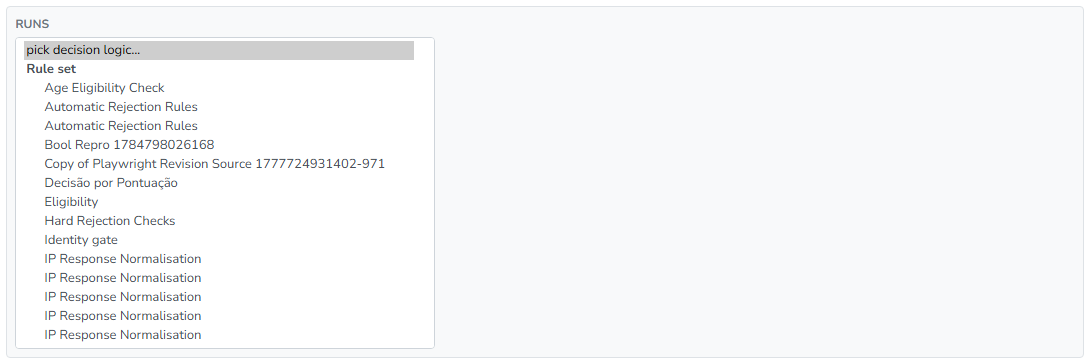
A Decision logic task runs a piece of decision logic you have already built in the platform. The Runs dropdown lists your entities by type: Rule set, Scorecard, Decision table, Decision tree, Function, and Decision flow. Choose one, and the task executes it against the case file. See Rule set and Decision table for details on authoring the logic itself.
When you release the case design, the referenced logic is copied into that release. Later edits to the rule set or table take effect with the next release, not in running cases.
The task card's Overview tab shows the selected logic in a block labeled What it decides. Its Open in editor link opens the entity in a new browser tab.
A component is authored against attribute paths, such as a decision table that compares $.age. The case file is one document in the same vocabulary, so a value collected or sent as age is what the table reads, with nothing to connect. The Inputs rows are for the other case: the component reads a path the case file holds under a different name. The editor loads the component's own read paths and shows one row for each path. A path that nothing on the case file supplies resolves to nothing when the task runs, and the logic decides as if the value were missing. When the component reads nothing, the editor says so: "This component reads no attributes. Nothing to map."
AI
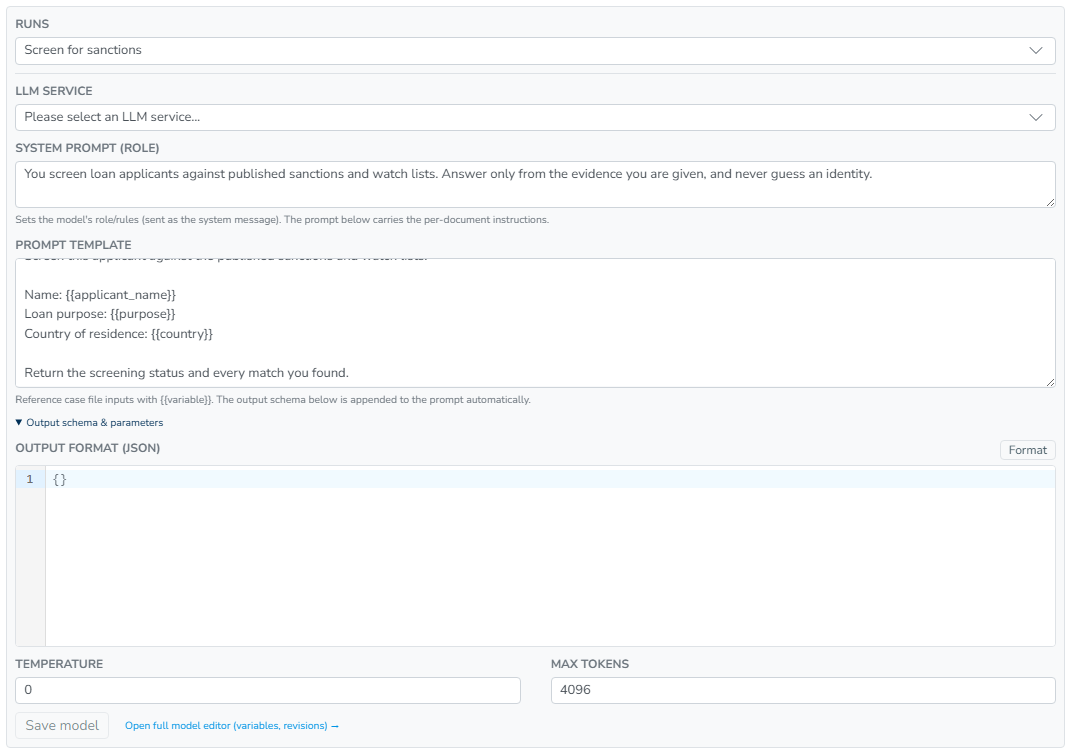
An AI task sends a prompt to a large language model and stores the reply. The Runs dropdown selects the model entity that holds the configuration. If you do not have one yet, the New LLM button creates one named after the task and opens the editor on the card.
The inline editor contains these fields:
- LLM Service. Select the configured service for the call. Options show the service and its default model name. Until you choose one, the dropdown reads "Please select an LLM service".
- System prompt (role). This sets the model's role and rules, which are sent as the system message. A new model starts with a strict extraction prompt (extract only what is present, no judging, no inferring, null for absent fields, every number sourced, JSON only). Replace it if your task is not for extraction.
- Prompt template. These are the instructions for each run. Reference case file inputs with
{{variable}}. Each placeholder is filled from the Inputs row with the same input name. A placeholder with no matching input remains in the prompt as literal text. - Output schema & parameters (a collapsed section):
- Output format (JSON). This is a JSON schema for the reply, edited in a small code editor. It is appended to the prompt automatically, so the prompt template does not need to repeat it. The Format button pretty-prints it. If the text is not valid JSON, you get the message "Invalid JSON format", and the same message prevents Save model until the text parses.
- Temperature. A value from 0 to 2, with a default of 0. Keep it at 0 for extraction and classification.
- Max tokens. The reply length limit, with a default of 4096.
The model is a separate entity, so it saves separately. Save model stores the prompt and parameters, and stays disabled until something changes. Saving the task or the whole design does not save the model. The link Open full model editor (variables, revisions) opens the model at /models/{id} in a new tab for anything the inline editor does not show, including revision history.
The Overview tab shows the prompt under What it asks, with each {{placeholder}} marked. If no input feeds a placeholder, it is flagged: "Nothing feeds this placeholder, so it stays in the prompt as written." That flag is the quickest way to spot a typo between a prompt placeholder and an input name.
Document OCR
A Document OCR task sends a document to an OCR service and stores the recognized content. The Runs dropdown selects the OCR service entity.
The Inputs list always shows two fixed rows, document and filename. Map document to the case file path that holds the uploaded file. This is typically an attribute of a file record collected by a human task or attached when the case was opened. For a task that runs once per record of a file record type, that path is usually $.__record.document. Map filename in the same way when the service uses it to choose a parser.
External data
An External data task calls a data source, which is an outbound API connection defined under Data sources. The Runs dropdown selects the data source.
The Inputs list shows one row for each data source parameter marked push to flow. Key parameters, such as credentials, are not listed because they belong to the data source itself. If the source declares no such parameters, the editor says: "This data source has no parameters marked push to flow. Map inputs manually below." You can then add the call's inputs as custom rows by name.
Memo
A Memo task writes rendered text onto the case file. It does not run an external entity, so it has no Runs section or inputs. It has two fields:
- Output key. The case file key under which the rendered text is written, for example
$.credit_memo. - Memo template. Markdown plus
{{tokens}}. Tokens pull values from the case file at run time, and the editor's insert menu lists the available ones. The template editor is the same one used for a human task's review info, described in Human tasks.
A memo runs when its conditions are met, like any other task. Put it after the values it quotes, so the rendered text never shows an empty token.
Inputs
The Inputs list under Runs maps case file values into whatever the task calls. Decision logic, AI, Document OCR, and External data all use it, with row names that differ by type as described above.
Rows come in two kinds:
- Declared rows. The referenced entity declares what it needs: a component's own read paths, a data source's push-to-flow parameters, or OCR's fixed
documentandfilename. These rows have a fixed name, and you only fill in the value. - Custom rows. Add these with Add input, or with Add custom input when declared rows exist under the Custom inputs heading. You type the input name yourself. Use a custom row for a parameter the entity accepts but does not declare.
Each row's value comes from one of two places, chosen in the dropdown:
- from case file. A
$.pathinto the case file, resolved when the task runs. The field autocompletes from keys produced by your other tasks. For a task that runs once per record, it also offers the bound record's own paths, shown as$.__record.<attribute>. Suggestions are only suggestions, so you can type a path the list does not offer. See Getting familiar with JSONPath for the path syntax. - literal. A fixed value entered in the Value field, which remains the same for every run.
The task saves with the rest of the design. Save task on the card saves this task; the header Save saves the whole case design.

Result handling
Under Result handling, a collapsed section at the bottom of the type-specific setup contains two fields that most tasks never need:
- Result path. This identifies which part of the run's raw output the task keeps as its result. Leave it empty to use the default, a path derived from the task's Identifier shown as the field's placeholder:
$.output.<identifier>.resultfor an AI task,$.output.<identifier>for Document OCR, and$.output.<identifier>.<source>for External data. For a Decision logic task, the field's hint notes that a component writes to its own attribute paths, so leave it empty unless the result sits elsewhere. - Output key. The case file key under which the kept result is written, for example
$.extractedfor AI,$.ocr_textfor OCR,$.registry_resultfor External data, or$.credit_decisionfor Decision logic.
The Writes these attributes rows also draw from this result. That is where single values land on named keys and lists fan out into records. The details are covered in Writing to the case file.