Rule sets are the basics of any decision logic. People sometimes call decision engines rule engines because they managed sets of rules. The composition of rules in a group is a rule set.
To create a Rule Set, click the "Rule Sets" tab, then click the "+ Rule set" button. When you fill in Rule Sets form, you can save the new Rule Set with CTRL+S key shortcut or with the Save button icon.
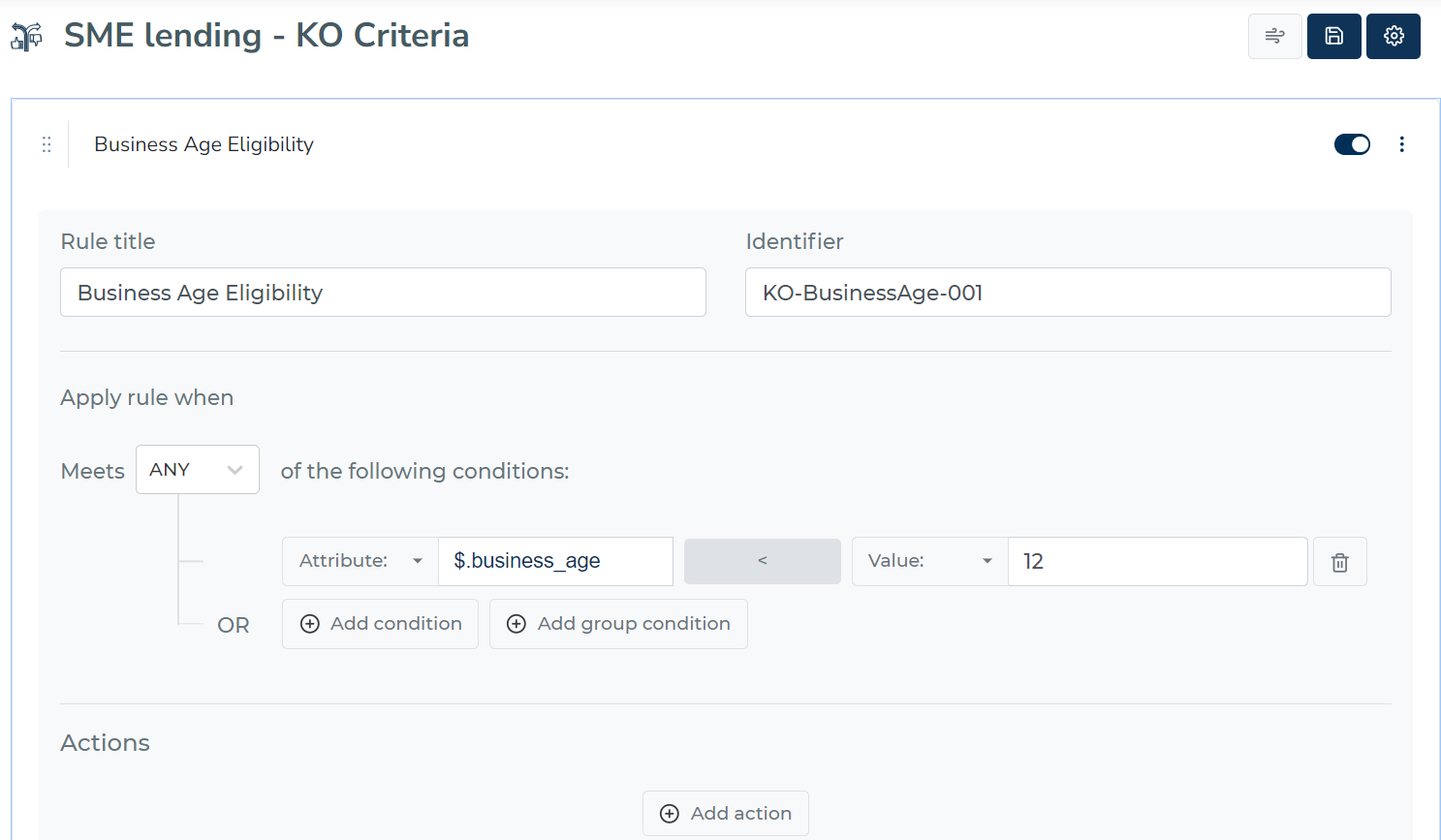
How are rules executed?
An engine sequentially applies each rule from a set of rules. Drag a rule by six dots and drop it in the desired position to alter the order in which the engine executes rules.
The engine takes conditions into account when evaluating a rule. There are two possible outcomes when a rule's conditions are met: either hits are recorded or the rule's action component is assessed.
Recording which rules were hit
By default, "Record hits" is set to YES. If this option is selected as YES, the engine adds a field containing an ordered list of hit rules to the response. Hit denotes that data complied with the rule's requirements.
The naming
There is a Title and an ID when defining a rule set or a rule. Title is used throughout the entire decision management platform to facilitate object navigation, and IDs are technical identifiers that are used when decision logic is executed.
Rule
There are two parts to every rule: conditions and actions. When a rule is met, conditions cause the rule to be applied ("hit"), and actions result in potential changes to a data object.
The definition of a rule condition is divided into two sides, left and right. You have the option of writing a value or defining an attribute from the data object on either side. Experts can define values as JSON, for example, to define arrays (lists) or compare objects.
When there are multiple conditions, you can decide whether the rule is satisfied only when all conditions are satisfied or when any condition is satisfied.
You can see two options right over the Condition- ‘Meet any of the following conditions’ and ‘Meet all of the following conditions`.If you select ‘Meet any of the following conditions’ then the rule will get hit if any of the conditions is met. Otherwise select ‘Meet all of the following conditions’ for the rule to be hit when all conditions are met.
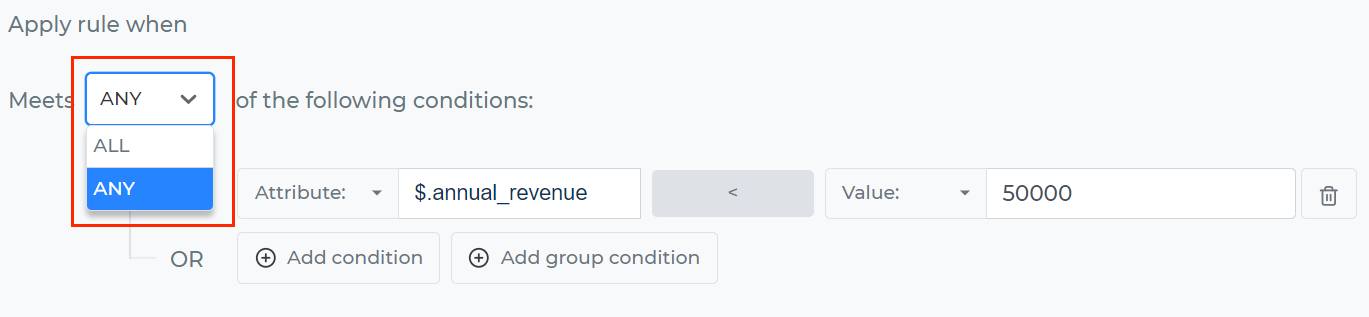
There are two type of conditions: Condition & Group Condition (Hierarchical Condition)
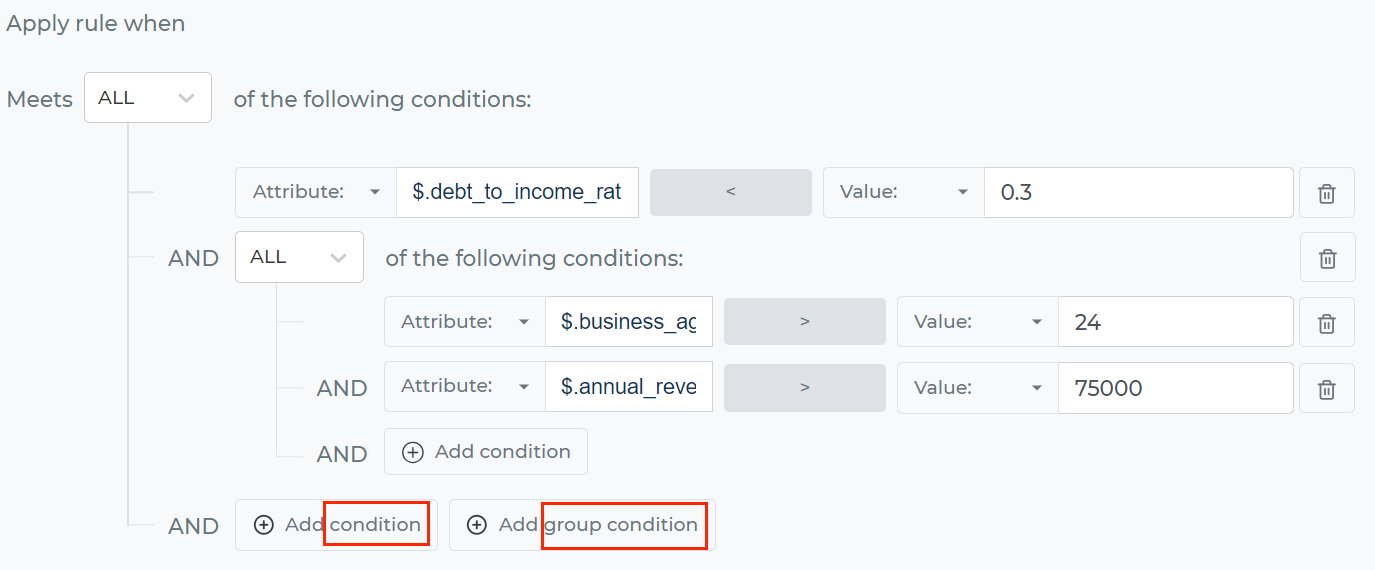
Condition

Group Condition (Hierarchical Condition)
Group Condition involves evaluating multiple conditions simultaneously to reach a conclusion.
There are two primary types of Group Conditions:
ALL:
The "ALL" group condition requires that all the specified conditions within a group must be met for the overall condition to be considered true. In other words, for a decision or action to be taken, every individual or item within the group must satisfy all the given conditions. If any single condition is not met, the entire group condition is deemed false, and the decision or action is not taken.
ANY:
The "ANY" group condition, unlike "ALL," is more lenient and flexible. It only requires that at least one of the specified conditions within a group must be met for the overall condition to be considered true. In other words, if any individual or item within the group satisfies even a single condition, the entire group condition is considered true.
In summary, "Group Condition" is a method to make decisions and analyze data by applying multiple conditions to distinct groups. The "ALL" type requires all conditions to be met, while the "ANY" type requires at least one condition to be fulfilled. Both types facilitate efficient decision-making and help ensure that specific requirements are met for a group as a whole.
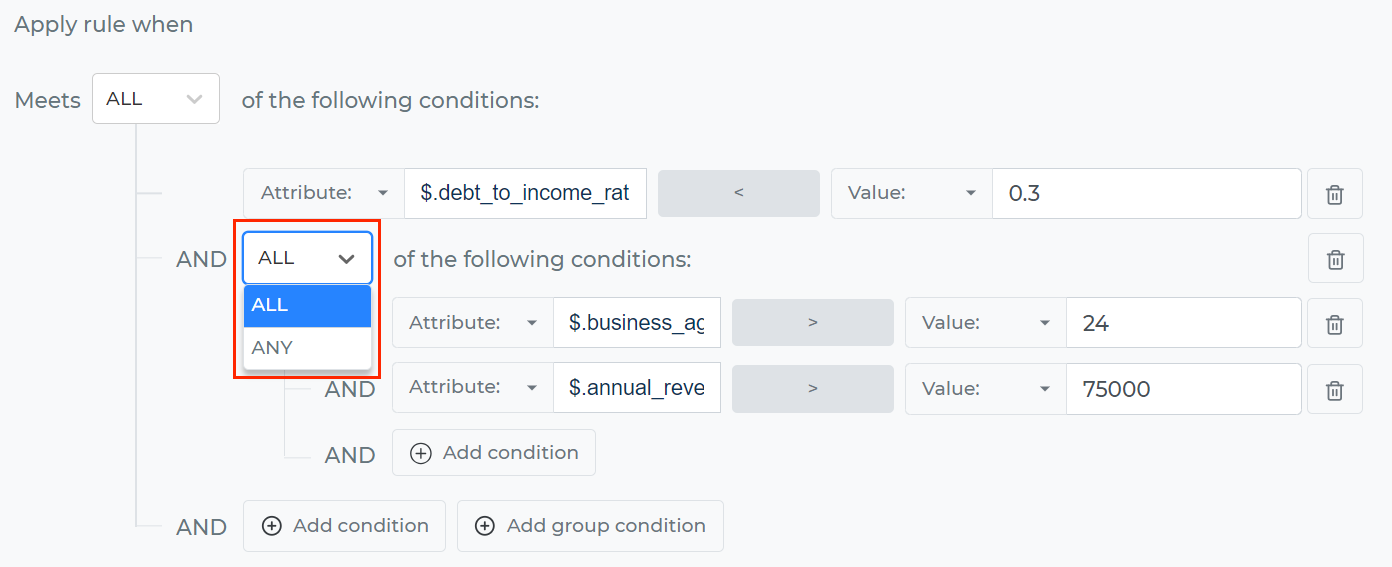
When creating conditions, either side of the condition can use a data attribute or a specific value directly. As a result, it is possible to compare two attributes or an attribute to a precise value.
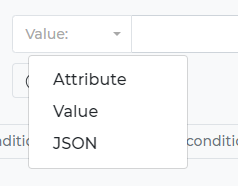
JSON as condition value
The option to write a JSON directly is a little more technical. This can be helpful when comparing objects or verifying that an attribute value is present in an array. For instance, if we wanted to see if the person's name was on the list of Ethan Parker, Olivia Bennett, and Jackson Hayes.
{"name":"Jackson Hayes"}
The rule would look like this:
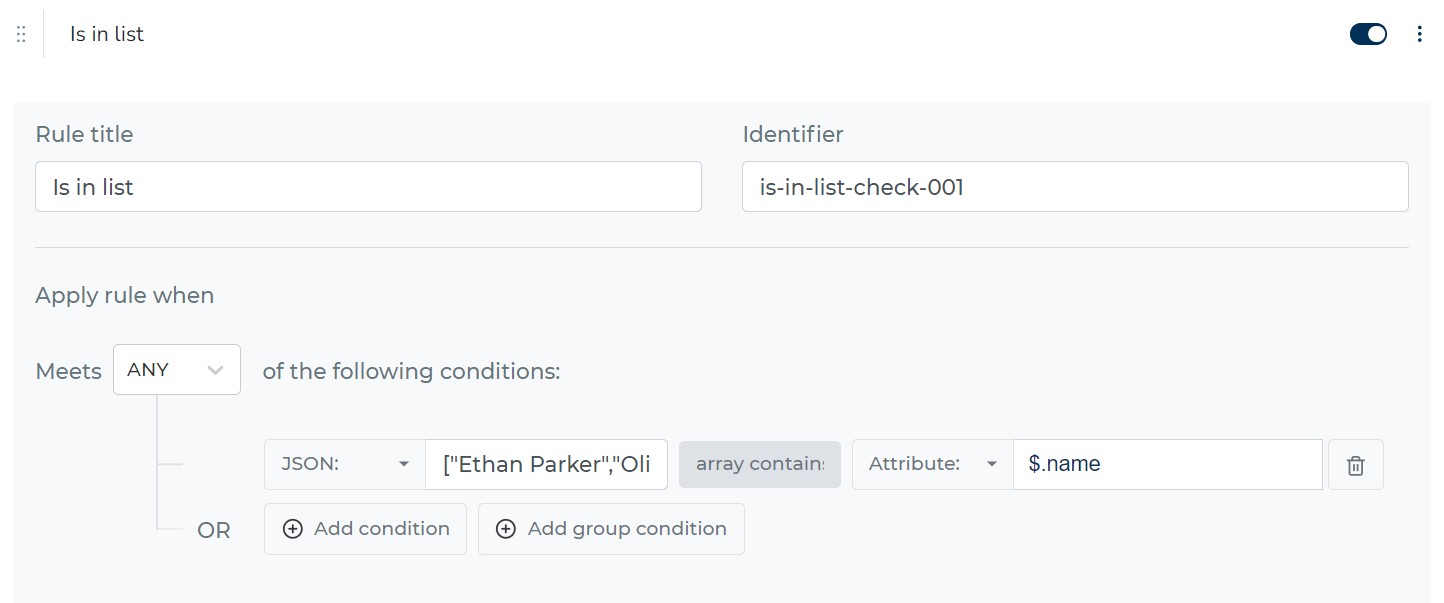
💡 More about JSONPath: For comprehensive guidance on attribute paths and data object navigation, see JSONPath & Attribute Resolution Guide.
Condition Operations
Rule sets use the same evaluation operators as all other decision logic components in Decisimo. You can select from a comprehensive set of operators including:
- Numeric comparisons: greater than, less than, equal to, etc.
- Text operations: contains, starts with, ends with (case-sensitive and insensitive)
- Date/time comparisons: time-aware comparisons with automatic normalization
- Special operations: null checks, regular expressions, and more
📋 For complete operator reference: See Evaluation Logic Reference for detailed descriptions, examples, and special handling notes for all available operators.
💡 Quick Examples:
// Numeric comparison
$.loan_amount > 50000

// Text matching (case-insensitive)
$.customer_type equals_insensitive "PREMIUM"

// Date comparison
$.application_date time_greater_than "2024-01-01"
Working with Conditions
📋 Condition Types: Rule sets support both simple conditions and complex group conditions. For detailed information about condition types and operators, see Evaluation Logic Reference. For JSONPath attribute resolution, see JSONPath & Attribute Resolution Guide.
🎯 Testing Your Rules: Rule sets can be tested using unit tests (specific values) or object tests (complete data objects). Learn more in the Testing Decision Logic of the evaluation logic guide.
Number Comparison Peculiarities:
"1,000.00"equals1000(locale-aware parsing)"007"does NOT equal7(leading zeros preserved)"$1,234.56"equals1234.56(currency symbols removed - see Currency Handling Guide)
NULL Handling in Comparisons:
NULL values are treated as "less than everything" (similar to negative infinity) to prevent validation bypasses:
null < any_number= TRUE (null is less than all numbers, including negative numbers)- Example:
null < 0= TRUE,null < -1000= TRUE
- Example:
null <= any_number= TRUE (null is less than everything, so also less-than-or-equal)- Example:
null <= 0= TRUE
- Example:
null > any_number= FALSE (null is never greater than any number)- Example:
null > 0= FALSE,null > -1000= FALSE
- Example:
null >= any_number= FALSE (prevents validation bypass for "must be non-negative" checks)- Example:
null >= 0= FALSE ✅ (correctly rejects null in range validations)
- Example:
null == any_number= FALSE (null is not equal to any number, including 0)- Example:
null == 0= FALSE (null ≠ 0)
- Example:
null == null= TRUE (null equals itself)
Why this matters: This behavior prevents null values from incorrectly passing validation rules like "age must be >= 0" or "amount must be between 0 and 100". Without this safeguard, null >= 0 could incorrectly return TRUE, allowing invalid data through.
Reverse Comparisons:
any_number > null= TRUE (everything is greater than null, even negative numbers)any_number >= null= TRUEany_number < null= FALSE (nothing is less than null)any_number <= null= FALSE
FALSE and Empty String Handling:
Unlike null, false and empty strings ("") are treated as 0 in numeric comparisons:
false == 0= TRUE (false is equivalent to 0)false >= 0= TRUE (false passes "must be non-negative" validations)false < 1= TRUE (0 < 1)"" == 0= TRUE (empty string is equivalent to 0)false == null= FALSE (false and null are different values)
Key Difference:
- NULL: Treated as "less than everything", NOT equal to 0, fails validation checks
- FALSE/Empty: Treated as exactly 0, passes validation checks like
>= 0
Text Comparison Peculiarities:
- Case-insensitive operations use Unicode-aware algorithms when available
- Arrays are converted to the string "Array" for text comparisons
- Null values are treated as empty strings in string operations
Equality Comparison Peculiarities:
Strict Equality (=) - Type-safe with smart coercion rules:
- Preserves data integrity and prevents unexpected type conversions
- Leading zeros are ALWAYS preserved (e.g.,
"007"≠7) - Currency symbols are NOT parsed - compared as literal strings (e.g.,
"$100"≠100) - Technical codes remain intact (e.g., account numbers, product codes)
- Boolean vs string comparisons are handled logically
- Use when data accuracy and type preservation is critical
Loose Equality (≈) - International number format aware:
- Designed for user-friendly number comparisons across different formats
- Currency symbols ARE parsed and removed (e.g.,
"$100"=100) - Thousands separators are handled (e.g.,
"1,000.00"=1000) - International formats supported (e.g.,
"1.234,56"=1234.56) - Leading zeros are still preserved for technical codes
- Use when you want flexible numeric matching regardless of formatting
💡 For detailed currency handling information, see the Currency Handling Guide which covers all supported formats, international standards, and best practices.
When to Use Each:
| Scenario | Recommended Comparison | Reason |
|---|---|---|
| Account numbers, IDs, codes | Strict | Preserves leading zeros and exact format |
| Currency amounts from user input | Loose | Handles various currency formats gracefully |
| Technical identifiers | Strict | Prevents accidental numeric conversion |
| Financial calculations | Loose | Flexible with currency symbols and formatting |
| Exact data validation | Strict | No surprises with type coercion |
| User-friendly number matching | Loose | More forgiving of input variations |
Examples:
Strict Equality (=) Examples:
"$100" ≠ 100        (currency symbol not parsed)
"1,000" ≠ 1000      (comma treated as literal character)
"007" ≠ 7           (leading zeros preserved)
"0123" ≠ 123        (leading zeros preserved)
true ≠ "true"       (different types)

Loose Equality (≈) Examples:
"$100" = 100        (currency symbol parsed and removed)
"1,000.00" = 1000   (thousands separator handled)
"€1.234,56" = 1234.56 (European format parsed)
"007" ≠ 7           (still preserves leading zeros!)
"0123" ≠ 123        (still preserves leading zeros!)
null = 0            (null normalized to 0 for numbers)
Boolean vs Number Comparison Rules:
Strict Equality (=):
trueconverts to1for comparison with numbersfalseconverts to0for comparison with numbers- Boolean vs string handling:
true="1"✓ (boolean converts to 1, string converts to 1)false="0"✓ (boolean converts to 0, string converts to 0)true="true"✓ (string literal recognition)false="false"✓ (string literal recognition)
- Examples:
true=1✓false=0✓true≠2false≠-1
Loose Equality (≈):
- Same conversion rules as strict for boolean vs number
- Both boolean and number-like values are converted to integers
- Boolean vs string examples:
true="1"✓ (both convert to 1)false="0"✓ (both convert to 0)true="$1.00"✓ (currency parsed to 1, boolean to 1 - see Currency Handling Guide)false="€0,00"✓ (currency parsed to 0, boolean to 0 - see Currency Handling Guide)true="true"✓ (string literal match)false="false"✓ (string literal match)
Some examples of Regular expressions
Checking email address validity
/^[a-zA-Z0-9_.+-]+@[a-zA-Z0-9-]+\.[a-zA-Z0-9-.]+$/
Regular expression for checking valid format of an international phone number
/\+(9[976]\d|8[987530]\d|6[987]\d|5[90]\d|42\d|3[875]\d| 2[98654321]\d|9[8543210]|8[6421]|6[6543210]|5[87654321]| 4[987654310]|3[9643210]|2[70]|7|1)\d{1,14}$/
Action operations
Under 'Action' you will find a dropdown box of assignments.
Basic Operations
| Operation | Symbol | Description |
|---|---|---|
| Equal | = | Assigns the data on the right side to left side |
| Addition | + | Adds the data input of both sides. null value is treated as 0 if encountered |
| Addition Assignment | += | Adds right side value to existing left side value |
| Subtraction | - | Subtracts right hand side data from left hand side. null value is treated as 0 |
| Subtraction Assignment | -= | Subtracts right side value from existing left side value |
| Multiplication | * | Multiplies both sides. null value is treated as 0 |
| Multiplication Assignment | *= | Multiplies existing left side value by right side value |
| Division | / | Divides the left side by right side. Division by zero ends up in null |
| Division Assignment | /= | Divides existing left side value by right side value |
| Add text | - | Insert the right hand side text to left hand side |
Array Operations
You can choose some array from data object and then use these operations:
| Operation | Syntax | Description |
|---|---|---|
| Max | Max([array]) | Takes the highest value from array |
| Min | Min([array]) | Takes the lowest value from array |
| Count | Count([array]) | Counts total value inputs of array |
| Sum | Sum([array]) | Sums all the inputs of the array |
| Average | Avg([array]) | Average value of the array |
| Median | Median([array]) | Median value of the array (middle value) |
| Standard Deviation | StdDev([array]) | Calculates standard deviation of array values |
| Add to array | - | Adds new item to an array |
Advanced Operations
| Operation | Symbol | Description |
|---|---|---|
| Date shift | - | Shifts date/time values by specified amount |
Important Notes about Action Operations:
- Null Handling: For mathematical operations (+, -, *, /), null values are treated as 0
- Division by Zero: Division by zero results in null value
- Text Operations: "Add text" concatenates the right-hand side text to the left-hand side
- Array Operations: Work with array data types in the data object
- Type Safety: Operations are designed to handle different data types gracefully
Data Type Handling and Peculiarities
Numeric Operations Behavior:
- Null Handling: null, false, and empty string values are normalized to 0 for mathematical operations
- Currency Support: The system can parse currency symbols and thousands separators (see Currency Handling Guide for details)
- Leading Zeros: Technical codes with leading zeros (like "007") are preserved and not converted to numbers
- Division by Zero: Results in null value, not an error
Text Operations Behavior:
- Unicode Support: Full Unicode support for case-insensitive operations when multibyte functions are available
- Array Handling: Arrays are handled gracefully in string operations (converted to "Array" string)
- Null Safety: Null values are treated as empty strings in text operations
Array Operations Behavior:
- Type Validation: Operations validate that the target is actually an array
- Empty Arrays: Handled appropriately (e.g., Count returns 0, Sum returns 0)
- Mixed Types: Array operations work with mixed data types within arrays
Examples of Action Operations:
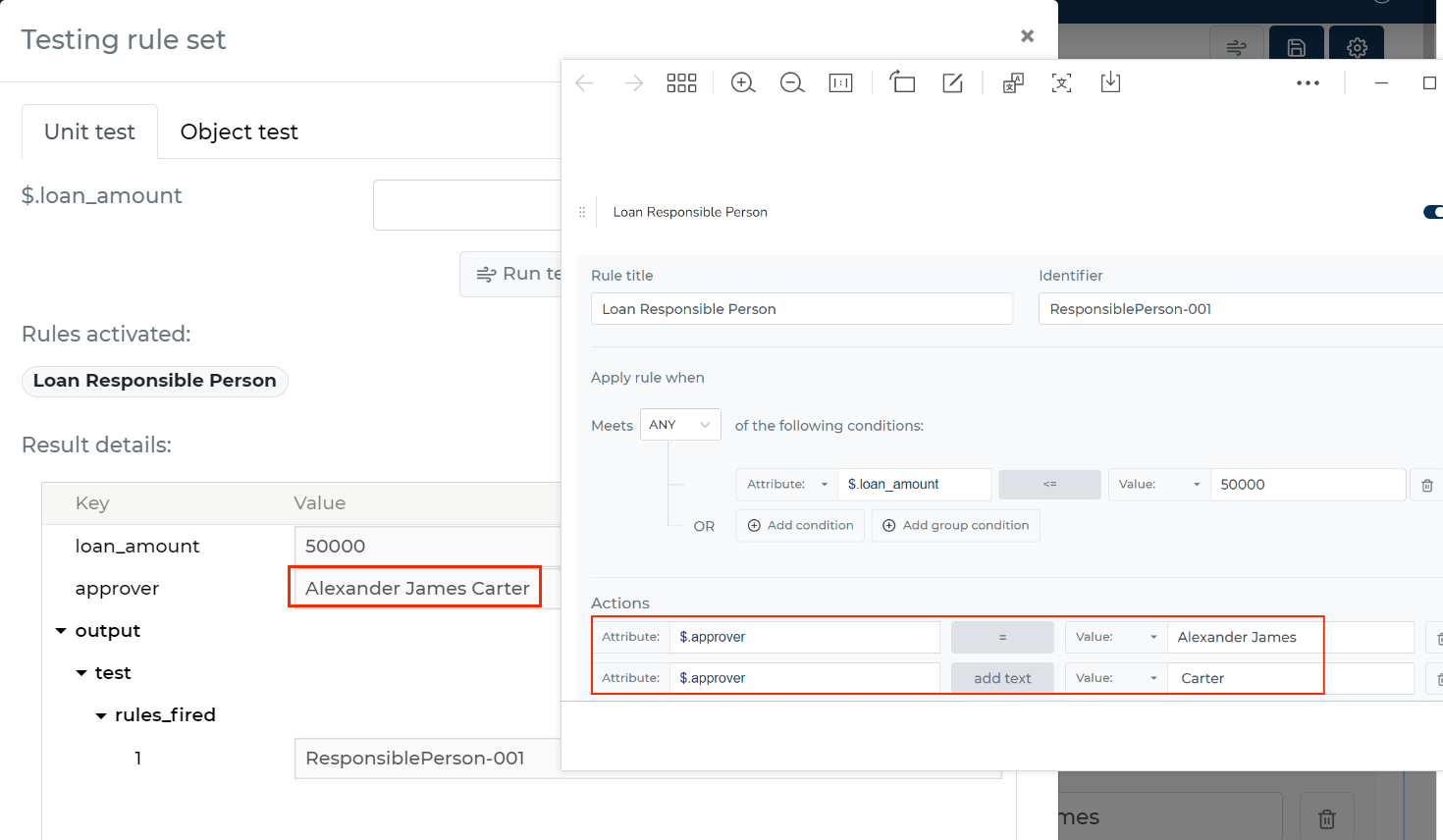
Text Concatenation Example:
first action: $.approver = "Alexander James"
second action: $.approver Add text " Carter"
result: $.approver = "Alexander James Carter"
Mathematical Operation Example:
first action: $.score = 85
second action: $.score + 15
result: $.score = 100
Array Operation Example:
data: $.transactions = [100, 250, 75, 300]
action: $.max_transaction = Max($.transactions)
result: $.max_transaction = 300
Rule activation
You might occasionally need to temporarily deactivate a rule in the rule set. When a rule set is processed, a deactivated rule is not put into action. The deactivated rules are not present when a release is made.
Active rule:

Inactivated rule:

Using Copy and Paste
To copy a rule, click on it to highlight your selection. Then, press Ctrl+C. The rule is now copied and ready to be duplicated.
To paste the copied rule, press Ctrl+V. The system will add the copied rule to the end of the rule set. This process duplicates all conditions and actions of the original rule, ensuring a seamless replication.
This feature is designed to minimize the effort required to configure extensive rule sets, making the process more efficient and user-friendly.