How to integrate Google Places API Find Place into a decision engine
Among many address validation and profiling tools, Google Places API stands out because of its quality of primary service – Google Maps. With the service, you can quickly evaluate whether the address provided exists and if it does, what is on the address.
Get an API key Credential from Google Cloud Console
 Google Places API is part of Google Maps Platform and as an API is part of Google Cloud solution. All of that means that it takes several more steps than other services, to obtain an API key. Good starting point is here
https://developers.google.com/maps/documentation/places/web-service/cloud-setup- Once you get your Google Cloud account created head to your project’s Google Maps Platform Credentials page to get your API credential.
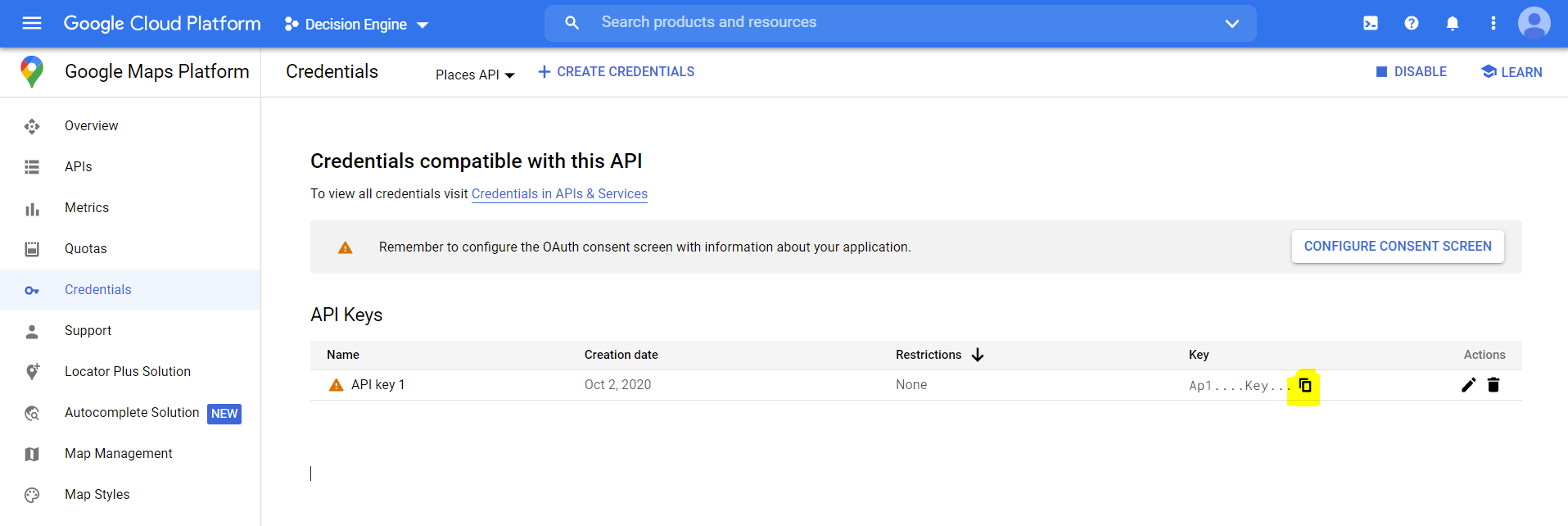
Find button Create Credentials and hit API key from the drop-down menu that shows up. It will then take a few seconds and your new API key will get created.Once your API key gets created, it will show up in the list. Copy the API Key and have it ready for definition within Decisimo Portal.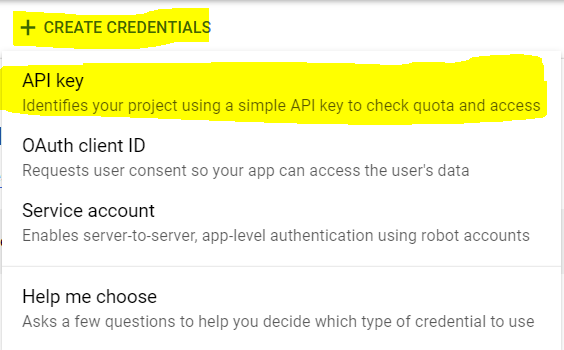
Create a data source in Decisimo Portal
- Select New in Data sources, ask the AI Assistant to configure the provider, then check and apply its proposal.
- Place the API Key you have from Google Cloud Console Credentials instead of the __YOUR_API_KEY__ in the Parameters part - the highlighted text in the screenshot below.
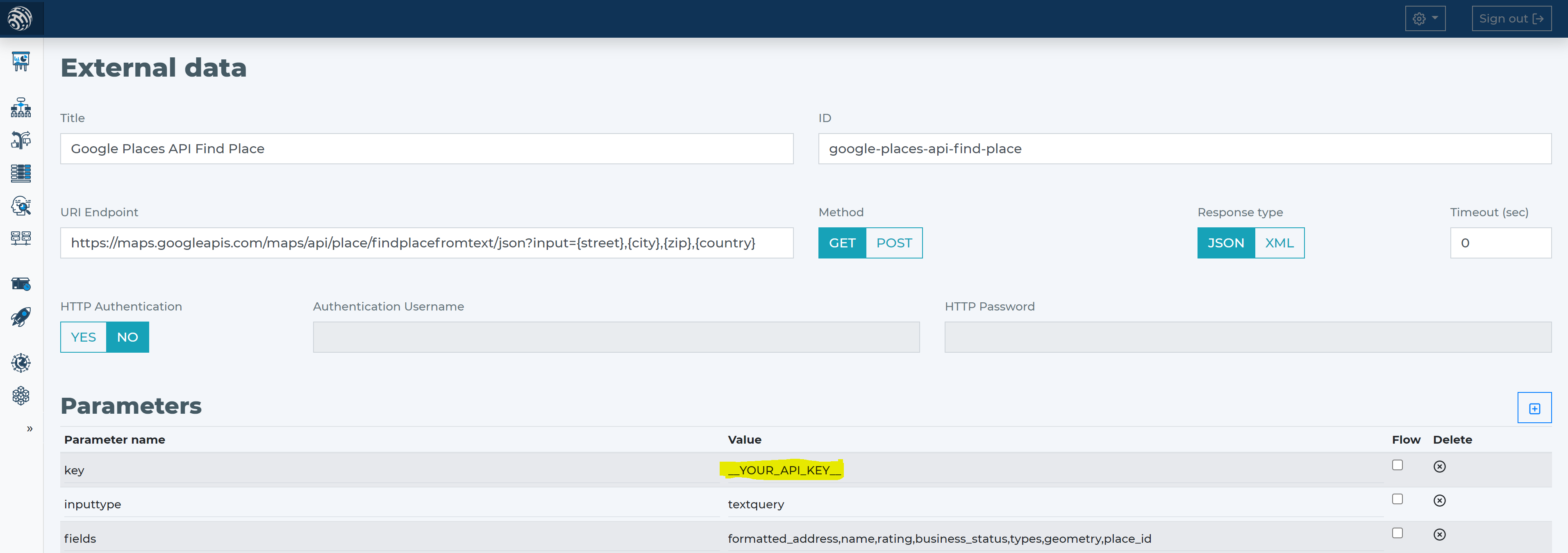
- To connect Google Places API Find Place, describe the provider and call to the AI Assistant. It proposes a configuration in the data source form for you to check and apply, including the main input parameter for separate address parts.
- Tell the AI Assistant the provider and its HTTP call. Check the proposal against the parameters below.
Add Google Places API Find Place data source to your decision flow
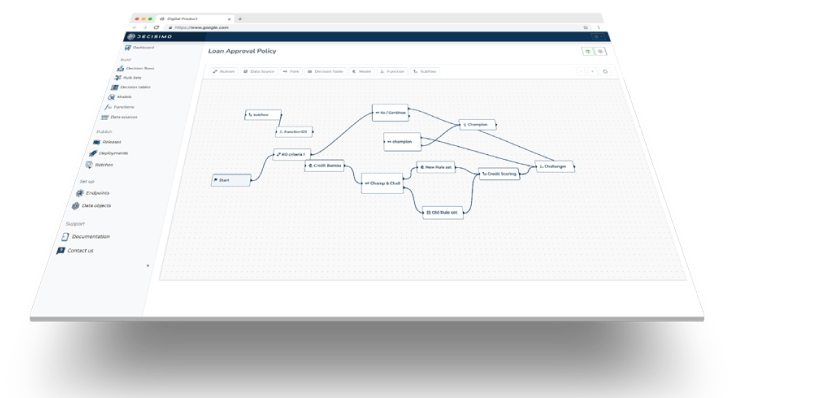
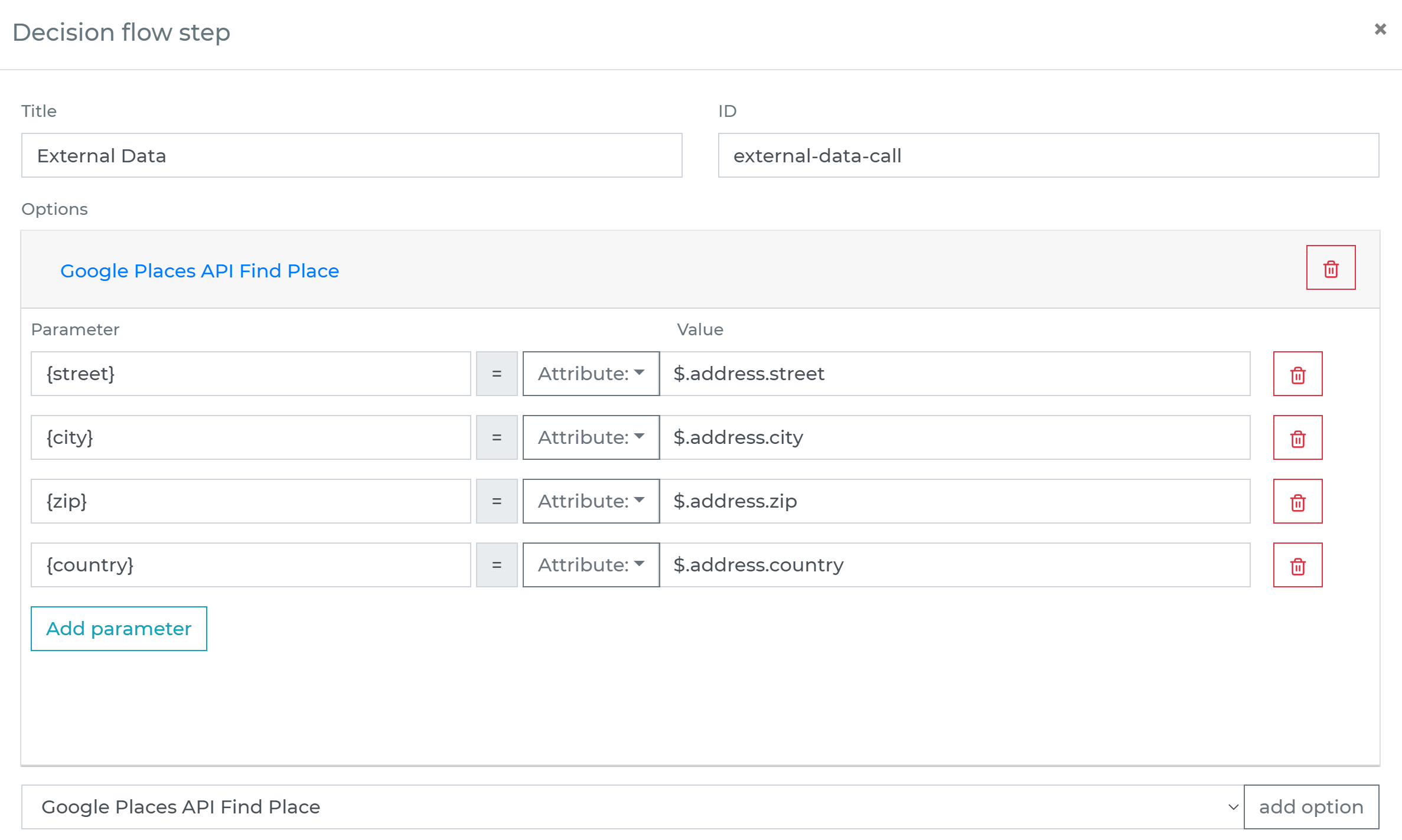
- If you already have a decision step for data sources, you can add the call to Google Places API Find Place within the same step. The decision engine will call all the sources in the same step in parallel. Parallel calls ensure the fastest execution time. If you do not have a decision flow step for external data, add one.
- Connect your decision flow step and by double-clicking, open the definition window. Define in the step the attribute with address-related attributes (street, city, zip, country) from your data object to be sent to Google Places API Find Place.
-
Run the decision making
- Release your decision flow, deploy to an endpoint and make decisions using data from Google Places API Find Place.
Frequently asked questions
How do I get a Google Places API key?
To get a Google Places API key, create a Google Cloud account and open your project’s Google Maps Platform Credentials page. Choose Create Credentials, then API key, and copy the key for Decisimo Portal. The key is created in a Google Cloud project.
How do I connect Google Places API Find Place to Decisimo?
To connect Google Places API Find Place, create a data source in Decisimo Portal and ask the AI Assistant to configure the provider and its HTTP call. The proposed configuration includes an input parameter for the separate address parts sent to Google, and you enter your API key in Parameters. Check and apply the proposal.
How do I use Google Places API Find Place in a decision engine?
Add the Google Places API Find Place data source to a decision flow, then define which address attributes from the data object to send, such as street, city, ZIP code and country. Release the decision flow and deploy it to an endpoint so the decision engine can make decisions using data from Google Places API Find Place.