Integrating Fingerprint.com Device Fingerprinting with Decisimo
In today's world, businesses and organizations must ensure that they are providing a safe and secure environment for their customers. One way to do this is by integrating device fingerprinting into their online systems. Device fingerprinting is a process that captures information about a user's device, including its configuration and software, to create a unique device ID. This ID can then be used to recognize connections between users, detect fraud and suspicious devices, and optimize user experiences.
These antifraud rules use fingerprinting to check whether a visitor is seen globally for the first time and whether this is their first visit.
Fingerprint.com is a popular device fingerprinting service that has helped many businesses to secure their online systems. In this article, we will explore how you can integrate fingerprint.com device fingerprinting into Decisimo.com decision engine to improve your online security and user experience.
Obtain a Fingerprint.com Account
 The first step in integrating Fingerprint.com into Decisimo is to obtain an account with fingerprint.com. To do this, go to the Fingerprint.com website and follow the registration process. Once you have an account, you will be able to access their device fingerprinting services.
Get the Secret & Public API Key
- In the App Settings part -> API Keys of your Fingerprint.com Dashboard, you will find two types of keys: a public key and a secret key.
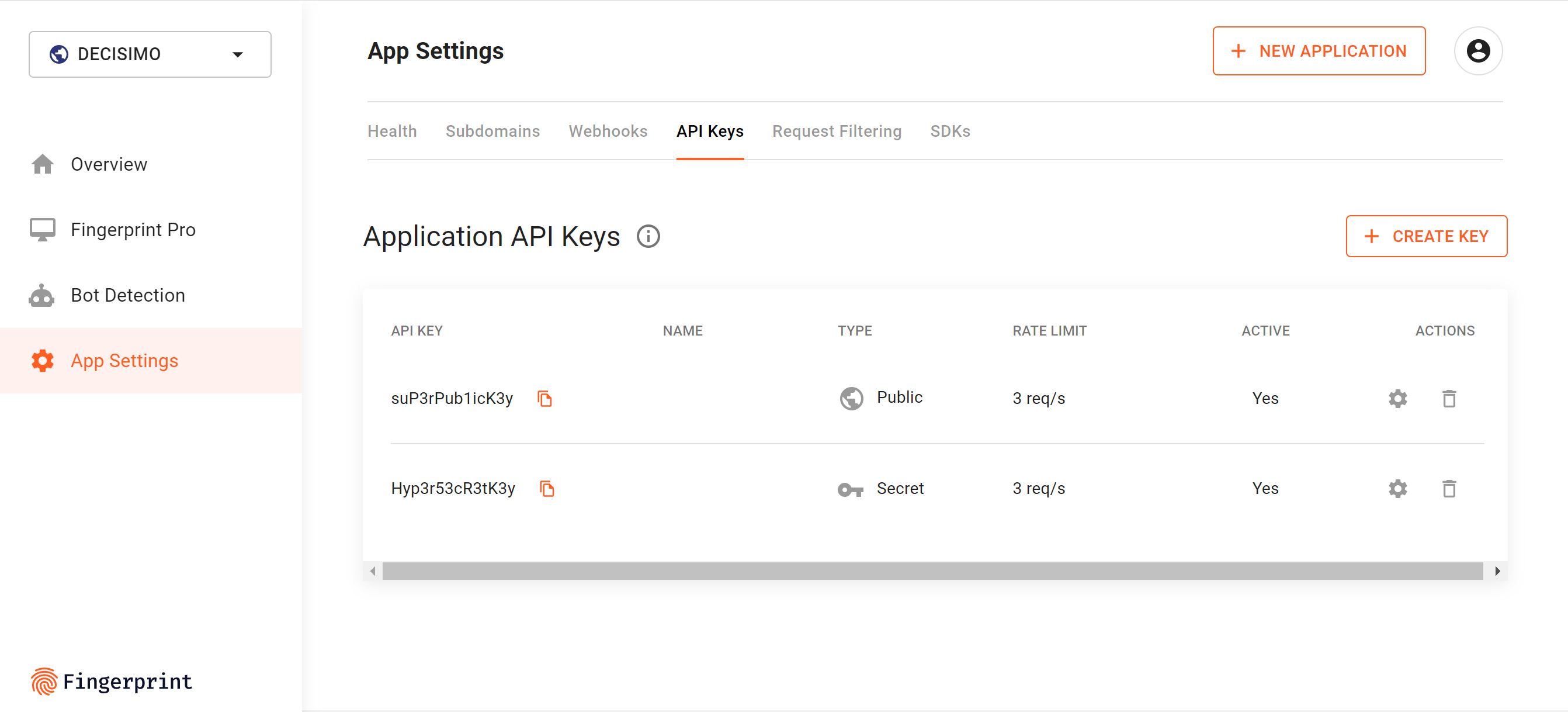
- To integrate Fingerprint.com into Decisimo, you will need the secret key. Look for the API Keys in the App Settings and copy the secret key.
Implement Fingerprint.com JavaScript into Your Website
- The next step is to implement the Fingerprint.com JavaScript into your e-commerce website. This will allow Fingerprint.com to collect information about the user's device as they connect to your website, app, or server. Fingerprint.com provides a visitor_id for each user, which is used in the backend to retrieve the information needed for decision making.
- Once you have the visitor ID, ask the AI Assistant in Data sources to connect Fingerprint.com and describe the API call you need. It proposes the configuration for you to review and apply, after which the provider’s response is available to the decision flow for antifraud rules.
Create a data source in Decisimo Portal
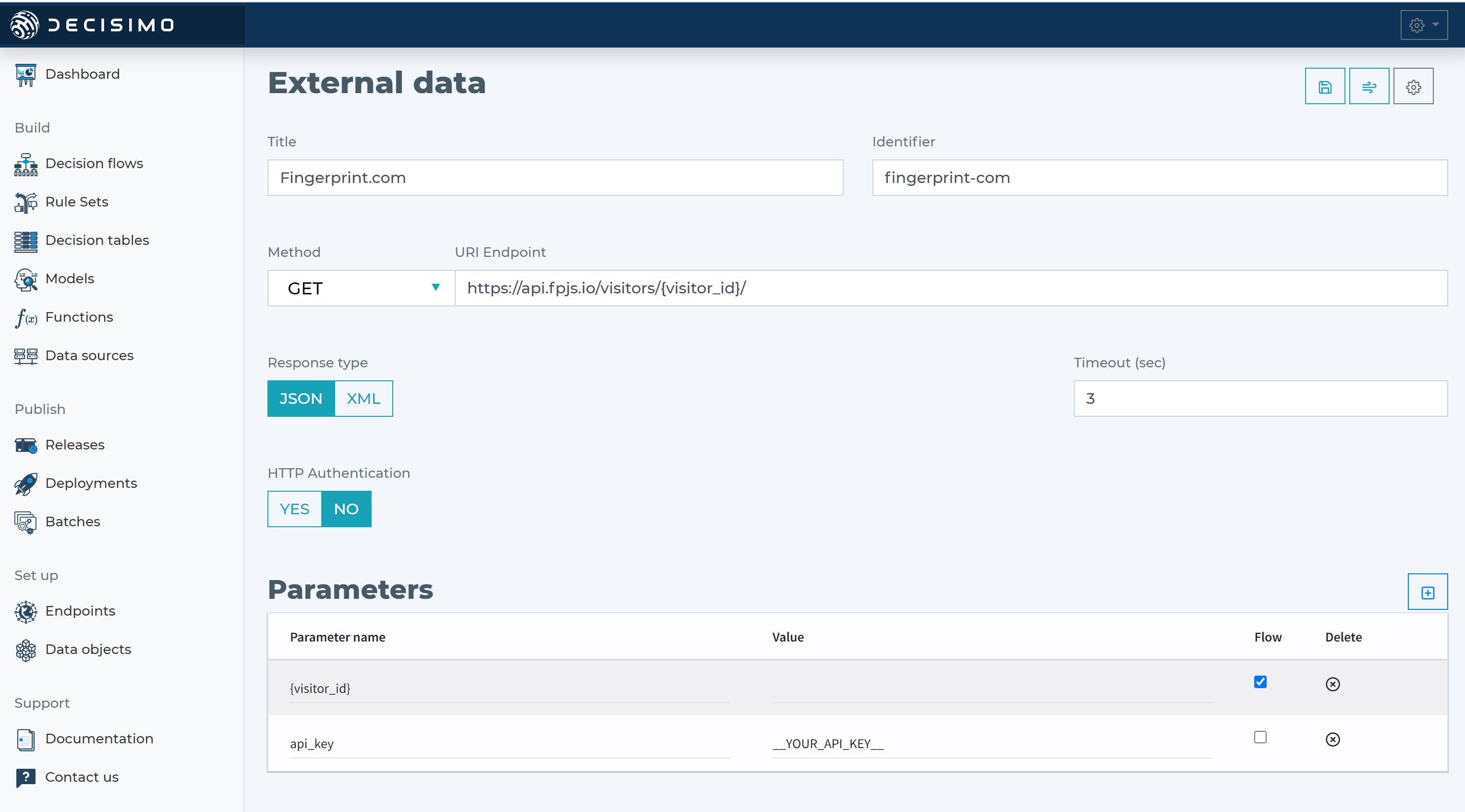
- Connect Fingerprint.com through the AI Assistant. Describe the provider and its API; it proposes the HTTP method, endpoint, parameters, headers and Secret API key from the Fingerprint.com Dashboard. Review and apply its configuration.
- In Data sources, describe Fingerprint.com's device-fingerprinting call to the AI Assistant. Review its proposed HTTP configuration in the form, then apply it.
- Select New in Data sources, ask the AI Assistant to configure the provider, then check and apply its proposal.
- In the External data definition page, change the API key to the Secret key that you have obtained from Fingerprint.com.
-
Evaluate the Response with Example Rules
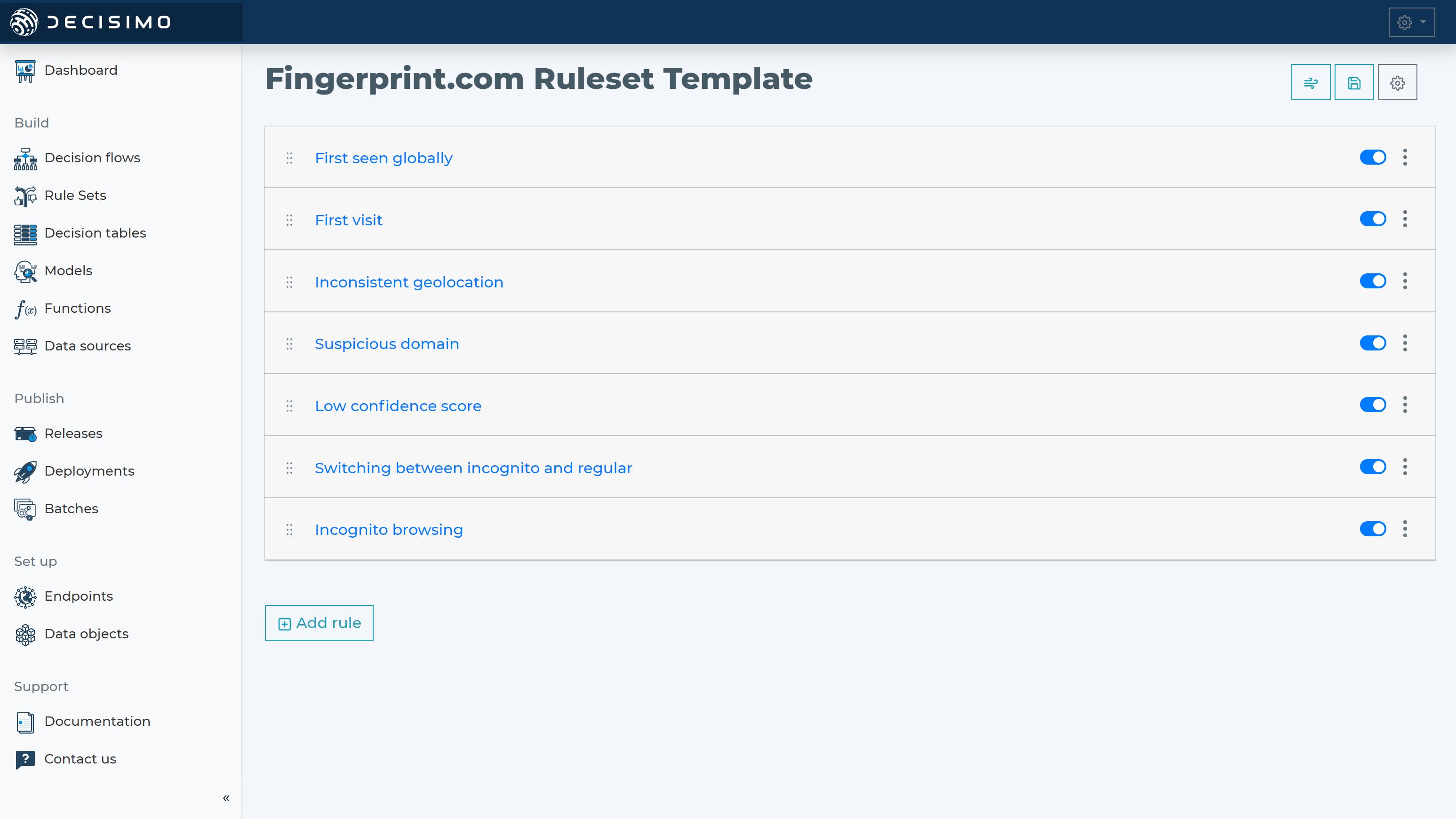
- Once you have received the results from Fingerprint.com, you can evaluate the response in Decisimo using our example rules. We provide a set of example rules that can serve as inspiration for your own rule set.
-
Example rules:
- First seen globally: Identifies if the visitor's unique identifier has been seen for the first time globally.
- First visit: Identifies if the visitor's unique identifier is making its first visit to the website.
- Inconsistent geolocation: Identifies if the visitor's geolocation has changed or shows significant variance from previous visits.
- Suspicious domain: Identifies if the visitor is not coming from a known domain or URL - the URL of e.g. your ecommerce site.
- Low confidence score: Identifies if the visitor's identifying information has a low confidence score or is potentially unreliable.
- Switching between incognito and regular browsing: If a visitor switches back and forth between incognito and regular browsing modes, it could be a sign that they are trying to hide their identity or behavior.
- Incognito browsing: Identifies if the visitor is using incognito mode, which may indicate an attempt to avoid detection.
- These rules will help you to detect fraudulent activities and suspicious devices. By using our example rules as a starting point, you can customize them to suit your specific needs and requirements.
Build Decision Flow with Fingerprint.com
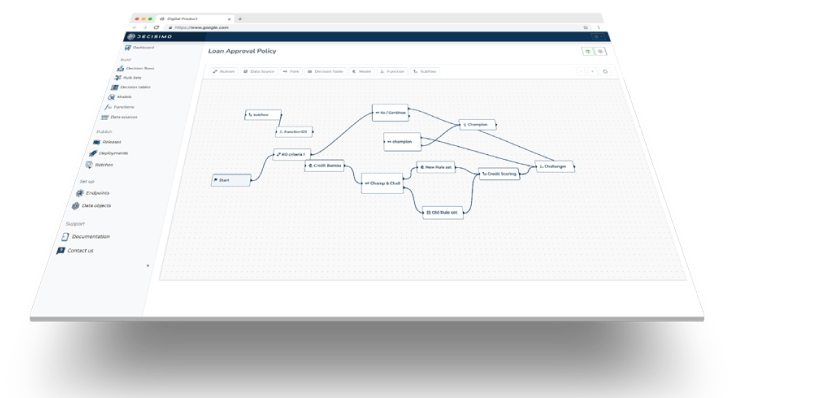
- The final step is to build a decision flow that includes the connection to Fingerprint.com, example rules, and a decision table. In the decision step definition for the call to Fingerprint.com API, you will need to define the JSON path to the visitor_id that you will be sending from your system to Decisimo.
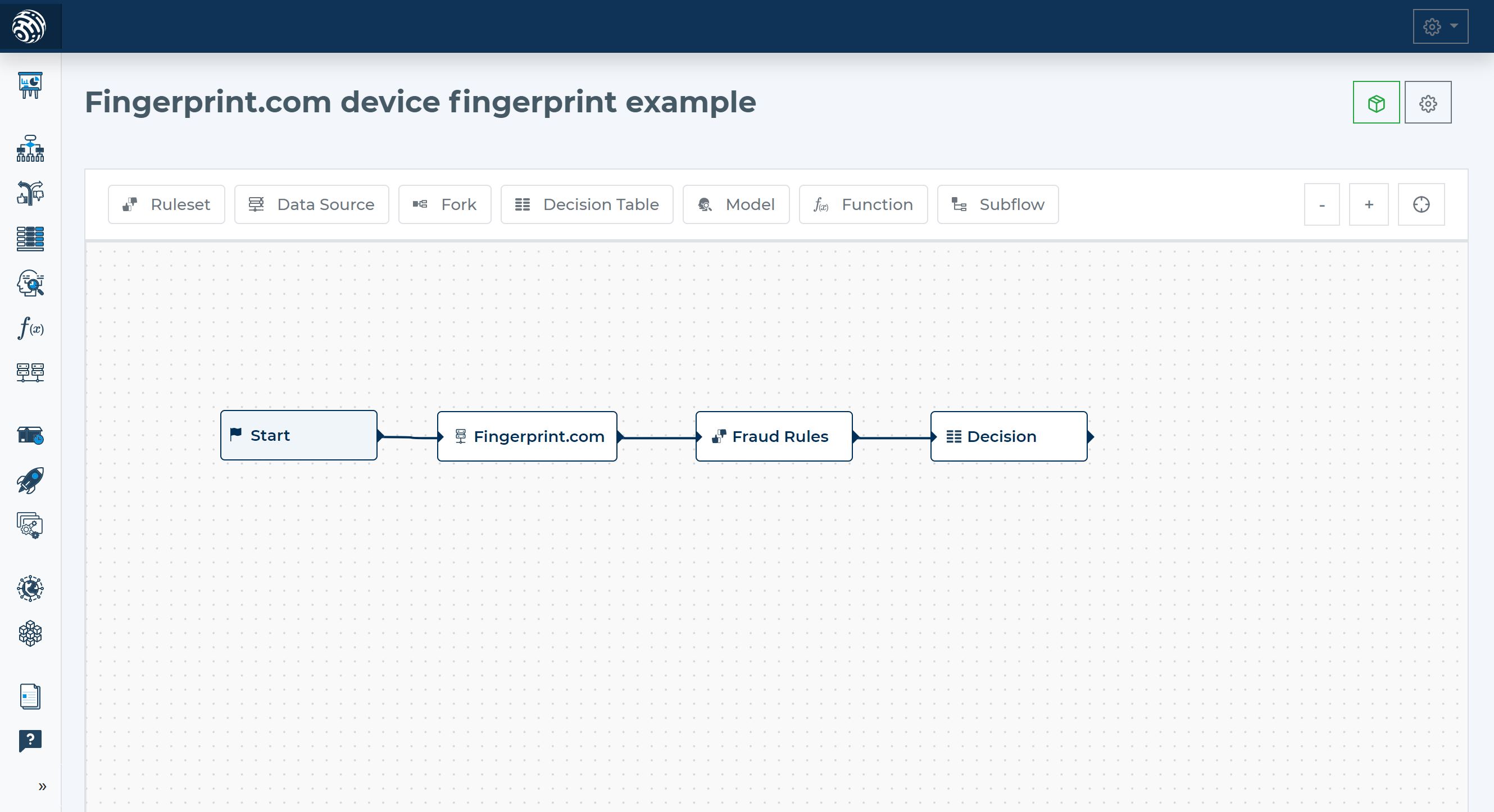
- The decision table will be the final stage in the decision-making process and will be used to determine the appropriate action based on the device information obtained from Fingerprint.com.
Run the decision making
- Release your decision flow, deploy to an endpoint and make decisions using data from Fingerprint.com.
Integrating Fingerprint.com into Decisimo is a straightforward process that can significantly improve your online security and user experience. By using device fingerprinting, you can detect fraudulent activities and suspicious devices, optimize your user flows, and measure marketing performance.
By following the steps outlined in this guide, you can easily integrate Fingerprint.com into Decisimo and begin reaping the benefits of device fingerprinting.
Frequently asked questions
How do I integrate Fingerprint.com with Decisimo?
To integrate Fingerprint.com with Decisimo, add Fingerprint.com JavaScript to your website and connect the provider in Data sources. The AI Assistant proposes an HTTP configuration for you to review and apply. Enter the Fingerprint.com secret API key, then make the provider’s response available to the decision flow.
What is the Fingerprint.com visitor ID used for?
The Fingerprint.com visitor ID lets the backend retrieve the device information needed for decision making. Your system sends the visitor ID to Decisimo, and the Fingerprint.com API call uses that ID to retrieve the provider’s response.
What antifraud rules can I create with Fingerprint.com data?
Fingerprint.com data can support antifraud rules for first-time global visitors, first visits, inconsistent geolocation, suspicious domains, and low-confidence identification. Rules can also check for incognito browsing or switching between incognito and regular browsing, which may indicate an attempt to hide identity or behavior.
Which Fingerprint.com API key does Decisimo need?
Decisimo’s Fingerprint.com connection uses the secret API key, not the public key. Find the secret key under API Keys in App Settings in the Fingerprint.com Dashboard, then enter it in Decisimo’s external data definition.
How do I use Fingerprint.com data in a Decisimo decision flow?
Use Fingerprint.com’s response in a decision flow by adding rules for device information and a decision table that determines the appropriate action. Release the decision flow and deploy it to an endpoint to make decisions using Fingerprint.com data.